Most people picture building a voice agent as a software project: specifications, a developer, a few weeks of waiting. Inside your Cypher LM dashboard it is a short set of screens, answered in order, that end with a real test call before anything goes live. This guide follows that path exactly as it exists today, screen by screen, so you know what you will actually see rather than a simplified version of it.
You will start from Build an agent, either by letting Cypher LM read your website or by answering a short set of questions yourself. From there you will give your agent a job, a name and a voice, decide what it should and should not do, choose its language, add anything it should know, and finally place a test call to it before you go live. Every decision you make here can be revisited later from the agent’s own page.
This guide is written for the person running the business, not a developer: a clinic manager, an operations lead, a two-person agency owner. Nothing here requires code. Where the dashboard has changed since your last visit, or differs from older documentation you may have seen, this guide describes what is actually on screen now.
By the end, you will have a deployed agent with its own page, a call link you can share, and a clear plan for the first week of calls you will want to review and refine.
01
Plan before you build
The single biggest difference between a useful agent and a disappointing one is not a setting anywhere in the dashboard. It is five minutes of thinking before you open Build an agent at all. Vague answers in the wizard produce a vague agent; specific answers produce one that sounds like it actually works there.
Start with the job, not the personality. Before you pick a name or a voice, decide what you want this agent to accomplish on a typical call. Is it mainly answering questions so your team is not interrupted all day? Is it meant to book appointments? Is it there to qualify a lead before a salesperson calls back? Cypher V supports all of these as a purpose you choose in the wizard, and the purpose you pick shapes how the agent approaches every call, so it is worth settling this first.
Write the one-line goal before you start
The wizard asks for a one-line goal: a single sentence describing what the agent should try to get done on every call. Write this down in your own words before you open the dashboard. “Book appointments and answer questions about our services” is a real example used in the product itself, and it is a good model: specific, short, and about outcomes rather than tone.
Decide what “done” looks like
For a booking agent, done means a meeting is on the calendar. For a support agent, done might mean the caller’s question was answered or a note was left for a human. For a survey agent, done means a fixed set of questions was asked and recorded. Knowing this in advance makes the later behaviour step much faster, because you are filling in something you have already decided rather than inventing it live.
Gather what you already have
If you have a website, have the URL ready — the builder can read it and save you from retyping your own business description. If you have a list of frequently asked questions, a price list, or a short policy document, locate those files now; you will be able to upload them a few steps later. If none of this exists yet, that is fine — you can launch without it and add knowledge files afterwards.
Think about the awkward calls, not just the easy ones
It is tempting to plan only for the questions you want your agent to get: hours, location, pricing. The more useful exercise is picturing the calls you dread a little — the caller who wants a refund, the one who asks something your business genuinely cannot do, the one who is already frustrated before the call even starts. You do not need to script these in detail yet, but naming them now means the behaviour step later feels like filling in answers you have already thought through, rather than improvising rules on the spot.
One agent, or several
Most businesses start with a single agent handling everything, and that is a reasonable default. If you run genuinely separate lines of business — a clinic with both a dental and a cosmetic side, for instance — it is worth deciding now whether one agent with broad instructions will do, or whether two more narrowly focused agents, each with its own name and purpose, would actually be easier to reason about later. You can always add a second agent afterwards, so this is not a decision to agonise over, only one to keep in mind.
Before you start
- Decide the one job this agent is mainly for (receptionist, booking, support, lead qualification, survey, collections or follow-up)
- Write a one-line goal in your own words
- Have your business website address ready, if you have one
- Locate any FAQ, price list or policy document you might want to upload later
- Decide who on your team will take the first test call
A 12-chair dental clinic
The office manager at a 12-chair dental clinic wants an agent that can answer “are you open Saturdays,” explain what insurance is accepted, and book a cleaning appointment without a receptionist picking up the phone for routine questions. Before opening the builder, she writes the goal as: “Answer questions about hours, insurance and services, and book cleaning and check-up appointments.” That one sentence becomes the backbone of everything she fills in next.
Once you know the job, the goal, and what you have on hand, the rest of the builder moves quickly, because you are transcribing a decision you already made rather than making it under pressure on screen four.
02
Business details: how your agent learns about you
The first screen in Build an agent asks one simple question: how should Cypher LM learn about your business? You have two paths, and the dashboard shows them to you directly: scan your website, or skip straight to answering questions yourself.
Letting the scan do the work
If you enter your website address and choose Scan website, Cypher LM reads the site and tries to fill in your business name, a short description and your industry automatically. This is the fastest route to a usable agent, because you are not retyping information that already exists in public view on your own site. The scan runs in a few seconds and takes you straight into the next step with those fields already populated.
Treat the scanned result as a first draft, not a final answer. Read back what was filled in once you reach later screens, particularly the business name and the short description, since a scan can occasionally pull in an outdated tagline or a slightly different spelling of your business name than the one you want your agent to use.
Skipping the scan
If you do not have a website, or prefer not to use it, choose No website? Answer questions instead. This takes you straight into the next step of the wizard without pre-filled business details. Nothing is lost by doing this — you simply start from a blank slate rather than a drafted one, and you will describe your business yourself in your own words through the one-line goal you already prepared.
What there is not — yet — a separate screen for
Older descriptions of the agent builder mention a dedicated step for business contact information, such as a phone number the agent can read out to callers. The current builder does not have a separate screen for this. If you want your agent to be able to tell a caller a phone number, a support email, or similar contact details, the most reliable way to do that today is to include it directly in your one-line goal or, once your agent exists, in the free-text instructions on its Controls tab — or to put it in a short knowledge file, covered later in this guide. Treat contact details as something you hand the agent explicitly rather than something a form field captures for you automatically.
Changing business details after you launch
Business details are not locked in forever, but there is also no separate “edit business profile” form once the agent exists. The way to change your business name, industry, or similar details afterwards is the Ask AI to adjust box on the agent’s Controls tab, covered in the next section — you describe the change in plain language (“our business is now called...”) and Cypher LM shows you a short, plain-language summary of what will change before you apply it.
What to check after a website scan
- Business name is spelled the way you want your agent to say it
- Short description mentions what you actually do, not just a slogan
- Industry category is close enough to be useful
- Nothing from an old or outdated version of your site slipped through
- Anything you need the agent to quote back (a phone number, a policy) is noted down for the next steps
| Source | What it gives you | What you still need to add |
|---|---|---|
| Website scan | Business name, short description, industry | Contact details to quote on calls, specific policies |
| Answer questions instead | A blank slate you fill in yourself | Business name and description, written by you |
| Either path | A starting point for the one-line goal | Knowledge files for detailed questions (see Knowledge, later) |
Whichever path you take, the goal is the same: by the time you move into the next step, your agent should already “know” who it is representing, even before it has a name of its own.
03
Identity and first message
With business details settled, the wizard moves to what the product calls the agent’s job and identity together: its purpose, its name, and the voice it answers with. This is the step where your agent stops being a form and starts sounding like someone.
Choosing a purpose
The Purpose field is a short list, and it matters more than it looks: Receptionist (answer questions and help callers), Booking (understand needs and book meetings), Support (resolve problems, escalate when needed), Lead qualification (find out fit, budget, timeline), Survey (ask set questions and record answers), Collections (remind and agree on payment), Follow-up (pick up an earlier conversation), or Custom, where you write your own goal and instructions from scratch. Pick the one that is closest to the job you defined in the planning step; Custom is there for anything that genuinely does not fit the others.
Naming your agent
Give it a human first name — the kind you would use for a new hire. Short, easy to say on a phone line, and not easily confused with your business name itself. “Ava,” “Sarah,” “James” and “Emma” are all natural choices; avoid anything that sounds like a product name or a slogan.
Gender and voice
Choose a gender for the voice (Male, Female or Neutral) and then the specific voice itself from the list. As soon as you pick a voice, the screen shows you a sample greeting line using your agent’s name, so you can hear — in text — roughly how that combination will introduce itself before you ever place a call. Try a few different voices here; it costs nothing to change your mind at this stage.
About the first message
Your agent’s opening line is generated for you from its name and your business name — there is no separate box in the builder where you type a custom greeting word for word. What you do control directly is the name, the voice, and the purpose, all of which shape that line. If you want to adjust the exact wording of the opening once your agent is live, the Ask AI to adjust box on its Controls tab (covered in the next section) is the way to request a change in plain language.
Even without hand-writing it, it helps to have a sense of what a strong opening sounds like, so you recognise one when you hear it in your test call.
Sample first messages
The same greeting, three tones
Choosing a tone
Tone is set from the agent’s Controls tab and shapes how it phrases everything, not just the opening line. Use the table below as a starting point rather than a rule.
| Tone | Works well for | Avoid for |
|---|---|---|
| Professional | Clinics, legal, financial services, B2B support | Anything meant to feel casual or playful |
| Friendly | Retail, hospitality, most small businesses | Formal legal or medical disclaimers |
| Casual | Consumer apps, younger audiences, community groups | Regulated industries, first impressions with new clients |
| Formal | Banking, government-adjacent services, enterprise | Businesses wanting a warm, personal feel |
| Empathetic | Support lines, collections, sensitive follow-ups | Fast transactional calls where brevity matters more |
A two-person recruiting agency
A two-person recruiting agency builds an agent to screen inbound candidate calls. They name it “James,” choose a male voice, set the purpose to Lead qualification, and pick a Professional tone — calm and businesslike, since many callers are mid-interview-process and nervous. The sample greeting line reads back naturally when they say it aloud, so they move on without changing the voice.
By the end of this step you should have a name, a voice you are comfortable with, a purpose that matches the job you planned for, and a tone that fits the kind of caller you expect most often.
Put this guide to work
Build it in your own account
Start a 7-day free trial with every Cypher LM product included, or book a demo and we will walk you through it on a live call.
04
Behaviour, boundaries and fallbacks
Everything so far shapes how your agent sounds. This step shapes what it is actually allowed to do, and — just as important — what it should say when it does not know something. None of this involves looking at any underlying instructions the platform generates for the agent: everything here is plain language, in and out.
Core responsibilities, in your own words
The goal field you wrote earlier (“Answer questions about hours, insurance and services, and book cleaning and check-up appointments”) is the single most important sentence your agent has. A longer instructions field lets you add detail beyond that one line: specific things it should always mention, a particular order to ask questions in, or a short list of services it should steer toward. Keep instructions concrete and short — three or four sentences does more than a long essay, because the agent treats every sentence as something to actually act on, not background colour.
Topics to avoid and other boundaries
There is no separate box labelled “topics to avoid” in the builder today. The way to set a boundary like this is to say it directly, either in your instructions field at setup, or afterwards through Ask AI to adjust on the Controls tab — for example, “Don’t discuss competitor pricing” or “Don’t give medical advice, only logistics.” Describe the boundary the same way you would explain it to a new employee on their first day: plainly, and as a rule rather than a suggestion.
What “Ask AI to adjust” actually does
Once your agent exists, its Controls tab has a box where you describe a behaviour change in plain language — a new rule, a correction, a tone tweak — and request it. Cypher LM responds with a short, plain-language summary of exactly what will change, which you review before choosing to apply it or discard it. You are never shown, and never need to see, the underlying instructions the platform builds from your request; you see and approve a summary of the outcome, the same way you would review a colleague’s notes before they go into effect. This is the step to slow down on: read every line of the summary, and only apply it once it matches what you meant.
Fallback behaviour
Every agent will eventually be asked something it cannot answer. Decide in advance what it should say in that moment, rather than letting it guess. A short, honest line works best — something that acknowledges the gap and tells the caller what happens next.
Fallback and escalation
Escalation: when to hand off to a person
Decide the specific condition that should trigger a handoff, rather than leaving it vague. “If the caller is angry or has already asked twice without resolution” is a usable rule; “if things go wrong” is not, because it gives the agent nothing concrete to act on. Write the condition the way you would brief a new team member, and include it in your instructions or your next Ask AI to adjust request.
Fallback and escalation
- Write the exact sentence your agent should say when it does not know an answer
- Decide what should happen next — a callback, a note to your team, an email
- Name at least one specific condition for escalating to a human
- Confirm the escalation condition is something the agent can actually detect from what the caller says
- Read the plain-language summary fully before applying any Ask AI to adjust change
Behaviour is the part of your agent most worth revisiting after its first real week of calls. Treat what you set here as a strong first draft, not a final answer — the whole point of a plain-language review step is that you can keep adjusting it without ever touching anything technical.
05
Language, knowledge and skills
With identity and behaviour decided, three more choices shape what your agent can actually do on a call: which language or languages it speaks, what documents it can draw on for detailed answers, and which on-call skills — booking, payments, follow-ups — are switched on.
Choosing a language
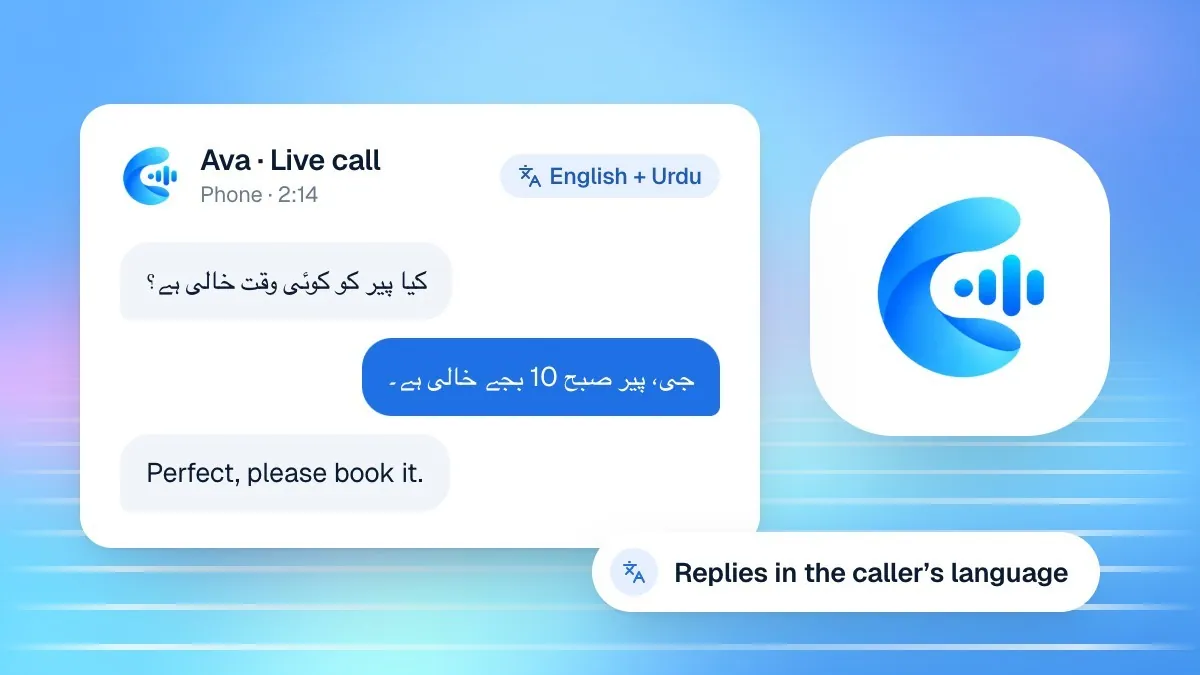
Cypher V agents can run in English only, Urdu only, or both English and Urdu together, switching naturally within the same call. If most of your callers are in Pakistan, or you simply are not sure what mix of languages you will get, Both is the safer default where your plan includes bilingual agents: it adds no extra work on your end, and it meaningfully widens who can use the agent comfortably. If your audience is firmly one language, picking that one keeps things simple. For the details of how a bilingual agent handles a call that switches languages mid-sentence, see Bilingual agents: English and Urdu.
Knowledge files: giving your agent detailed answers
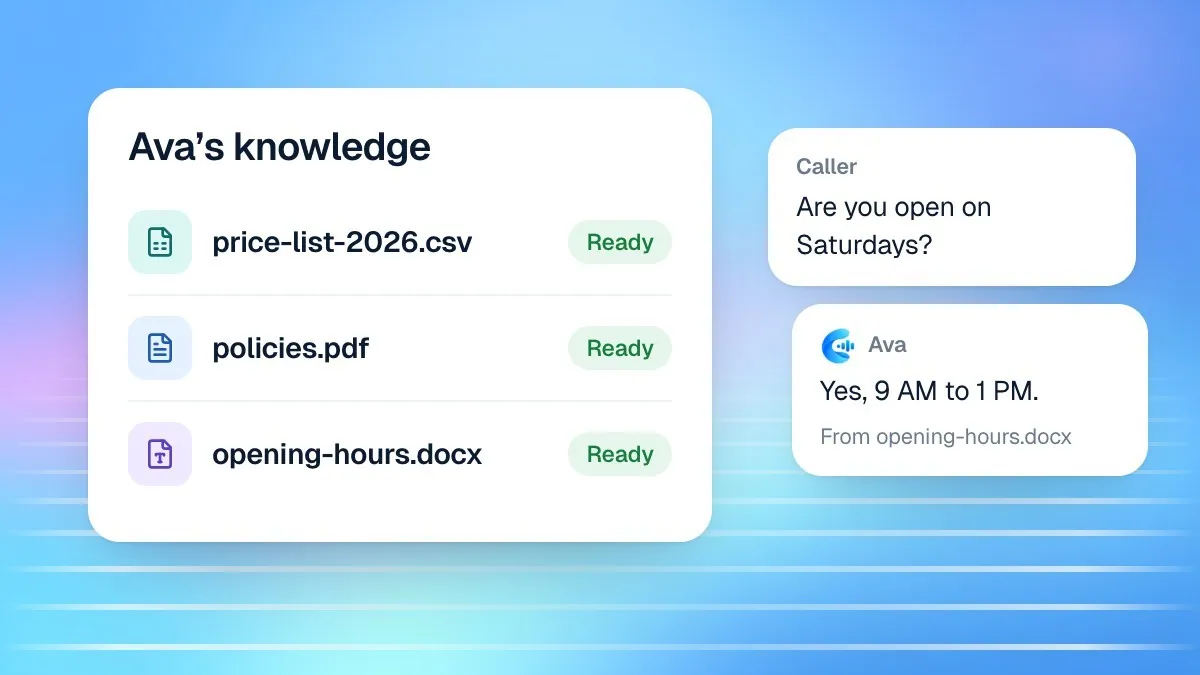
A one-line goal and a short set of instructions are enough for an agent to hold a sensible conversation, but they are not enough for it to recite your full price list from memory. That is what knowledge files are for. From the agent’s Knowledge tab you can upload documents in PDF, DOCX, CSV or TXT format, up to 4 MB per file and up to ten files per agent. Good candidates are a product catalogue, a price list, a FAQ document, or a written return or cancellation policy — anything a human receptionist would keep within reach at their desk.
The Knowledge tab is organised into a few clear areas: an overview of everything the agent knows, shared knowledge that every agent in your account can draw on, knowledge specific to this one agent, short FAQ entries it can answer directly, a list of questions callers asked that it could not answer, and a place to type a test question yourself and see how it would respond. That last one is worth using before you ever place a real test call — it is the fastest way to catch a gap.
For a deeper look at organising shared versus agent-specific files and keeping your FAQ list current, see Knowledge base guide.
Switching on skills
Before you test your agent, the builder asks which on-call skills to turn on: Book meetings, which lets the agent check availability and book a meeting during the call itself; Take payments, which lets it request a payment and send a secure link mid-call; and Automated follow-ups, which queues a follow-up message after any call that needs one. Each is off by default and described with a one-line consequence right next to its switch — turn on only the ones you are actually ready to use today, since an agent that offers to book a meeting into a calendar nobody is managing yet creates more confusion than it saves.
Booking is Cypher S underneath, payments is Cypher P — both are covered in their own guides if you plan to lean on them: Scheduling on the call with Cypher S and Getting paid on the call with Cypher P.
Knowledge and skills before launch
- Language setting matches who actually calls you
- At least one knowledge file covers your most commonly asked question
- You have typed a test question into the Knowledge tab’s test box and reviewed the answer
- Only the skills you are ready to actually support today are switched on
- Anyone operating a switched-on skill (bookings, payments) knows it is live
Language, knowledge and skills are the last decisions before your agent is something you can actually call. Once they are set, the only thing left is hearing it for yourself.
06
Test, launch and improve — what next
The final step in the builder is simply called Try it, and it is exactly that: your agent deploys automatically the moment you reach this screen, and you get a short “setting up your agent” wait — typically under a minute — before it is ready for a real test call.
Your first test call
Once deployment finishes, a Start a test call button appears, along with a call link and an embed code you can look at before you decide to go live. Place the test call yourself, through your browser’s microphone, and actually try to break it a little: ask it the awkward question, not just the easy one. If your agent was built from a starting template, you may also see a short list of suggested things to try — use them.
Testing your own agent
That last line matters as much as the easy ones: it is how you confirm your escalation rule actually fires the way you described it, rather than assuming it will.
Pre-launch test checklist
- Ask the question from your one-line goal directly — does it answer the way you expected?
- Ask something covered in an uploaded knowledge file — does it quote the right detail?
- Ask something it genuinely should not know — does it use the fallback line you wrote, instead of guessing?
- Trigger your escalation condition on purpose — does it actually hand off or flag the call?
- Listen to the voice and tone all the way through a full exchange, not just the greeting
- Share the call link with one colleague and ask them to try it without any coaching from you
Going live
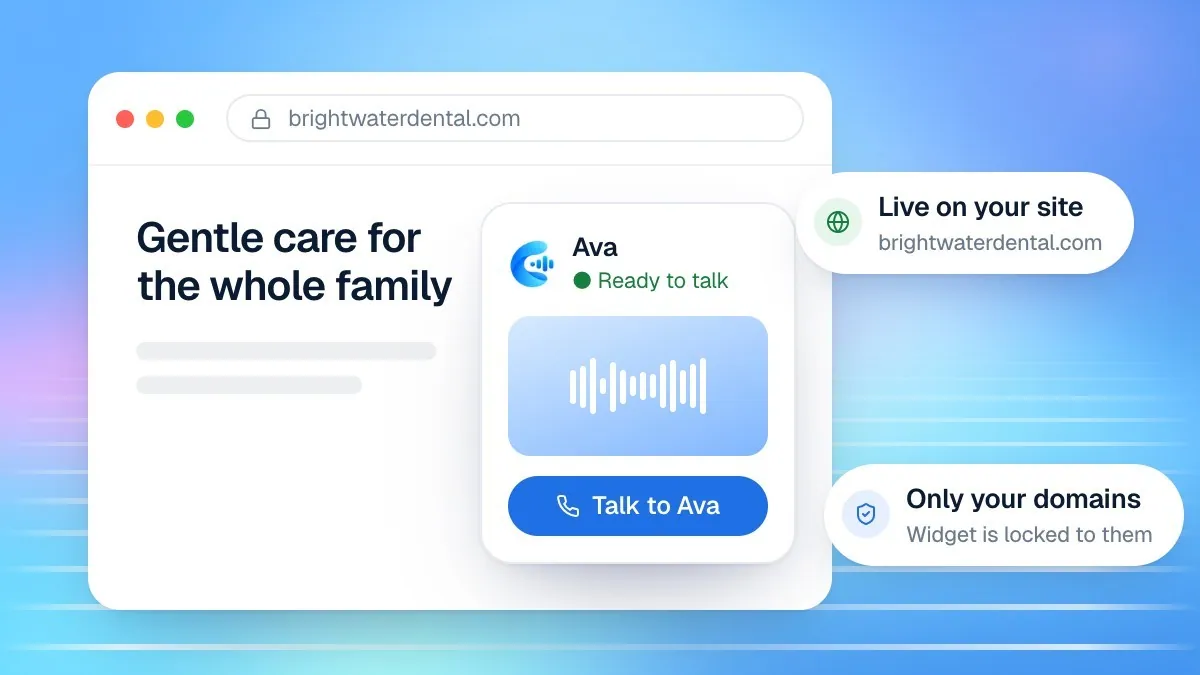
When you are satisfied, Go live takes you to the agent’s own page, organised into tabs: Overview (a performance summary, a “to review” panel for flagged calls and unanswered questions, and quick links into everything else), Controls (identity, purpose, instructions and the Ask AI to adjust box), Knowledge, Skills, Deploy (the website widget, share links and phone numbers), and Calls. Nothing here is a one-time, locked-in decision — every tab you used during setup is the same screen you return to later.
Putting your agent somewhere customers can actually reach it — your website, a shareable link, eventually a phone number — is its own step with its own detail worth getting right; see Deploying your agent: website widget, call links and phone numbers.
Monitoring your first real calls
The agent’s Calls tab lists every call with the caller, duration, a mood indicator, and when it happened, with quick filters for flagged calls and calls that have a recap. Check in daily for the first week: flagged calls and unanswered questions are the fastest way to see exactly where your instructions, your knowledge files, or your fallback line need a small adjustment.
A small accounting practice, one week in
A two-partner accounting practice launches an agent to answer scheduling questions during tax season. In its first week, the Overview tab’s “to review” panel shows three unanswered questions, all variations on “can I bring my own spreadsheets or do I need your template.” The partners add one short line to the instructions field and a one-page FAQ file answering exactly that, and the question stops reappearing within a few days.
What to do next
- Finish the pre-launch test checklist above with at least one real colleague as a second tester.
- Go live, then put the agent somewhere a real customer can reach it — see the deploying guide for the widget, call link and phone options.
- Check the Overview and Calls tabs daily for the first week and note every flagged or unanswered call.
- Use Ask AI to adjust for anything you notice, reading the plain-language summary before applying each change.
- Once the basics feel solid, revisit Knowledge, Skills and — if useful to your business — bilingual language support, scheduling, payments, notes and follow-ups, each covered in its own guide linked throughout Resources.
Building your first agent is mostly a matter of being specific rather than being technical: a clear goal, an honest fallback line, a couple of well-chosen knowledge files, and a real test call before anyone else ever hears it. Everything else in the dashboard exists to let you keep refining that same agent, one plain-language change at a time.