A missed appointment usually starts with a missed step somewhere earlier: a caller who could not get a time while they had you on the phone, a confirmation that never went out, or a correction that quietly became a second, duplicate booking. Cypher S is built to close that gap. When a booking skill is turned on for an agent, it can check your real, live availability during a call and book the appointment before the caller hangs up, instead of promising a callback that may or may not happen.
Every booking Cypher S makes lands in the same place your team already works: when Google Calendar is connected, the appointment appears on your calendar with a Google Meet link for video appointments, and the customer is added as an attendee so the invitation reaches their own calendar too. The same appointment types and hours power a public booking page at a link like cypherlm.com/book/your-business/consultation, so people who would rather book themselves, without calling at all, can do that too.
This guide covers setting up availability and appointment types, turning on the bookings skill for your agents, what a caller actually hears on the call, how confirmation calls and reminders work in the run-up to the appointment, how Cypher S handles reschedules and corrections without ever creating a second booking for the same person, and how to read your calendar and your booking metrics day to day. Call scripts, an availability checklist, a booking-type design table and a no-show checklist are included throughout so you can put this to work directly from your Cypher LM dashboard.
01
Set your hours and design your appointment types
Before any agent can book a single appointment, Cypher S needs two things from you: when you are open, and what people can book. Both live in the Bookings section of your dashboard, under Hours and Appointment types. Nothing is bookable, by an agent or from your public link, until at least one active appointment type exists.
Hours work on a weekly pattern: pick the days you are open and, for each day, the time ranges you take appointments, together with the time zone everyone should see times in, you, your agents, and anyone booking from your link. On top of the weekly pattern, date overrides let you close for a single day, such as a public holiday, or set special hours for one date without touching your regular week.
Three rules shape exactly what your agent is allowed to offer, and they apply everywhere a slot can be booked, not just on calls:
Gap around each booking
A buffer kept free immediately before and after every appointment, so back-to-back bookings never leave you walking straight from one conversation into the next with no room to breathe, write notes or simply arrive.
Most bookings per day
A cap on how many appointments can land on a single day. Once the day is full, your agent automatically offers the next available day instead of squeezing another slot in.
Minimum notice
How far ahead someone has to book, so a caller cannot book an appointment that starts in the next few minutes before anyone has had a chance to prepare for it.
Appointment types describe the actual service: a name such as "Consultation", a duration, an optional price and currency (leave the price empty for a free appointment), where it happens, in person, by video call or by phone, and a short description that shows on your public booking page. Choosing Video call as the location is what triggers a Google Meet link to be generated automatically for that appointment once Google Calendar is connected; in-person types can carry an address, and phone types can carry a short note about what to expect on the call.
Each appointment type also has an on/off switch. Turning a type off hides it from your agents and from your public link immediately, without deleting its history, which is the right move for a service you are pausing rather than retiring. Before you delete a type outright, remember that bookings already made under it keep their details regardless, but the booking link for that type stops working for anyone who still has it.
Colour is a small detail worth a moment of thought too. Each appointment type carries a colour that shows up wherever its bookings appear on your calendar, so giving related types a distinct, easy-to-tell-apart colour makes a busy week far easier to scan at a glance, long before you open any individual appointment to see its details.
A type you are genuinely retiring is a different situation from one you are only pausing. Turning a type off keeps every past booking made under it intact and simply stops it being offered going forward; deleting it is a firmer step, and the dashboard will warn you plainly if the type still has upcoming bookings attached, so you can turn it off or clear those bookings first rather than losing track of appointments that are still due to happen.
A 12-chair dental clinic
A dental clinic offers three appointment types: "Check-up, 30 min", "Cleaning, 45 min" and "Emergency visit, 20 min", each in person with its own buffer. The practice closes at 2pm on Fridays and stays shut on public holidays, both set as date overrides so the front desk never has to explain the same exception twice.
| Appointment type | Duration | Location | Typical use |
|---|---|---|---|
| Consultation | 30 min | Video call | First conversation with a new customer, generates a Meet link automatically |
| Check-up | 20-30 min | In person | Short, recurring visit with an existing customer |
| Emergency / urgent | 15-20 min | Phone call or in person | Same-day need, usually with a shorter minimum notice |
| Paid session | 45-60 min | In person or video | Priced appointment type, price shown on the public booking page |
Availability checklist before you go live
- Weekly hours set for every day you actually take appointments
- Correct time zone selected for your business
- Holidays and known special hours added as date overrides
- A sensible buffer set around each booking
- A minimum notice that gives your team time to prepare
- At least one appointment type created and switched on
- Google Calendar connected, if you want bookings on your existing calendar and Meet links for video appointments
02
Turn on the bookings skill for your agents
An appointment type existing is not, by itself, enough for an agent to book one. Cypher S tools are only attached to an agent once its bookings skill is switched on for that agent, from Manage agents inside the Bookings section. Until then, the agent can still talk about your services, but it cannot check a time or create an appointment.
Turning the skill on for an agent is a single toggle per agent, and the dashboard tells you plainly what each setting means: on, the agent "books appointments during calls"; off, it "doesn't book appointments." If you have not created an appointment type yet, the dashboard will ask you to add one first, since an agent with nothing to offer has nothing useful to do with the skill.
Hours are shared across every agent you turn the skill on for, so you set them once under Hours rather than per agent. If a particular agent genuinely needs different hours, for example a specialist who only takes bookings on certain afternoons, that is managed from the same agents list rather than by creating a second set of account hours.
Once at least one agent can book and at least one appointment type is active, your booking link goes live. It can be copied or opened directly from the Bookings section, and it points to a public page built from your business and the appointment type, with no login required for the person booking. Sharing this link in an email signature, a WhatsApp message or on your website gives people who prefer not to call a way to book the exact same slots your agent would offer them on a call, against the exact same calendar.
Why the skill is scoped per agent, not account-wide
Not every agent needs to book. A voice agent handling general enquiries for one line of business might never need the skill, while a specialist booking line should have it on by default. Scoping it per agent means you decide, service by service, which conversations are allowed to end in an appointment.
What switching it off does to an agent mid-flight
Switching the skill off stops an agent from offering or creating new bookings going forward. It does not touch appointments the agent already booked; those stay exactly where they are on your calendar and in your Bookings list.
Why appointment types gate the toggle
An agent with the skill on but no active appointment type has nothing it is allowed to describe or book, which is confusing for a caller and for the agent alike. Requiring at least one type first keeps every booking conversation grounded in something real you actually offer.
Where the booking link actually points
Your booking link follows the shape of your business name and, where you add a specific appointment type to the link, opens straight to that type's calendar rather than a list of everything you offer. That makes it easy to share a focused link, for instance in an email about one particular service, instead of sending everyone to your full list of appointment types regardless of what they actually asked about.
A two-person recruiting agency
A small recruiting agency turns the bookings skill on for its main screening agent, so a candidate who clears a short phone screening can be booked straight into an interview slot, but leaves the skill off for a second agent that only answers general enquiries about open roles.
Bookings skill setup checklist
- At least one appointment type created and active
- Hours set for the account (or, where needed, for a specific agent)
- Bookings skill switched on for every agent that should be able to book
- Booking link copied and placed somewhere customers will find it: email signature, website, WhatsApp
- A quick test call placed to confirm the agent offers real times
03
What the caller hears: the booking conversation
A good booking call follows a short, predictable shape, and it is worth hearing it the way a caller does before you rely on it. The agent only offers times it has actually checked against your calendar, never a guess, so the first thing it does once an appointment is wanted is look up free times for the appointment type the caller is asking about.
Rather than reading out a long list of options, the agent typically narrows to two live choices at a time, in a pattern close to: "I can offer you Tuesday at 11am or Wednesday at 2pm, which works better for you?" That phrasing matters: it is short enough to hold in your head over the phone, and every time it offers is one your calendar genuinely has open the moment it is said, buffers, daily limits and your existing Google Calendar events already taken into account.
Before the appointment is actually created, the agent collects the caller's full name and a working email or phone number, reads them back to confirm it has them right, and asks what the appointment is about so there is an agenda attached for your team to see later. Only once the day, time and contact details are confirmed does it create the booking, and it then repeats the day and time back once more, so the call ends with both sides certain of exactly when the appointment is.
Why the agent reads details back before booking
A single mis-heard digit in a phone number, or an email taken down with a typo, is the single most common reason a confirmation never reaches a customer. Reading details back catches that before the booking exists, which is considerably easier than fixing it afterwards.
Why the agent asks what the appointment is for
An agenda captured on the call gives your team real context before the appointment happens, rather than a bare time slot with no idea what the customer actually wants. It also gives the agent something concrete to confirm back, beyond just a time.
What the agent will never do on a booking call
It will never reveal another caller's booking details, even to someone who claims to know them, and it will never invent a time it has not actually checked. If nothing is free in the window a caller wants, it says so and offers the next real alternative rather than guessing.
What happens when nothing fits what the caller asked for
A caller who wants a specific afternoon that is already full is not left with a flat no. The agent checks what is actually free nearby and offers the closest real alternative it can find, on the same day if anything is left, or the next open day if not, so the conversation still ends with a workable option rather than a dead end.
A straightforward booking call
Put this guide to work
Build it in your own account
Start a 7-day free trial with every Cypher LM product included, or book a demo and we will walk you through it on a live call.
04
Confirming details, confirmations and reminders
Booking the appointment is only the first half of getting someone to actually show up. In the run-up to every appointment, Cypher S runs an attendance check roughly a day beforehand, and it tries the method most likely to get a real answer: a confirmation call where the business has a phone number set up and the customer has one on file, and a reminder email as the fallback, with clear buttons to confirm, reschedule or cancel, where a call is not possible. Appointments booked less than half a day before they start skip this step entirely, on the reasoning that the booking itself, made so close to the time, is confirmation enough.
A confirmation call is placed by one of your own agents, using the same voice and the same calendar it already knows. It asks the customer, by name, whether they can still make their appointment, and records the answer directly against the booking. If the customer says they cannot make it after all, the agent does not simply hang up: it offers to reschedule to a new time or cancel outright, using the same tools it would use on any other booking call.
Every booking carries an attendance status your team can see in the Bookings list: confirmed by the customer, not confirmed yet, or customer can't make it, alongside an attendance check column showing exactly what happened, a confirmation call was placed, the customer was asked by email instead, or, where neither phone calls nor an email address were available, that there was simply no way to ask. None of this ever marks an appointment as attended on its own; after the appointment time passes, it moves to a "needs outcome" state and waits, a confirmed no-show settles automatically after a day, but anything less clear-cut waits for your team to mark it by hand as attended or as a no-show, so your attendance numbers stay something you can trust rather than a guess.
Why confirmation defaults to a call, not just an email
A phone call gets a far higher response rate than an email reminder sitting unread in an inbox, particularly for appointments people booked days or weeks ahead and may have genuinely forgotten about. Email remains the safety net for when a call cannot be placed, not the first choice.
Why very last-minute bookings skip the confirmation step
Someone who books an appointment for later the same day has just confirmed their intent to attend by booking at all. Running a confirmation call an hour after they booked would be, at best, redundant, and at worst mildly irritating.
What a declined confirmation looks like on your side
A customer who says, on a confirmation call, that they can no longer make it is not left stranded: the agent moves straight into offering a reschedule or a cancellation, so a "no" on a confirmation call still generally ends with a resolved booking rather than an open question your team has to chase down later.
Confirmation call the day before
No-show reduction checklist
- A working phone number or email captured on every booking, not just a name
- Confirmation calls reaching customers who have a phone number on file
- "Not confirmed yet" bookings reviewed the day before, not just the morning of
- Declined confirmations followed up with a reschedule offer, not left as a cancellation by default
- Attendance marked honestly after each appointment, so your no-show rate reflects reality
05
Reschedules, corrections, and one booking per caller
Callers change plans, mishear their own email address, or dial back in days later wanting to move a time, and Cypher S is built around a simple rule that keeps all of that tidy: a caller only ever has one active booking. When someone calls back, whether it is the same day or a week later, the agent first looks for a booking that already exists for them, recognising a returning caller even when the contact detail they give this time does not match what they gave before, such as a corrected email replacing a mistyped one.
If the caller just wants to fix a detail, their name, email or phone number, the agent updates that existing booking in place. The appointment keeps its original slot and, for video appointments, its original Google Meet link; only the incorrect detail changes, and a fresh confirmation goes out to the corrected address. Nothing new is created, and your Bookings list keeps showing exactly one entry for that customer, now with the right information on it.
A genuine change of time works differently but ends the same way: the agent finds the existing booking, checks real availability for a new slot, confirms the new day and time with the caller, and moves the same booking to that slot rather than creating a second one and leaving the old one hanging. Cancelling works the same way, and the agent is guided to offer a reschedule first rather than jumping straight to cancelling, since a caller who rings back is usually still trying to keep the appointment, just at a different time.
From your side, the dashboard shows this as one booking with a history: Reschedule, Cancel booking, Mark as no-show and Mark as attended are all available on a booking's menu, and a rescheduled appointment shows its new time with the earlier one no longer floating around as a separate, unresolved entry. "Booked by [agent] on a call" or "Added by hand" tells you at a glance how each booking reached your calendar, which matters when you are trying to understand how much of your schedule your agents are filling versus your own front desk.
Why one booking per caller matters more than it first sounds
Without this rule, a caller who rings back three times to adjust details could, in principle, end up with three separate appointments on your calendar, each slightly different, none of them cancelled, all of them occupying a slot another customer could have used. The rule exists specifically to prevent that.
What happens if a caller genuinely has more than one upcoming booking
If a caller legitimately has more than one appointment on the books, the agent will say so plainly and ask which one they mean before changing anything, rather than guessing and risking the wrong booking being moved or cancelled.
Why this protects your calendar, not just the customer's experience
Every phantom duplicate booking is a slot that looks taken on your calendar when it is not, which quietly shrinks the real availability your agent, and your public booking link, can offer to everyone else trying to book that day.
Caller correcting an email address
06
Managing your calendar and the metrics that matter
Once bookings are flowing in from your agents, your public link and your own front desk, the Bookings section becomes less about setup and more about a daily habit: knowing what is coming up, keeping an eye on the numbers, and catching anything that needs your attention before it becomes a problem.
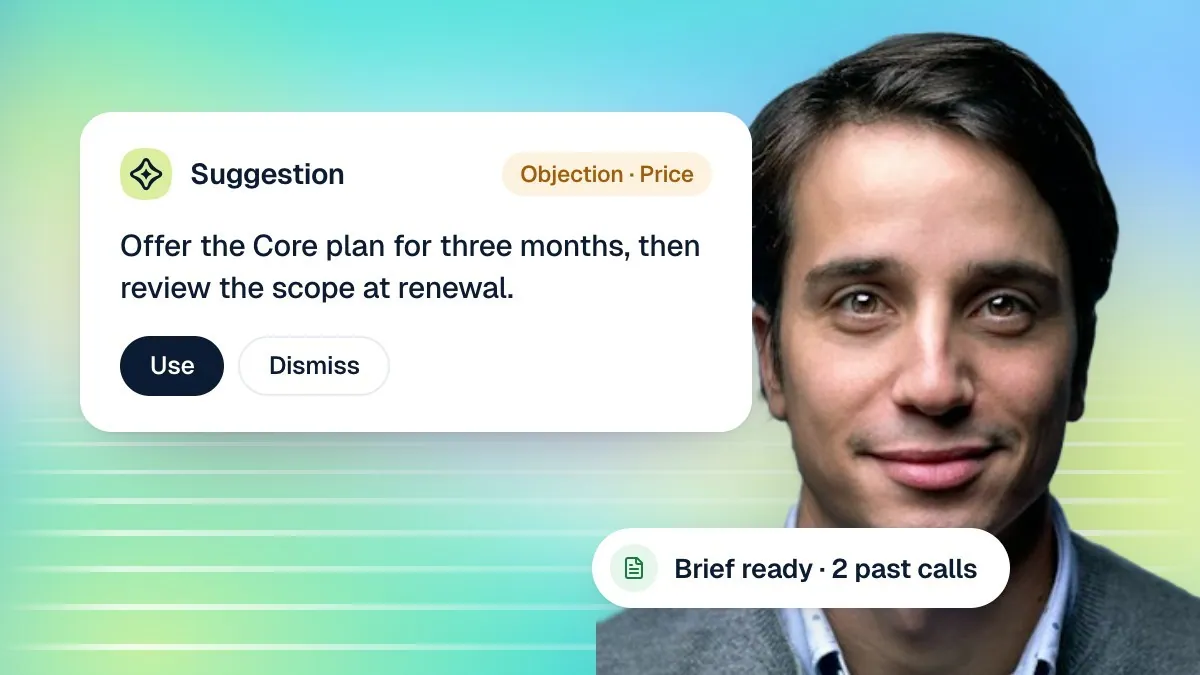
My Calendar gives you that daily view, with Day, Week, Month, Year and Schedule layouts so you can zoom from a single afternoon out to a whole year depending on what you are trying to see. A next-meeting banner sits above it with a one-tap Join button for whichever appointment is coming up next, which matters most for video appointments where you would otherwise be hunting for a Meet link buried in an email. Opening any appointment on the calendar brings up its details, including, where your agents have handled calls with that customer before, a short AI-written summary of previous conversations, so you are not walking into a follow-up appointment with no memory of what was already discussed. From that same view you can invite a note taker to join the meeting and write up full notes afterwards, which pairs naturally with the My Calendar habit described in more detail in the meeting notes guide.
Beyond the calendar itself, a small set of numbers tells you most of what you need to know about how bookings are actually going: how many appointments are upcoming, what share of them were booked on a call versus added by hand or through your public link, what you expect to collect at the visits themselves where appointment types carry a price, how many bookings in the last 30 days were actually attended, and your no-show rate over the same period. Read together, these numbers tell you whether your agents are genuinely filling your calendar, whether your confirmation step is doing its job, and whether a particular appointment type or time of day is quietly producing more no-shows than the rest.
Why "booked on a call" is worth tracking on its own
It is the clearest single number for how much of your calendar your agents are actually filling, as opposed to appointments that would have happened anyway through your front desk or your public link. A rising share over time is a good sign the booking skill is pulling its weight.
Why no-show rate deserves a regular look, not a one-off check
A no-show rate that creeps up over weeks is far easier to act on than one you only notice months later, once a pattern, a particular appointment type, time slot or lack of confirmation, has already cost you a meaningful number of empty appointments.
Why the AI conversation summary on a booking is worth opening
It saves your team from re-asking a returning customer things they already told an agent on an earlier call, which is a small thing on any single appointment but adds up to a noticeably smoother experience across a busy week.
To recap: availability and appointment types define what is bookable and when; turning the bookings skill on, per agent, is what actually lets an agent check your calendar and create appointments; a caller is read back their details and talked through a clear choice of real times before anything is booked; confirmation calls and reminder emails do the work of checking attendance a day out, with reschedule and cancel always offered before a flat no; and one booking per caller keeps your calendar accurate no matter how many times someone calls back to adjust it. My Calendar and your booking metrics are how you keep watching all of that once it is running.
- Set your weekly hours, time zone and any known date overrides.
- Create and switch on at least one appointment type, with a clear customer-facing description.
- Turn on the bookings skill for every agent that should be able to book, and copy your booking link somewhere customers will find it.
- Place a short test call and confirm the agent reads back details and offers real times correctly.
- Check attendance status and your no-show rate weekly, and use My Calendar daily for upcoming appointments.
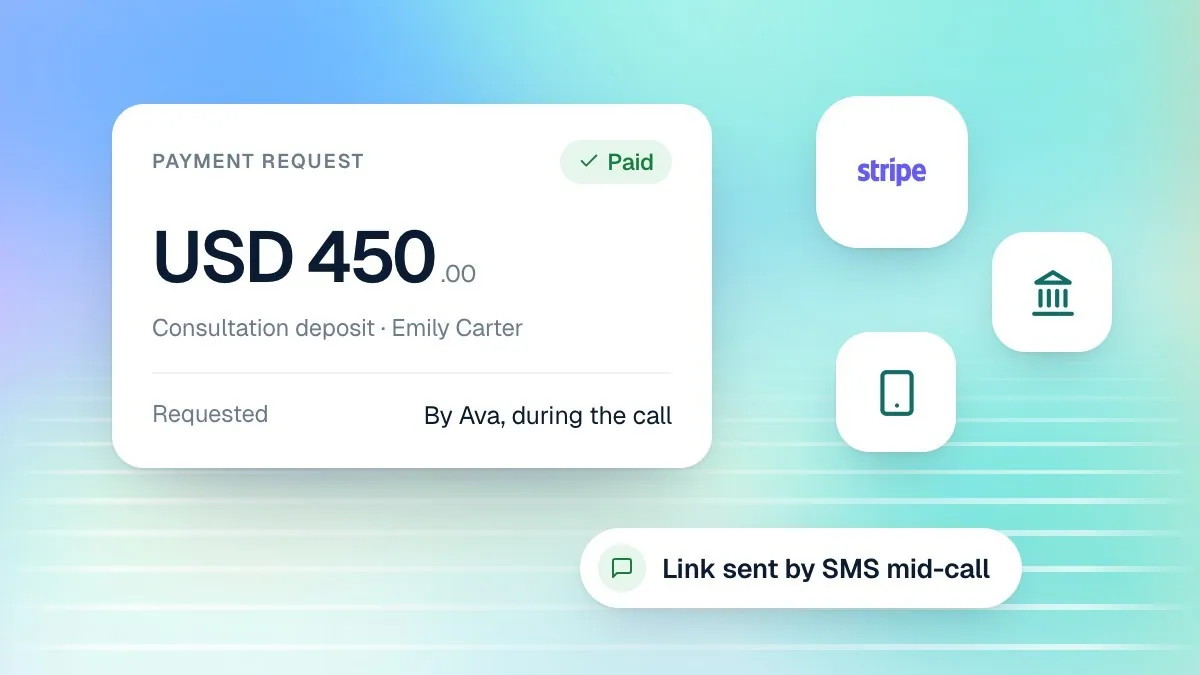
Payments on the same call as a booking, deposits, booking fees or outstanding balances, are covered in the Cypher P guide. If you are still building the agent that will carry this skill, start with the guide to building your first voice agent, and if your bookings need to run in both English and Urdu, see the bilingual agents guide.