Building your agent and putting it somewhere a real customer can reach it are two different jobs, and the second one is just as important. A perfectly tuned agent that nobody can call is not doing anything for your business yet. Your Cypher LM dashboard has a Deploy area with three channels — a website widget, a shareable call link, and phone numbers — plus the same three channels again, scoped to one agent, from that agent’s own Deploy tab.
This guide covers each channel honestly: what it looks like today, how to set it up, what to test before you share it, and what happens on the customer’s side during and after a call. It also covers a detail worth knowing before you launch anything: when someone ends a call through your website widget, there is a short window afterwards where they can reconnect and pick the conversation back up, rather than starting over as a stranger.
A short note on plans: Cypher V, the voice agent itself, is included on every plan, including Basic. A seven-day trial includes every Cypher LM product. Which of the three deployment channels are available to you — in particular the website widget — can depend on your plan; where that is the case, the dashboard tells you directly and offers the call link as a free stand-in in the meantime.
01
Choosing your channels
There are three ways a customer can reach a Cypher V agent today, and they are not mutually exclusive — most businesses end up using more than one.
The website widget
A small floating button on your own site that opens into a full voice conversation with your agent, without the visitor ever leaving your page. This is the channel most businesses reach for first, because it puts the agent directly in front of people who are already looking at your site and already have a question.
The call link
A direct link — in the shape cypherlm.com/agent/<your-agent-id> — that opens your agent in its own page, ready to talk. You can copy it, open it, generate a QR code for it, or share it to WhatsApp directly from the dashboard. It takes zero setup: every agent has one as soon as it is live.
Phone numbers
A dedicated phone number that rings straight through to your agent, so customers can call it exactly like any other business line. Unlike the other two, this is not a flip-a-switch setting inside the dashboard today — more on that honestly, below.
Matching channels to your business
If you have a website with real traffic, start with the widget — it is the channel built for exactly that situation. If you do not, or you want something you can put on a business card, a menu, or a WhatsApp message today, the call link needs no setup at all and works immediately. If customers expect to be able to simply dial a number, read the phone numbers section before promising one, since it currently goes through a short request process rather than a self-serve setup screen.
Why more than one channel is normal
It helps to think of these three channels less as alternatives and more as different doors into the same room. A customer browsing your site at 11pm will use the widget. A customer you are already texting back and forth with will respond better to a call link than to being told to go find your website. A customer who simply wants to dial a number the way they always have will look for a phone number regardless of what else you have set up. None of this needs to be decided perfectly on day one — most businesses add channels gradually as they see which ones their actual customers reach for.
Where this sits inside the dashboard
The Deploy area in your main dashboard navigation lets you pick any agent from a dropdown and configure all three channels for it, one at a time, from tabs labelled Website widget, Share links and Phone numbers. Each agent also has its own Deploy tab, reached from the agent’s own page, which shows the same three channels scoped to that one agent — useful when you are already looking at a specific agent and do not want to go hunting for it in a longer list elsewhere. Both paths read and write the exact same settings, so there is no wrong door to use.
| Channel | Setup effort | Best for | Works without a sign-in |
|---|---|---|---|
| Website widget | A few minutes, once | Visitors already on your site | Yes, for the visitor |
| Call link | None — exists automatically | Sharing by text, QR code, WhatsApp, business cards | Currently asks the opener to sign in (see Call links, below) |
| Phone number | Requires a short request to the team | Customers expecting to dial a normal number | Yes, once connected |
What a plan can affect
Cypher V works the same regardless of plan. What can differ by plan is whether the website widget is switched on for your account. If it is not, the Deploy tab tells you directly, offers an upgrade path, and points you at the call link as a way to keep moving in the meantime — nothing about your agent itself is held back, only where you are allowed to publicly embed it.
Before you choose a channel
- Confirm whether your plan includes the website widget, from the Deploy tab itself
- Decide whether your website gets enough visits to justify the widget as your first channel
- Have at least the call link ready as a fallback for every other channel
- Decide who on your team will field the first wave of real calls, whichever channel brings them in
Whichever channel you start with, the setup pattern is the same across all three: pick an agent, configure the one or two things that channel actually needs, test it yourself, then share it.
02
The website widget
The website widget is a small button that lives in the corner of your site and opens into a full conversation with your agent. Setting it up in the dashboard is a short, three-step flow: which website it can appear on, how it should look, and the code to add to your site.
Step 1: which website
Add the address of each site the widget is allowed to appear on. This matters for security as much as appearance — the widget only works on domains you have explicitly listed, subdomains included, so nobody can quietly copy your embed code onto an unrelated site. You can list more than one site if you run several properties, and remove one later if you need to.
Step 2: position and colour
Choose whether the button sits at the bottom left or bottom right of the page, and pick an accent colour — a small set of presets (sky, navy, teal, amber, rose) or your own custom hex colour. The dashboard shows you a live preview of the button on an actual snapshot or live view of your site as you adjust these, so you can see roughly how it will look before you commit to anything.
Step 3: add it to your site
The embed itself is a single, short script tag — in the product’s own words, a two-line embed code — that you paste just before the closing </body> tag of your site, or into your site builder’s “custom code” box if you are using a platform like WordPress, Wix, Shopify or Squarespace rather than editing raw HTML yourself. There is nothing to configure inside the snippet itself; everything about how it looks and where it is allowed to run is controlled from the steps above, not from the code.
Embed placement
- Paste the snippet once, just before
</body>, not inside the page head - Add it to every page you want the widget to appear on, or to a shared site template so it appears everywhere at once
- Confirm the domain you pasted it onto matches one of the addresses you listed in Step 1
- Check the widget appears in the position and colour you chose, on a real page load, not just the preview
- Avoid placing it where it visually collides with an existing chat widget or floating button
Where to place it, practically
Put it on pages where someone is likely to have a question right before acting — a services page, a booking page, a pricing page — rather than only on your homepage. A visitor halfway through deciding whether to book an appointment is exactly the moment a quick voice answer is most useful. If your site is built on a shared layout or template across every page, adding the snippet once to that template is usually simpler than pasting it page by page, and it guarantees you never end up with the widget live on some pages but quietly missing from others.
A clinic’s booking page
A 12-chair dental clinic adds the widget only to its booking and services pages, not its blog, reasoning that someone reading a blog post is not usually a second away from calling, while someone on the booking page often has one specific question (“do you take my insurance”) standing between them and making an appointment.
If the widget is not included in your plan
If your plan does not currently include the website widget, the Deploy tab shows this plainly, with an option to upgrade and a second option to use the call link instead in the meantime — your agent and its settings are unaffected either way, and switching the widget on later needs no rebuilding.
Once the widget is live on your site, treat your first day the way you would treat a new hire’s first day at the front desk: watch a few real conversations come through, and adjust anything that feels off before you consider it fully launched.
03
Call links: what they are today, and how to use them
Every agent gets a call link the moment it is live, in the shape cypherlm.com/agent/<your-agent-id>. Anyone who opens it can talk to your agent from their phone or computer, with no widget to embed and nothing to paste anywhere. The dashboard’s Deploy tab, and each agent’s own Deploy tab, both surface the same link with a copy button, an open-in-new-tab button, and a QR code you can download as a PNG or SVG for printing.
Being honest about how it works today
Right now, opening a call link asks the visitor to sign in with a Cypher LM account before the call connects. That makes the call link, today, a genuinely useful channel for your own team, for testing, for a colleague you want to try the agent without walking them through anything — but it is not yet the frictionless, open-to-anyone link you can hand a stranger expecting them to just start talking. Public, no-sign-in call links are planned, and when that ships the sign-in step disappears; until then, the website widget is the channel that works for a customer with no account at all.
Where a call link is genuinely useful right now
Use it for internal testing, for sharing with teammates who want to try an agent before it goes on your site, for a colleague checking a change you made to behaviour or knowledge files, or printed as a QR code at a reception desk or on a business card aimed at people likely to already have, or be willing to create, an account. As public call links roll out, this channel’s audience widens without you needing to change anything on your end.
Sharing a call link internally
QR codes
The same link can be turned into a QR code and downloaded as an image, which is worth printing anywhere a person is standing still with a phone in hand — a reception counter, a menu, a service desk, a poster by the door. Calls made this way are counted the same as any other call made through the link.
Sharing it the way people already communicate
Beyond copying the raw link, the Share links tab offers one-tap options to send it over WhatsApp, by SMS, or by email, each pre-filled with a short message naming your business and the link itself, so you are not left writing the wording yourself every time. On a device that supports it, a native “Share” button hands the link straight to whichever app the person normally uses to send things — their messaging app, their notes, their email client — without you needing to know in advance which one that will be.
If the agent is not live yet
If you copy and share a call link before its agent has finished deploying, the page the person lands on tells them plainly that the agent is not ready yet, rather than failing silently or looking broken. It is still worth waiting for your own test call to succeed before sharing a link with anyone else, so the first impression a customer or colleague gets is a working one.
Before you share a call link
- Open the link yourself, end to end, including the sign-in step, so you know exactly what the person you share it with will see
- Confirm the agent is fully live — a link to an agent that is not yet ready tells the opener so directly, rather than silently failing
- Decide whether a QR code or a plain text link suits where you are placing it
- If sharing to a team member rather than a customer, say so, so they know what to expect from the sign-in step
Call links cost nothing to set up and nothing to maintain, which makes them worth having ready even if the widget or a phone number ends up being your main channel.
Put this guide to work
Build it in your own account
Start a 7-day free trial with every Cypher LM product included, or book a demo and we will walk you through it on a live call.
04
Phone numbers: what is real today
A dedicated phone number is the channel most people picture first when they imagine a voice agent — dial a number, get a conversational answer. It is worth being direct about where this stands today inside Cypher LM: it is not yet a self-serve setup you can complete entirely on your own inside the dashboard.
What is really available right now
The Deploy tab’s Phone numbers section shows you, honestly, whether a number is connected to your account yet. If one is not, it explains clearly what connecting one enables, and how to ask for it — it does not show you fake sample numbers or let you believe you can provision one with a click today. This honesty is deliberate: a dashboard full of sample data that looks real but is not would waste your time and set the wrong expectations, so the section simply tells you the true state of your account instead.
Why this one channel works differently
The website widget and the call link are both entirely software — the moment you save a setting, it takes effect. A phone number is different: it involves a real telecommunications carrier, regulatory requirements that vary by country, and a number that has to actually be provisioned and tested before it can reliably ring through. That is the practical reason this channel runs through a short request to the team rather than an instant, self-serve picker — it is the one piece of your deployment that depends on something outside the dashboard itself.
What a connected number enables
A connected phone number enables three things together: customers can call your agent on a normal phone number the way they would call any other business line; your agent can place outbound task calls and campaign calls to customers instead of only reaching them through a shared link; and it can place automatic confirmation calls ahead of scheduled appointments to make sure a customer is still coming.
How to actually get one
Today, getting a number connected means asking for it directly — the dashboard’s own call to action is to talk to the team, by email, rather than a self-serve country-and-number picker. You are asked which country you need a number in; Pakistan, the United States and the United Kingdom are explicitly supported, with more available, and UAE numbers, where offered, can currently receive calls only, not place them.
Requesting a phone number
- Decide which country the number should be in, based on where most of your customers are
- Note whether you need the number to make outbound calls too, or only to receive them
- Send the request with your business name and the agent you want it connected to
- In the meantime, use the call link for anything you would otherwise do by phone — task calls and campaigns can reach customers with a link instead of a ring
What to do while you wait
Nothing about your agent needs to pause while a number is being set up. Task calls and campaigns work today through a personal call link sent to the customer instead of a number ringing them directly, and your widget and call link both work exactly as described in the previous two sections regardless of phone status.
Phone numbers are the one channel in this guide that is not yet instant — treat the widget and the call link as what you launch with, and the phone number as something you layer on once it is actually connected and tested.
A property agency expecting walk-in calls
A small real-estate agency assumes a phone number will be ready the same day they finish building their agent, because that is how every other software setting in the dashboard has worked for them so far. When they reach the Phone numbers section and see it is a request rather than an instant toggle, they send the request immediately, specifying a local number and that they expect both inbound and outbound confirmation calls, and use the call link printed on their property listings in the meantime so nothing about their launch date has to move.
05
What happens during and after a call
Beyond setting a channel up, it helps to know what the actual experience looks like for the person on the other end — particularly one detail of the website widget that is easy to miss until a customer runs into it: what happens in the seconds right after a call ends.
The 25-second reconnect window
When someone ends a call through your website widget — whether they hang up on purpose or the call drops by accident — the widget keeps a short, 25-second window open afterwards. If they call back within that window, your agent treats it as the same conversation continuing, not a new caller starting from zero: it will not reintroduce itself, will not ask again for anything they already told it, and will not redo anything it already completed, such as a booking it already made. It simply acknowledges the interruption and picks up where things left off.
If the caller instead wants to start completely fresh — a different question entirely, or simply a clean slate — a New call option sits right next to the reconnect option during that same window, so the choice is always theirs.
What a caller hears, right after a dropped call
This matters more than it might first appear: a caller who gets disconnected and then has to explain themselves again, from scratch, to what sounds like a brand-new conversation, tends to come away with a worse impression of the whole interaction than the dropped call itself caused.
Why this is worth explaining to your team
If anyone on your team ever listens back to a call recording or reads a transcript, a reconnected call can look a little unusual on paper — a conversation that pauses, a short acknowledgement of the interruption, then continues. Knowing that this is the reconnect window working as intended, rather than a glitch, saves a confused conversation later about why the agent “skipped introducing itself” partway through a call log.
Testing each channel before you fully rely on it
Before pointing real customers at any channel, place a full test call through it yourself, end to end, including letting the call end and watching what the reconnect window actually does.
Testing every channel
- Website widget: load the page on both desktop and mobile, start a call, end it, and reconnect within the 25-second window to confirm it continues the same conversation
- Call link: open it exactly as a recipient would, including any sign-in step, and place a full call
- Phone number, once connected: call it from an outside line and confirm the agent answers and sounds right
- Every channel: ask one question you know is in a knowledge file, and one you know is not, to confirm the fallback line is working wherever the call comes from
Monitoring calls once you are live
Every call, from every channel, shows up in the agent’s Calls tab — caller, duration, a mood indicator, and when it happened — with quick filters for flagged calls and calls that have a recap. In the first days after launching a new channel, check this daily: it is the fastest way to notice if a channel is quietly misbehaving, such as a widget position that is hard to tap on a particular phone size, or a call link being shared in a context where the sign-in step is confusing people.
Knowing what the caller experiences — including the quiet mechanics of a dropped-call reconnect — is what turns “the channel is switched on” into “the channel actually works the way a customer expects.”
06
Launching and announcing your new channel
With the widget, call link and, if applicable, a connected phone number all tested, the last step is making sure customers actually know how to reach your agent, and that your own team is ready for the calls that follow.
A launch checklist
Launch checklist
- Every channel you are turning on has been tested end to end by you, personally, this week
- The widget’s allowed websites list matches exactly where you pasted the snippet
- The call link has been opened at least once by someone other than you, to confirm the sign-in step is not a surprise
- A connected phone number has received at least one real inbound test call
- Fallback and escalation behaviour has been verified on whichever channel you expect the most traffic through
- At least one teammate knows to check the Calls tab daily for the first week
- You have a plain-language plan for what “a call went wrong” means and who handles it
Telling customers the new line exists
Once you are confident, announce it the way you would announce any new way to reach your business — plainly, and with a reason for the customer to actually use it.
Announcing a new way to reach you
A small accounting practice before tax season
A two-partner accounting practice puts the call link and a QR code on an email to existing clients two weeks before tax season starts, framing it specifically as “for quick scheduling questions, so our phone lines stay open for anyone with an actual tax issue.” Framing the announcement around a concrete benefit, rather than announcing the technology itself, is what gets it actually used.
Recap and what to do next
Deploying an agent is not one decision but three smaller ones, made honestly: the website widget is the richest channel but takes your plan and a few minutes of setup into account; the call link costs nothing and works today, with a sign-in step worth knowing about in advance; and a phone number is real, valuable, and currently something you request rather than switch on instantly. None of the three are mutually exclusive, and none of them are permanent decisions — you can add a channel later exactly as easily as you can today.
- Finish the launch checklist above before telling a single customer about any channel.
- Start with whichever channel matches how your customers already try to reach you — website visitors, a link you can text or print, or a number they expect to dial.
- Watch the Calls tab daily for the first week on every channel you switch on, paying particular attention to flagged calls.
- If a phone number matters to your business, send the request now rather than waiting — it is the one channel here that takes longer than a few minutes to turn on.
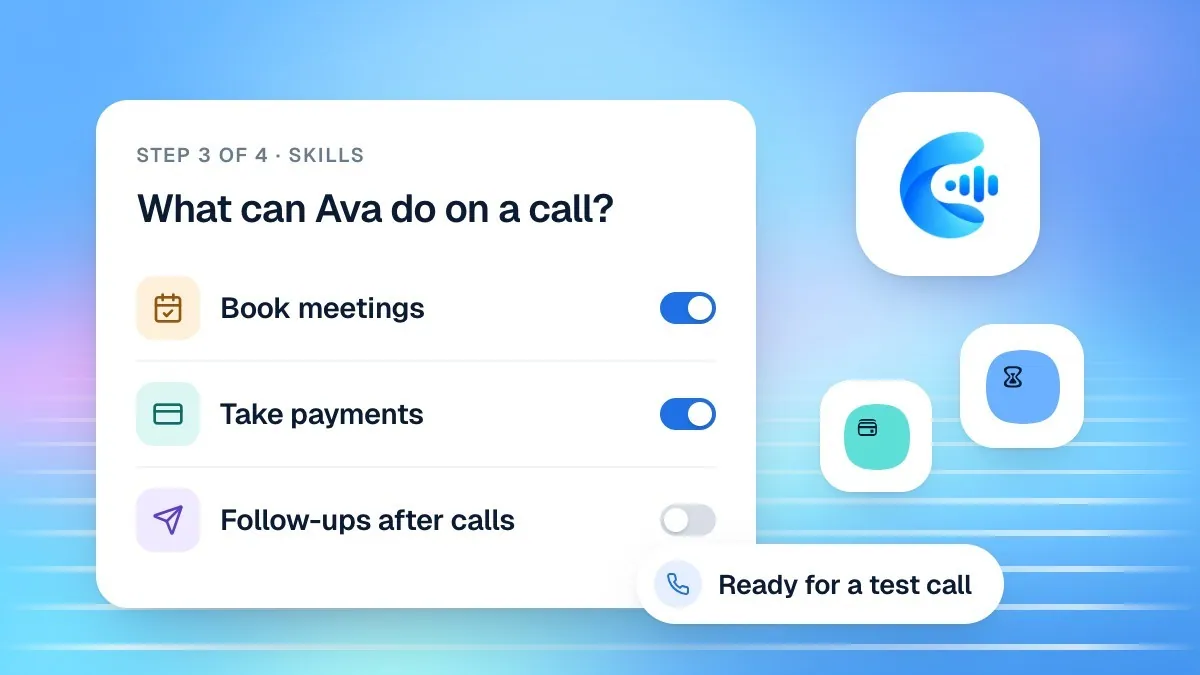
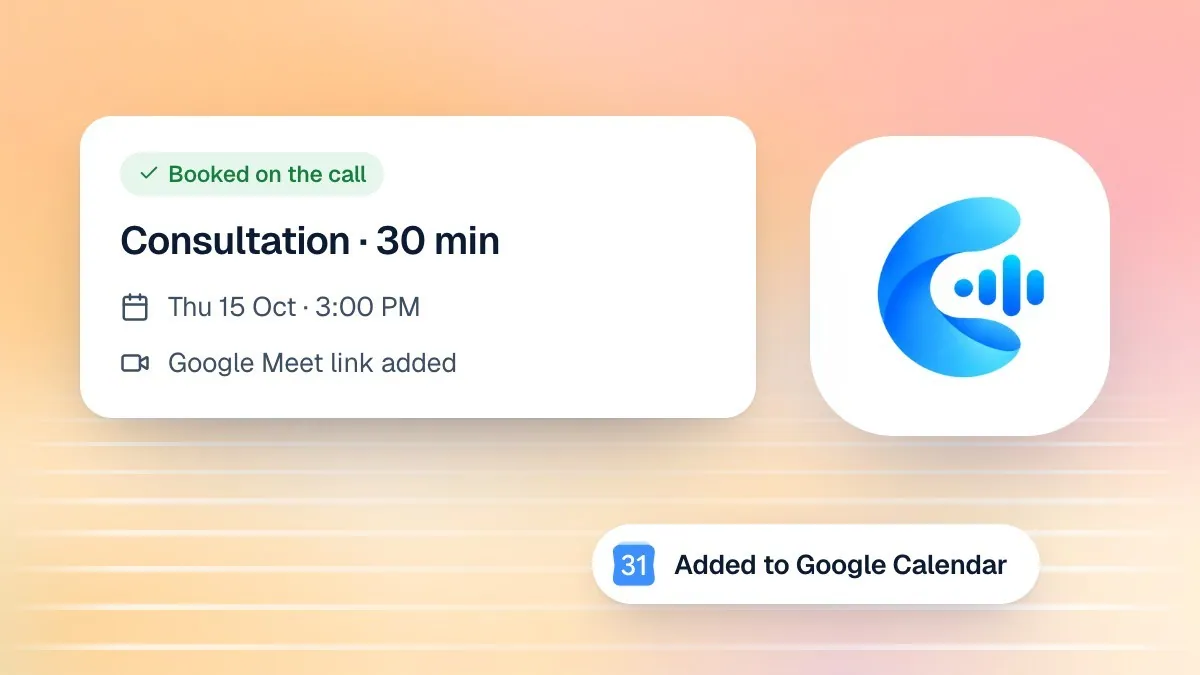
- Once the basics are solid, look at what else your agent can do on these same channels — scheduling, payments, and the behaviour refinements covered in The complete guide to building your first AI voice agent and Scheduling on the call with Cypher S.
A channel that is honestly described, properly tested, and clearly announced will earn more trust from your customers than one that promises more than it delivers on day one — and every channel in this guide is built to grow with you rather than lock you into today’s version of it.
A note on plans as you grow
Remember that Cypher V itself is included on every plan, including Basic, so nothing in this guide is out of reach because of which plan you are on; only the website widget specifically can depend on it, and the dashboard always tells you directly rather than leaving you to guess. If you are inside your seven-day trial, every product is available to try, which is a good window to also look at how scheduling, payments or notes might sit alongside the channels covered here, before you settle on the plan that fits your business long term.