Your website is where most customers first meet your business. They land on a service page, read a little, and have a question. If the only options are a contact form and a phone number they have to dial, many of them simply leave. A voice agent on the page changes that: the visitor presses one button and talks to your business straight away, in the browser, with no app to download and no number to dial.
The Cypher LM website widget puts your voice agent on any website with a small button in the corner of the page. Setting it up takes about five minutes: tell Cypher LM which sites the widget may appear on, choose how it looks, and paste one short snippet into your site. This guide walks through each step using the labels you will see in the dashboard, explains what your visitors experience, and covers the recent additions to the widget, including text chat and call reconnect.
It is written for business owners, marketers and whoever looks after your website, whether that is a developer or someone who edits pages in a site builder.
Why a voice agent belongs on your website
Most websites already have ways to get in touch: a contact form, an email address, a phone number in the footer. Each of them asks the visitor to wait. A form promises a reply at some point; an email disappears into an inbox; a phone number may ring out after hours or during a busy afternoon. The visitor who had a question a moment ago now has a task, and many decide it is not worth it.
A voice agent removes the wait. The visitor asks their question at the moment they have it, on the page where it came up, and gets an answer in under a second. If they want an appointment, the agent can check availability and book it during the same conversation. If the question needs a person, the agent takes a clear message, and your team sees a written recap instead of a vague form submission.
The widget also works when your team does not. Evenings, weekends and public holidays are when many people finally have time to look into a purchase or a service. An agent on the website means those visitors still reach your business, and the conversation is waiting for your team in the morning, already summarised. Our article on the 11 PM lead looks at that moment in more detail.
Finally, a widget is the lowest-effort way to start. There is no phone number to set up and no change to how your team works. You add one snippet to your site and watch the conversations arrive.
Before you start
You need three things before you add the widget:
- A live agent. Build your voice agent first and make sure it is ready. If you set up the widget before the agent is live, the settings are saved and the widget starts working as soon as the agent is ready.
- Your website address. The address (or addresses) where the widget should appear, such as yourbusiness.com.
- A way to edit your site. Access to your site's HTML, or to the "custom code" area of your site builder. On most builders, this is a single settings page.
It also helps to test your agent before customers meet it. Talk to it yourself, ask the questions your customers ask most often, and check the answers. A widget is only as good as the agent behind it; our guide to writing a knowledge base your voice agent can use explains how to give it the right material.
Step 1: Choose where the widget may appear
Open Deploy in the dashboard and choose Website widget. If you have more than one agent, pick the agent the widget should connect to. The setup has three steps: Website, Look and Add to site.
In the Website step, add your website addresses. The widget only works on the sites you list here, and subdomains are included, so adding yourbusiness.com also covers shop.yourbusiness.com. This allow-list matters: it means nobody can copy your embed code onto their own site and use your agent and your minutes.
Add every site where the widget should appear, including a staging site if you want to test there first. If you remove the last address, the widget stops working everywhere until you add one again, and the dashboard will ask you to confirm before you do that.
Step 2: Choose how it looks
In the Look step, decide where the widget sits and what colour it is.
- Position: Bottom right or Bottom left. Bottom right is the most familiar place for a help button. Choose bottom left if your site already has something in the right corner, such as a cookie banner or another button.
- Colour: Sky, Navy, Teal, Amber or Rose, or a custom colour using a hex code such as #84c1ff. Pick a colour that stands out against your page but still feels like part of your brand.
The preview shows how the widget will look. You can also see a live preview on your own website once you have added its address, which is the best way to check that the colour and position work with your real pages. When you are happy, save the widget settings. Changes show on your site within a minute, so you can adjust the look later without touching your site's code again.
Step 3: Add it to your site
In the Add to site step, copy the embed code. Paste it just before the closing </body> tag of your site, or into your site builder's "custom code" box. Because the code is the same for every page, you only need to add it once to your site's shared footer or template, and the widget appears on every page.
The dashboard links to short guides for the most common site builders:
- WordPress: add the code to your theme's footer, or use a plugin that inserts code before </body> on every page.
- Wix: add it as custom code in your site settings, applied to all pages and placed in the body end.
- Shopify: add it to your theme's main layout file, just before </body>.
- Squarespace: add it to code injection in the footer section of your site settings.
If you have not saved at least one website address, the dashboard reminds you before you copy the code, because the widget will not appear without one. Once the code is on your site and your address is saved, reload a page and the widget button appears in the corner you chose.
What your visitors see
When a visitor opens the widget, they can start a voice call with your agent or chat with it by text. Both use the same agent, with the same knowledge, instructions and language settings, so a visitor gets the same answers whether they speak or type.
Calls in the browser
When a visitor starts a call, the widget asks for permission to use their microphone before it connects. Asking first means the call does not time out while the visitor is still reading the browser's permission prompt. Once they allow it, the agent greets them and the conversation starts, with replies in under a second. If the visitor's browser or network blocks the microphone, the widget shows a clear message rather than a vague error.
Text chat
Not every visitor can talk out loud. They may be at work, on a train, or simply prefer typing. The Chat button opens a text conversation with the same agent. This is useful for quick questions, like opening hours or a price, and it means the widget still helps visitors who would never start a voice call.
Reconnecting after a dropped call
Calls sometimes end by accident: a visitor closes a tab, loses their connection or presses the wrong button. For about 25 seconds after a call ends, the visitor can reconnect, and the agent carries on the same conversation instead of starting again with a greeting. If they want a fresh start instead, they can choose New call. In your dashboard, a reconnected call is linked to the original one, so your team sees one continuous conversation.
Testing before you announce it
Before you tell customers about the widget, test it the way they will use it.
- Open your site on a computer and on a phone, and check that the widget appears in the right corner and does not cover anything important.
- Start a call and ask three or four real customer questions. Then try the text chat with the same questions.
- If your agent books appointments, make a test booking and check that it appears in your calendar.
- End a call deliberately and reconnect within a few seconds to see the reconnect flow.
Then open Calls in the dashboard. Every widget call appears there with its transcript, and with Cypher N, a recap with a summary, key details, action items and a drafted follow-up. If you test from the dashboard instead, test calls are left out of your analytics unless you choose to include them.
Getting the most from the widget
Installing the widget is quick; making it useful takes a little more thought about where it appears and what you tell visitors.
Choose the pages that matter
The widget can sit on every page, but some pages deserve extra attention. Service and pricing pages are where visitors have the most specific questions, so make sure your agent's knowledge covers everything on them. Contact pages are where people are already looking for a conversation; a line such as "Talk to us now, any time" next to your phone number and form tells them the widget is there. Booking or appointment pages are a natural home for an agent that can check availability and book during the call.
Tell visitors what the agent can do
A button in the corner is easy to ignore. A short sentence near the top of key pages, such as "Have a question? Press Call us in the corner to talk to our assistant, day or night", sets expectations and invites people to try it. Be specific about what the agent can help with: answers about services and prices, booking an appointment, or leaving a message for the team.
Troubleshooting common problems
If the widget does not appear, check three things in order. First, that the website address in the Website step matches the site you are viewing, including the domain spelling. Second, that the embed code is on the page, just before the closing body tag or in the custom code area your builder applies to every page. Third, that your agent is live; an agent that is still being built, or one that needs fixing on the Agents page, will not take calls yet.
If the widget appears but a visitor cannot be heard, the most common cause is a blocked microphone. The widget asks for permission before connecting and shows a clear message when the browser refuses, so ask the visitor to allow the microphone for your site in their browser settings, or to use the Chat button instead.
How this works in Cypher LM
Here is the whole flow in one place.
| Step | Where | What you do |
|---|---|---|
| Build the agent | Agents | Create and test your voice agent |
| Website | Deploy › Website widget | Add the sites where the widget may appear (subdomains included) |
| Look | Deploy › Website widget | Choose Bottom right or Bottom left and a colour |
| Add to site | Deploy › Website widget | Copy the embed code and paste it before </body> or in your builder's custom code box |
| Review | Calls | Read transcripts and recaps of every widget call and chat |
A few details are worth knowing:
- Calls count toward your plan's minutes, just like any other call your agent handles.
- Every caller who shares a phone number or email becomes a contact in Contacts, grouped across calls, so returning visitors build up a history your team and Cypher M can use.
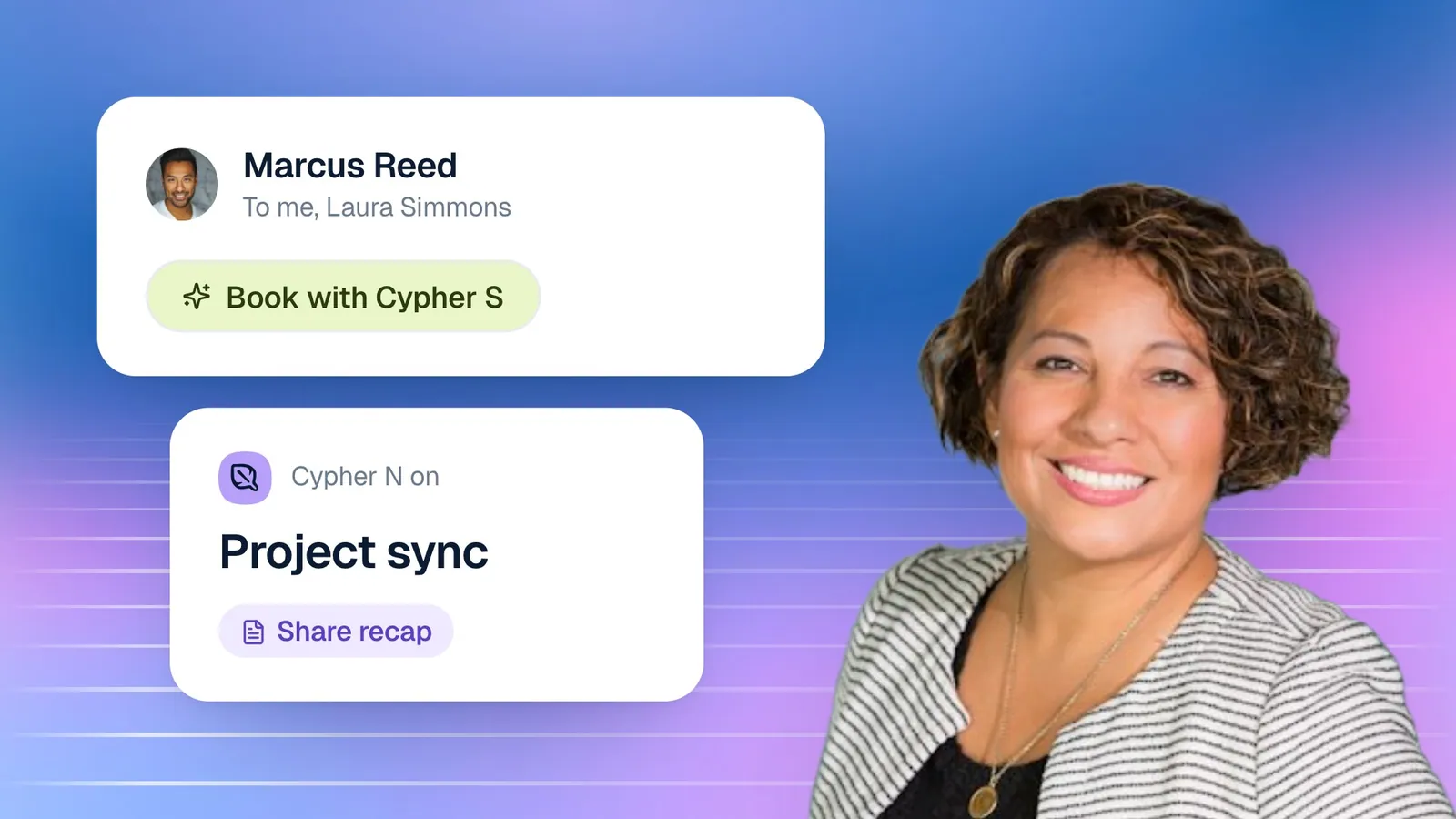
- Bookings and payments work in the widget. If your agent books appointments with Cypher S or sends payment links with Cypher P, visitors see the booking or payment card right in the widget during the call.
- The widget is part of your plan. If your plan does not include it yet, the dashboard explains how to upgrade.
The Deploy section also has Share links: a call link for your agent and a QR code you can download as PNG or SVG. Right now, people need a Cypher LM login to use a share link, so for customers the website widget is the way to go; public call links are coming. If you want your agent on a phone line as well, our team can connect a number for you.
Frequently asked questions
Do I need a developer to install the widget?
No. If you can edit your site's footer or paste code into your site builder's custom code area, you can install the widget. It is one snippet, added once.
Will the widget work on every page?
It appears on every page that includes the embed code, on the website addresses you have allowed. Adding the code to your site's shared footer puts it on every page at once.
Can someone copy my embed code onto another website?
The widget only works on the website addresses you list, including their subdomains. On any other site, it will not run.
Can visitors type instead of talking?
Yes. The widget has a Chat button for text conversations with the same agent, alongside the button to start a voice call.
How quickly do changes appear?
When you save new widget settings, such as a different colour or position, the change shows on your site within a minute. You do not need to update the embed code.
Put your agent where your customers already are
Adding the widget is the quickest way to put your voice agent in front of customers. Five minutes of setup gives every visitor a way to get an answer, book an appointment or leave a message, by voice or by text, at any hour.
If you do not have an agent yet, start a free trial to build one, or book a demo and we will help you set up your first widget. Plans are on the pricing page.