For most service businesses, the work is not finished when the job is done. It is finished when the money arrives. In between sits a familiar routine: write up what is owed, send it, wait, check the bank account, send a reminder, check again, and finally match the payment to the right customer. Every step is small, and together they take hours each month.
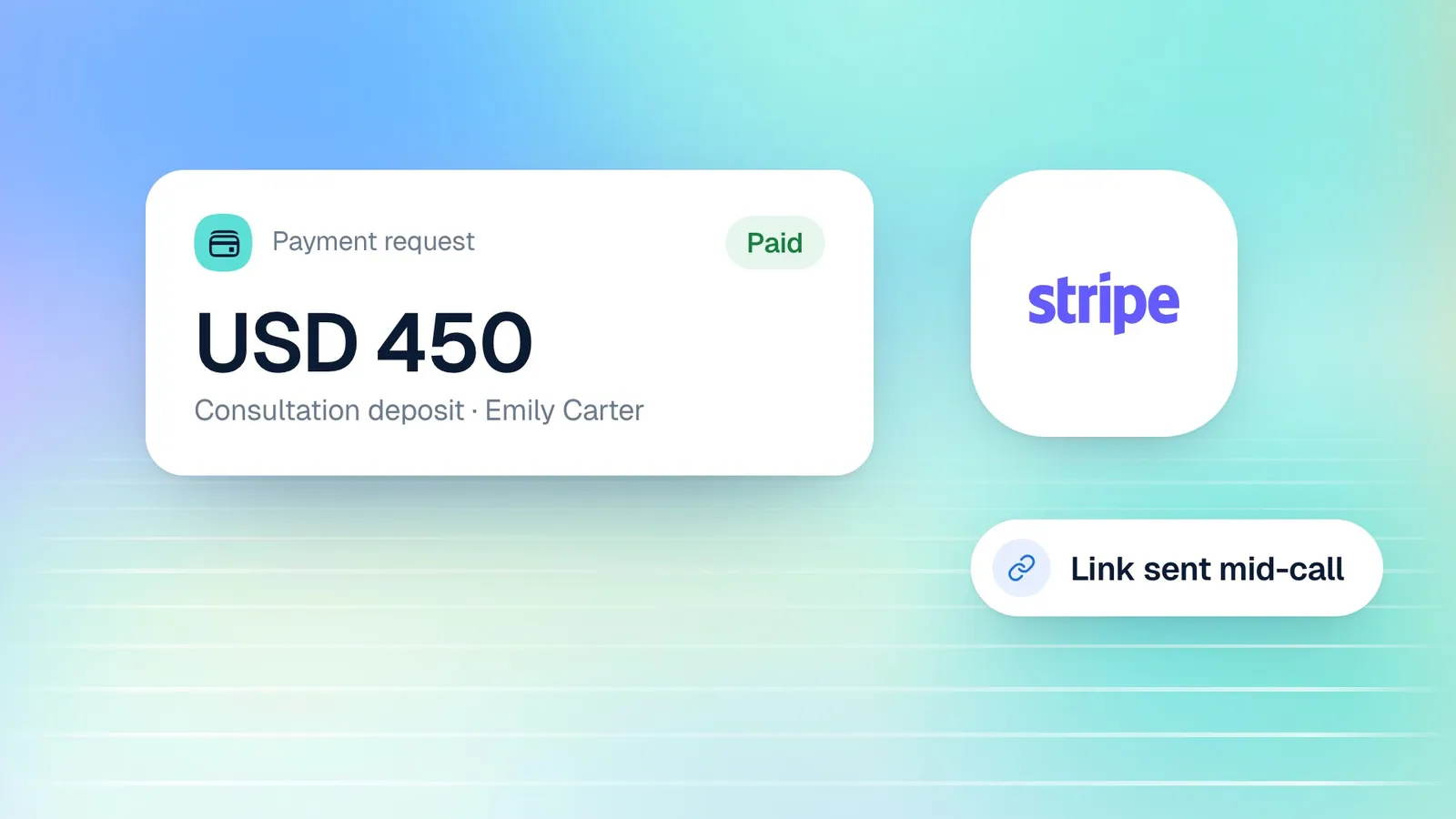
Cypher P, the payments product in Cypher LM, replaces most of that routine with the payment request: a secure link to a payment page for a specific amount, for a specific customer, that you can create in seconds and track until it is paid. Your voice agent can send one during a call, and your team can send one from the dashboard at any time.
This guide explains how payment requests work, what your customer sees, how to track and manage each request, and how they fit alongside the invoices your accountant may still need. It is written for owners and finance leads at clinics, agencies, consultancies and other businesses that bill customers for services.
Why chasing payments costs more than it seems
The visible cost of slow payment is cash flow. The hidden cost is time. Each unpaid amount needs someone to remember it, write to the customer, answer their questions about how to pay, and then confirm the money arrived. When customers pay by bank transfer without a clear reference, matching a payment to the right customer can take longer than the work it pays for.
Customers rarely pay late on purpose. More often, paying is simply inconvenient: the bank details are buried in an old email, the amount is unclear, or they meant to do it later and forgot. Every bit of friction between "I owe this" and "I have paid this" adds days.
A payment request removes that friction. The customer receives one link. It opens a page with your business name, the amount and what it is for, and the ways they can pay, with everything they need on one screen. Paying becomes a one-minute task they can do the moment they read the message.
On your side, every request has a status. You can see at a glance what is paid, what is waiting and what needs a nudge, and you can act on each one from the same screen. That visibility is what turns payment collection from a recurring chore into a quick daily check.
There is also a professional benefit. A clear, branded payment page with several ways to pay reads as an organised business. Customers who are paying a deposit to a business they have just met, or settling a balance after a significant job, are reassured by a process that looks deliberate rather than improvised. Trust shortens the time between request and payment as much as convenience does.
What a payment request is, and what it is not
A payment request in Cypher P has a few simple parts: an amount, a currency (PKR or USD), a short description of what it is for, and the customer's name and email. When you create it, Cypher LM generates a secure payment page with its own link and a reference code for bank and wallet transfers.
It is deliberately lighter than an invoice. There are no line items to build, no invoice numbers to manage and no tax calculations. That makes it fast for the most common situations: a deposit, a consultation fee, a balance due after a job, or a one-off service.
It is worth being clear about what Cypher P does not do. It does not create formal tax invoices, invoice numbers or PDF invoices. If your business or your customers need numbered invoices for accounting or tax purposes, keep issuing them from your accounting software, and use a payment request to collect the money. Putting the invoice reference in the request's description keeps the two linked, so the payment is easy to reconcile later.
| Method | Customer experience | Your effort | Tracking |
|---|---|---|---|
| Emailed PDF invoice | Find bank details, transfer, hope the reference is right | Prepare, send, check the bank, match payments | Manual |
| Bank details over chat | Copy details by hand, often without a reference | Answer questions, check the bank, chase | Manual |
| Cypher P payment request | Open a link, pay by card or transfer with a reference | Create in seconds, mark manual payments as paid | Status per request, receipts sent automatically |
Creating and sending a payment request
Payment requests are created in Payments with New payment request. The form asks for exactly what the customer needs to see.
- Enter the amount and currency. Amounts must be greater than zero. The currency defaults to the one set in Payments › Settings, and you can change it per request.
- Describe what it is for. For example "Consultation deposit" or "Balance for kitchen installation". The description is shown to the customer on the payment page, so write it for them.
- Add the customer. Enter their name and email address. If they have called your agent before, using the same email links the payment to their contact record.
- Choose whether to email the link. Tick "Email the payment link to the customer" to have Cypher LM send it for you.
- Create the request. You see the payment link and the reference code for bank and wallet transfers, ready to share.
If you emailed the link, the customer already has it. You can also copy it and send it yourself, for example on WhatsApp, which many customers prefer for quick payments. If the email could not be sent, Cypher LM tells you, and you can copy the link instead.
Before your first request, set up at least one way to get paid in Payments › Settings: connect Stripe for card payments, or add your bank, JazzCash or Easypaisa details. If no payment method is set up, Cypher LM warns you, because the customer would have no way to pay.
What your customer sees
The payment page is designed to make paying the obvious next step. It shows your business name, the amount and the description you wrote, followed by the ways the customer can pay.
If you have connected Stripe, the customer can pay by card. They are taken to Stripe's secure checkout, enter their card details there, and return to your payment page, which updates to show the payment is complete. Card payments go straight to your own Stripe account.
If you have added bank or wallet details, the page shows them, with the reference code for this request. The customer transfers the amount using their banking or wallet app, includes the reference, and taps "I've sent the payment". Cypher LM emails you so you can check that the money has arrived.
When a payment is confirmed, whether automatically through Stripe or by you marking a transfer as paid, the customer receives a receipt by email if they gave an address. The page itself shows the updated status, so a customer who opens the link again sees that they have already paid.
Tracking every request until it is paid
Every request appears in Payments › Payments with its date, customer, amount, method, status and where it came from: a call, a payment link, or sent by you. You can search by customer, item or reference, and filter by status.
- Pending: the request has been sent and is waiting to be paid.
- Paid: the money has arrived, by card through Stripe or by a transfer you marked as paid.
- Customer says paid: a badge on a pending request when the customer has tapped "I've sent the payment" and you need to check.
- Failed: a card payment did not go through.
- Refunded: a card payment was returned to the customer through Stripe.
- Cancelled: you cancelled the request, so its link no longer works.
- Expired: the request was not paid within 30 days, so it can no longer be paid. Create a new one if the amount is still due.
Each row has a menu of actions. Email the link again sends a polite nudge with the same link. Email receipt resends a receipt for a paid payment. Mark as paid records a bank or wallet transfer once you have seen it arrive, with an optional transaction ID from your bank or wallet app for your records. Refund returns a card payment through Stripe. Cancel request stops the link from working. Open payment page shows you exactly what the customer sees.
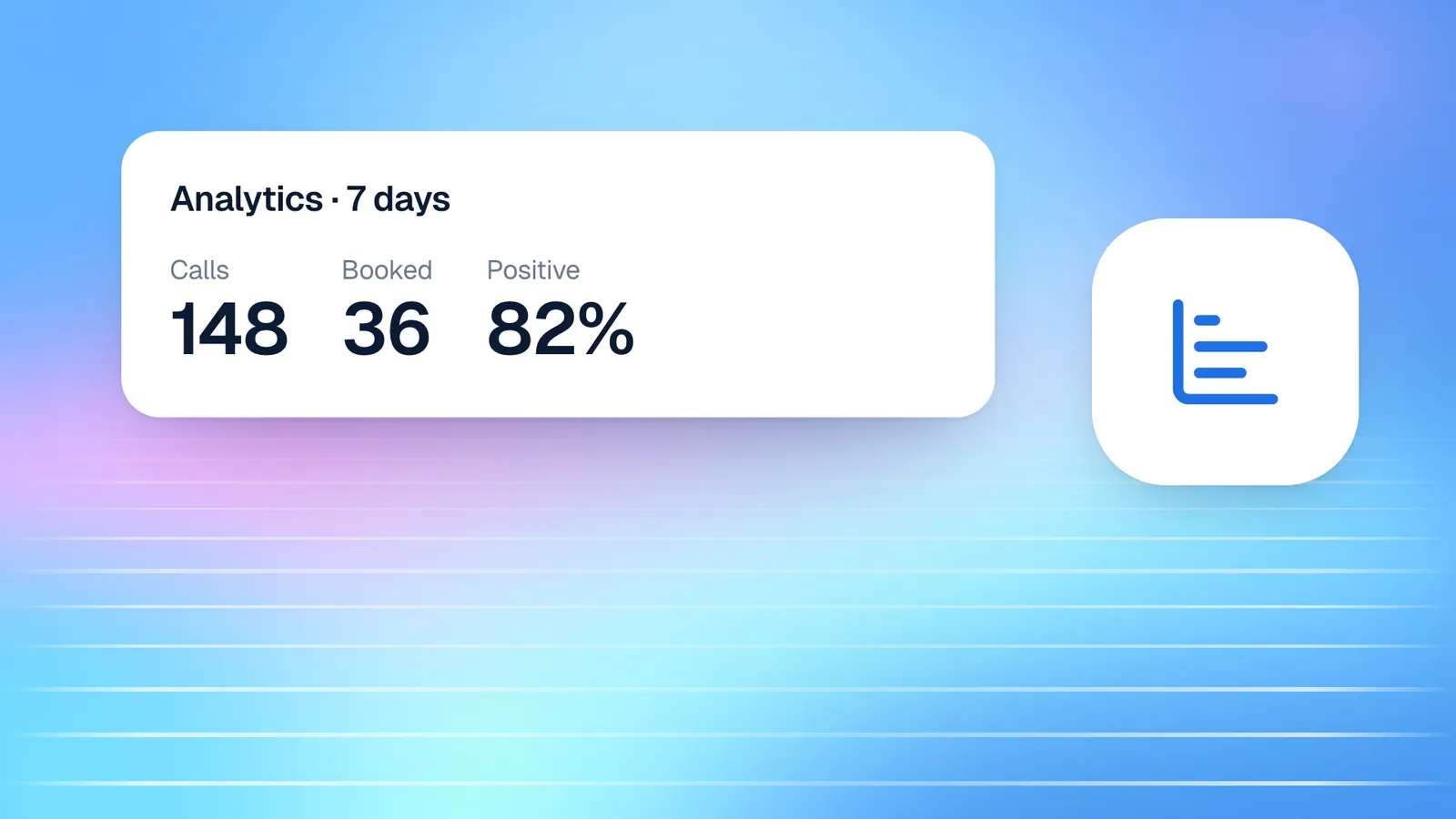
The Overview tab summarises the period you choose, 7, 30 or 90 days: the amount collected, the number of payments, the average payment, what is waiting to be paid across open requests, and a collected-per-day chart. Pending, cancelled and refunded payments are left out of the collected figures, so the chart shows money that actually arrived.
Good practice for getting paid faster
The tool makes collecting payment easier, but a few habits make the biggest difference to how quickly money arrives. None of them takes long, and together they cut most of the follow-up work.
Send the request at the moment of agreement. The best time to ask for payment is when the customer has just agreed to it: at the end of a call, straight after a consultation, or the moment a job is signed off. A request sent while the conversation is fresh is paid far more often than one sent days later. This is also why letting your agent request deposits during calls works so well.
Write descriptions customers recognise. "Deposit for 30-minute consultation, Thursday 14:00" is instantly clear; "Payment" is not. A clear description also reduces the questions that slow payment down, and it makes the payment easier for you to recognise later.
Offer more than one way to pay. Some customers want to pay by card in seconds; others prefer a bank transfer or a mobile wallet. Showing card payment through Stripe alongside bank, JazzCash and Easypaisa details means nobody has to ask how to pay.
Check pending requests on a fixed schedule. A two-minute look at the Payments list each morning, filtered to pending, is enough to spot anything that needs a reminder, and Email the link again sends one with a single click. Mark transfers as paid promptly, so customers receive their receipts quickly and your figures stay accurate.
How this works in Cypher LM
Payment requests are not only sent from the dashboard. If you switch on Take payments on calls for an agent, in Payments › Settings or in the agent's own settings, your Cypher V agent can send a payment request during a call. When a caller agrees to pay a deposit or a fee, the agent creates the request, the payment link appears on the caller's screen, and it is emailed to them if they gave an email address. The agent never hears or handles card numbers; the caller pays on the secure page.
Every request, wherever it was created, is connected to the rest of the platform. Payments appear on the customer's timeline in Contacts, next to their calls and bookings. If you connect Google Sheets, each payment is added to the Payments tab of your "Cypher LM — Call log" spreadsheet, and the row updates in place when its status changes. A receipt goes out automatically when a payment is paid; you can turn that off in Automations if you prefer to send your own.
When a payment secures an appointment, put the booking in the request's description, such as "Deposit for consultation on 14 October", so the two are easy to match. Our guide to collecting payments for appointments covers that in detail, and our post on payment links explains the reusable alternative for fixed fees.
For businesses that issue invoices from accounting software, the two systems work side by side. The invoice records what is owed for tax and bookkeeping; the payment request makes it easy to pay and tells you when it has been. Matching them is straightforward when the request description carries the invoice reference.
Frequently asked questions
Does Cypher P create invoices with invoice numbers?
No. Cypher P creates payment requests: a secure payment page for a specific amount and customer. If you need numbered tax invoices, issue them from your accounting software and use a payment request to collect, with the invoice reference in the description.
How can my customers pay?
By card through your own Stripe account, if you have connected it, and by bank transfer, JazzCash or Easypaisa using the details you add in Payments › Settings. Each request has a reference code for transfers.
How do I know when a bank transfer has arrived?
When the customer taps "I've sent the payment", Cypher LM emails you and the request shows a "Customer says paid" badge. Once you see the money in your account, use Mark as paid and the customer receives a receipt.
Can I refund a payment?
Card payments made through Stripe can be refunded from the payment's menu, and the money goes back to the customer's card. Refunds for bank and wallet transfers are handled by you directly.
Can my voice agent ask for payment during a call?
Yes. With Take payments on calls switched on for the agent, it can send a payment request mid-call. The link appears on the caller's screen and is emailed to them.
Conclusion
Getting paid should not take more effort than doing the work. With Cypher P, a payment request takes seconds to create, gives the customer one clear page to pay from, and keeps its status visible until the money arrives. Receipts go out automatically, transfers carry a reference, and your agent can collect deposits while the customer is still on the call.
Keep your accounting invoices where they belong, and let payment requests handle the collecting. To try it, request a free trial and send your first request today, or see how Cypher P works with Stripe for card payments.