For many small businesses, the moment a customer says yes on the phone is also the moment the deal is most at risk. The customer is ready to pay a deposit, a booking fee or an invoice, but the business has no good way to take the money. Someone offers to send an invoice later. The customer agrees, hangs up, and gets distracted. Days later, the payment is still pending, and the booking is still unconfirmed.
The old fix was to take card details over the phone. That creates its own problems: card numbers read aloud, written on paper or typed into the wrong place, and staff handling information they should never see. Neither option is good.
This article explains a better way. With Cypher P, the Cypher LM payments product, your voice agent can request a payment during the call by sending the caller a secure payment link, so they pay on a proper payment page while you are still talking. We will cover why reading card numbers aloud is a bad idea, how payment links work, the payment methods available, and how to set it all up.
Why you should never take card numbers by voice
Reading a card number aloud seems harmless, but every step of it creates risk. The number is spoken in a room where others may hear it. It is written down or typed by a person, which introduces errors and copies. If the call is recorded, the number may end up in a recording or transcript. And whoever handles it becomes responsible for protecting it.
For a voice agent, the problem is even sharper. Call audio is transcribed so the agent can understand it, and transcripts are stored so you can review calls. Card numbers have no place in either. The safest design is one where the card number never enters the conversation at all.
There is also a practical issue. Taking card details by voice is slow and error-prone. Sixteen digits, an expiry date and a security code, read out and repeated back, take a minute or more and frequently go wrong. A payment link takes seconds and is checked by the payment page itself.
Customers notice the difference, too. Many people are uncomfortable reading their card number to a stranger, and more so to software. Offering a familiar, secure payment page instead of asking for digits removes that hesitation. It also gives the customer a moment to check the amount and description in writing before they pay, which reduces disputes and refund requests later.
So the rule for any business using a voice agent is simple: the agent should never ask for card numbers. It should send a secure link, and the customer should pay on a payment page designed for exactly that job.
How payment links work on a call
With Cypher P switched on for an agent, payment becomes part of the conversation. A customer says they would like to pay the deposit for a booking. The agent creates a payment request for the right amount and description, and the customer receives a secure link. On a web call through the website widget, a payment card appears on the caller's screen during the call. If the agent has the customer's email, the link is emailed as well.
The customer opens the link and sees a clear payment page with your business name, the amount and what it is for. They choose how to pay: by card, if you have connected Stripe, or by bank transfer or mobile wallet using the instructions you have provided. The agent can stay on the line while they pay, answer questions, and confirm once the payment has gone through.
Nothing sensitive is spoken. The agent mentions the amount and what it is for; the card details are entered only on the payment page. Your team never sees the card number, and it never appears in a recording or transcript.
What the caller sees
The payment page shows the amount, the description, your business name and the available methods. For card payments, it hands over to Stripe Checkout, the payment page run by Stripe. For bank transfer, JazzCash or Easypaisa, it shows your account details and a reference code to include with the transfer. The page updates when the payment is complete, and a receipt is emailed if the customer gave an email address.
Payment methods: Stripe, bank transfer and wallets
Different customers prefer different ways to pay. Cypher P supports two groups of methods, and you can offer either or both.
Card payments through your own Stripe account. You connect your Stripe account by adding your Stripe secret key in Cypher P's settings. Cypher LM checks the key with Stripe before saving it and stores it encrypted. Card payments go straight to your Stripe account, and Stripe's normal fees apply. You can use a test key first to try the flow without real money.
Bank transfer, JazzCash and Easypaisa. You add your bank name, account title, account number or IBAN, and your JazzCash or Easypaisa details. Customers who choose these methods see the instructions on the payment page along with a reference code. When you see the money arrive in your account, you mark the payment as paid in the dashboard, using the reference to match it. The customer then receives a receipt.
| Method | How the customer pays | How you know it is paid | Refunds |
|---|---|---|---|
| Card (Stripe) | Stripe Checkout on the payment page | Automatically, when Stripe confirms | Through Stripe, from the dashboard |
| Bank transfer | Transfer using your bank details and the reference code | You mark it paid after checking your account | Handled by you directly |
| JazzCash | Wallet transfer using your details and the reference code | You mark it paid after checking | Handled by you directly |
| Easypaisa | Wallet transfer using your details and the reference code | You mark it paid after checking | Handled by you directly |
Only mark a manual payment as paid once you have seen it arrive. The dashboard reminds you of this when you do it, and shows the reference code so you can match the transfer correctly.
Reusable payment links
Not every payment happens on a call. Cypher P also lets you create payment links: reusable links customers can open to pay you at any time. A link can be for a fixed amount, such as a standard consultation fee, or let the customer enter the amount, which is useful for deposits, donations or settling an invoice.
You can share a payment link on WhatsApp, by email, on your website or in a message. Each payment made through it appears in your payments list with the customer's details. For a closer look at links, read payment links: get paid for anything, anytime.
Payment requests and links work together. A typical small business might use a fixed-price link on its website for standard services, and let the voice agent create one-off requests during calls for anything custom.
Keeping payments organised
Taking a payment is only half of the job; the other half is knowing where every payment stands.
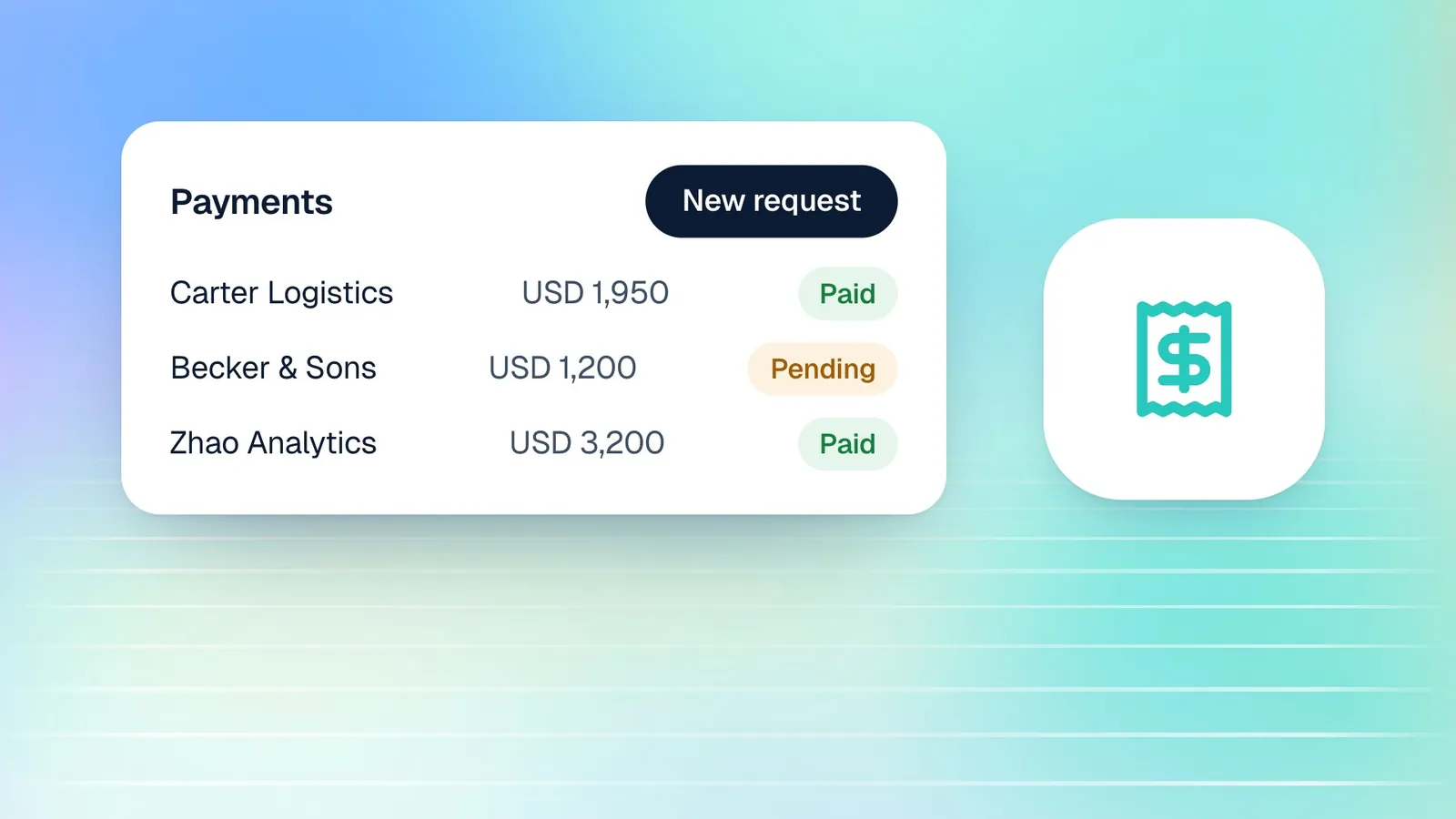
The Cypher P section in the dashboard shows an overview chart of the money customers paid each day in the selected period, leaving out pending, cancelled and refunded payments, so the number reflects what actually arrived. The payments list shows every request with its status: pending, paid, failed, refunded or cancelled. You can open any payment to see its details, copy its link, cancel it so the link stops working, mark a manual payment as paid, or refund a card payment through Stripe.
If you connect Google Sheets, payments are also logged to the Payments tab of your Cypher LM call-log spreadsheet, with rows updated when a status changes, which is handy if your bookkeeping lives in spreadsheets.
Receipts can be emailed automatically when a payment clears. Switch this on in Automations with "Email a receipt when a payment is paid".
When to ask for payment during a call
Knowing how to take a payment is only useful if the agent asks at the right moment. Asking too early feels pushy; asking too late means the customer has already hung up. The right moment is usually just after the customer has committed to something specific.
Deposits for bookings
For appointment-based businesses, the natural moment is straight after the booking is confirmed. The customer has chosen a time and agreed to come; asking for a deposit then feels like part of securing the slot. A simple line works well: "To hold this appointment, we take a deposit of [Amount]. I've just sent a secure payment link to your screen and your email." Deposits also reduce no-shows, because customers who have paid something are more likely to turn up.
Settling an invoice or balance
Some customers call specifically to pay, or call about something else and mention an outstanding balance. Your agent can create a request for the amount owed with a clear description, for example "Invoice 1042, kitchen repair", so the payment is easy to match later. Give the agent clear guidance on which amounts it may request; for anything unusual, it should take a message for your team instead.
Booking fees and one-off services
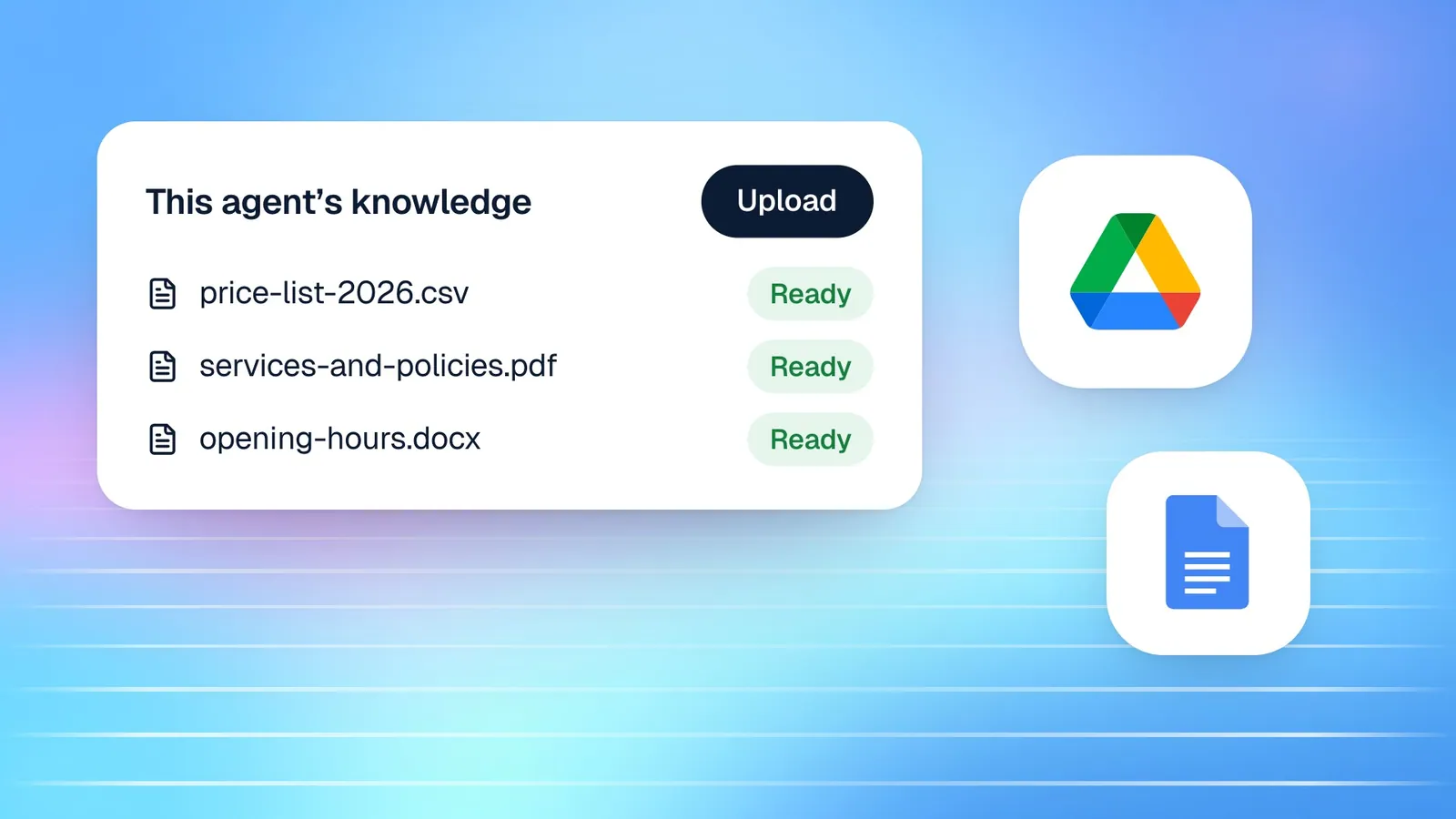
For fixed-price services, such as a consultation fee, a registration fee or an event ticket, the agent can request the standard amount during the call, or point the customer to a reusable payment link if they prefer to pay later. Writing the prices into the agent's knowledge files keeps it accurate; when prices change, update the file.
Whatever the case, tell the agent in its instructions exactly when to request payment, which amounts are allowed, and what to say if the customer would rather pay later. Clear rules make the request feel natural and keep the agent from improvising about money.
How payments connect to the rest of Cypher LM
Payments are more useful when they sit alongside everything else you know about a customer. In Cypher LM, a payment requested during a call is linked to that call, so when you open the call you can see whether the customer paid. The call recap from Cypher N notes that a payment was requested, and the follow-up draft can mention it.
Customers who share an email or phone number are grouped in Contacts, so you can see their calls, bookings and payments in one place. If you use Cypher S, the deposit and the booking it secures live side by side, and a customer who books and pays in the same call leaves with both confirmations.
If you connect Google Sheets, every payment is added to the Payments tab of your Cypher LM call-log spreadsheet and updated in place when its status changes. Many small businesses use this as a simple running ledger that their bookkeeper can open without a Cypher LM login.
For entrepreneurs running the business alone, this joined-up view matters most. There is no separate payments tool to check, no spreadsheet to reconcile by hand, and no invoice to chase from memory. The call, the booking and the payment tell one story.
How this works in Cypher LM
Setting up payments on calls takes a few minutes:
- Add a way to get paid. In Payments › Settings, connect Stripe by pasting your secret key, add your bank transfer, JazzCash or Easypaisa details, or both. Choose your default currency.
- Choose which agents take payments. In the same settings, pick the agents that can send callers a secure payment link during a call. You can also switch this on from the agent's own settings.
- Tell the agent when to ask for payment. In the agent's instructions, describe what customers pay for and when, for example "Ask for the booking deposit after confirming the appointment." Make sure the agent never asks for card numbers.
- Create payment links. For fixed prices, create reusable links and put them on your website or share them with customers.
- Switch on receipts. In Automations, turn on payment receipts.
- Test it. Use a Stripe test key and call your own agent to walk through a payment from start to finish before going live.
If you also use Cypher S, the agent can book an appointment and request the deposit in the same call, so the customer leaves with a booking and a payment confirmation together.
Frequently asked questions
Does the agent ever hear or store card numbers?
No. The agent sends a secure link, and the customer enters card details only on the Stripe payment page. Card numbers never enter the conversation, the recording or the transcript.
Do I need Stripe to use Cypher P?
No. You can use bank transfer, JazzCash and Easypaisa instructions without Stripe. Connecting Stripe adds card payments, with funds going straight to your Stripe account.
Who pays the card fees?
Card payments are processed by your own Stripe account, so Stripe's standard fees apply to your account as usual.
Can I refund a payment?
Card payments can be refunded through Stripe from the dashboard. For bank transfers and wallets, you return the money directly, as you normally would.
Which currencies can I use?
You choose a default currency, Pakistani rupees or US dollars, for new payment requests and links in Payments › Settings.
Can customers pay after the call ends?
Yes. The payment link stays valid until it is paid or you cancel it, so a customer can pay later from the email if they prefer.
Get paid while the customer is still on the line
The best time to take a payment is the moment the customer decides to buy. Payment links on calls let your agent capture that moment securely, without anyone reading out a card number, and without an invoice that waits for days.
To try Cypher P with your own agent, request a free trial or book a demo. Learn more on the payments page, read about Cypher LM and Stripe, and compare plans on the pricing page.