Card payments are the quickest way for most customers to pay, and Stripe is one of the most widely used ways for businesses to accept them. Cypher P, the payments product in Cypher LM, connects directly to your own Stripe account, so customers can pay by card during a call with your agent, from a payment request, or through a reusable payment link, with the money going straight to you.
This guide explains how the Cypher LM and Stripe connection works, how to set it up and test it safely, what happens during a card payment, how refunds work, and how card payments fit alongside bank transfers and mobile wallets. It is written for owners and finance leads who already use Stripe, or are considering it, and want to understand exactly what Cypher LM does with their account.
If you do not use Stripe, Cypher P still works: customers can pay by bank transfer, JazzCash or Easypaisa using the details you provide. Stripe adds card payments on top.
Why connect Stripe to Cypher LM
The main reason is speed. A customer who can pay by card from a link on their phone usually pays in under a minute, at the moment they agree to. There is no bank app to open, no details to copy, and no reference to remember. For deposits and fees agreed during a conversation, that immediacy is the difference between a commitment and a maybe.
The second reason is certainty. Card payments through Stripe are confirmed automatically. When the payment succeeds, Cypher LM knows, the payment is marked paid, and the customer receives a receipt. Nobody needs to check a bank statement or match a transfer to a customer, which is where much of the time in manual payment collection goes.
The third reason is that your money stays yours. Cypher LM does not hold or route your funds. You connect your own Stripe account, card payments go straight into it, and your payouts follow your normal Stripe schedule. Stripe's standard fees apply, exactly as they would for any other payment through your account.
Finally, connecting Stripe makes card payments available everywhere in Cypher P at once. The same connection powers payments on calls, payment requests and payment links, so you set it up once and every payment page offers card payment from then on.
How the connection works
Cypher LM connects to Stripe using your Stripe secret key. You paste the key into Payments › Settings, and Cypher LM checks it with Stripe straight away. If Stripe accepts it, the settings page shows "Connected as" followed by your Stripe account's name, so you can confirm you connected the right account.
The key is stored encrypted, and it is used only to create checkout sessions for your payments, check their status and process refunds you ask for. Cypher LM does not see or store your customers' card numbers. When a customer pays by card, they enter their details on Stripe's own secure checkout page, not on a Cypher LM page and never to your voice agent.
Stripe keys come in two kinds. Live keys start with sk_live_ and take real payments. Test keys start with sk_test_ and work with Stripe's test cards, so you can try the full payment flow without moving any money. When a test key is connected, Cypher LM shows a Test mode badge, so there is no confusion about which mode you are in.
You can disconnect Stripe at any time from the same settings card. After disconnecting, customers can no longer pay by card until you connect again, and the card option disappears from your payment pages. Card payments already made stay in your payments list, with all their details.
| Card payments through Stripe | Bank transfer, JazzCash, Easypaisa | |
|---|---|---|
| How the customer pays | Card on Stripe's secure checkout | Transfer with a reference code, then taps "I've sent the payment" |
| Confirmation | Automatic when the payment succeeds | You check and use Mark as paid |
| Where the money goes | Your Stripe account | Your bank or wallet account |
| Refunds | From the payment's menu in Cypher LM | Handled directly by you |
| Fees | Stripe's standard fees | Your bank's or wallet's own charges, if any |
Setting up and testing Stripe
The safest way to start is with a test key, run a payment end to end, and then switch to your live key. The whole process takes about fifteen minutes.
- Find your test secret key. In your Stripe dashboard, open the developer section and copy the test secret key, which starts with sk_test_. The "Where do I find it?" link in Cypher LM's settings points you to the right place.
- Connect it in Cypher LM. Go to Payments › Settings, find Card payments (Stripe), paste the key and choose Connect Stripe. Cypher LM checks it with Stripe and shows "Connected as" with your account name and a Test mode badge.
- Create a test payment request. In Payments, choose New payment request, enter a small amount and a description such as "Stripe test", and add your own email.
- Pay it with a test card. Open the payment link, choose to pay by card, and complete Stripe's checkout using one of Stripe's published test card numbers.
- Check the result. The payment page should show the payment as complete, the payment should appear as Paid in Payments › Payments, and a receipt should arrive in your inbox.
- Try a refund. From the test payment's menu, choose Refund and confirm. The payment should show as Refunded.
- Switch to live. Disconnect the test key, then connect your live key, which starts with sk_live_. The Test mode badge disappears, and card payments are now real.
If your agent will take payments on calls, it is worth one more test while still in test mode: switch on Take payments on calls for the agent, start a call, agree to pay a small deposit, and pay the card on the screen. This confirms the whole chain, from conversation to receipt, before any customer uses it.
What happens during a card payment
From the customer's side, a card payment takes a few taps. They open the payment page, from an email, a message, a link on your website or the card that appears on their screen during a call with your agent. They see your business name, the amount and what it is for, and choose to pay by card. Stripe's checkout opens, they enter their card details, and they return to your payment page, which confirms the payment.
Behind the scenes, Cypher LM creates a Stripe checkout session for that payment, using your account, the amount and the currency, PKR or USD. When the customer completes the checkout, Cypher LM confirms the payment with Stripe and marks it as paid. If the customer returns to the page before confirmation has finished, the page checks again with Stripe, so it does not show a stale status.
The payment then appears in Payments › Payments with "Card" as the method and its source: a call, a payment link, or sent by you. The customer receives a receipt by email if they gave an address. If you connected Google Sheets, a row is added to the Payments tab of your call log spreadsheet.
During calls, the experience is designed so the agent never handles card details. The agent sends a payment request, the payment card appears on the caller's screen and the link is emailed to them, and the agent tells the caller it has been sent. The caller pays on the secure page, and the call carries on.
Choosing the currency
Each payment in Cypher P is in PKR or USD. Your default currency, set in Payments › Settings, applies to new payment requests and links, and you can change it on each one. Stripe handles the card payment in the currency of the payment, and any conversion for an international card is handled by Stripe and the customer's card issuer under their usual terms. If you serve customers in more than one country, consider creating separate payment links for each currency, so every customer sees a price they recognise.
Refunds, failures and disputes
Things do not always go to plan, and it helps to know how each situation is handled.
Refunds. For card payments, choose Refund from the payment's menu in Payments › Payments and confirm. The full amount goes back to the customer's card through Stripe, and the payment is marked Refunded. Refunds cannot be undone, so the confirmation dialog shows the amount before you proceed. Refunds for bank and wallet transfers are not handled through Cypher LM; arrange those directly with the customer.
Failed payments. If a card is declined at checkout, the payment is not completed and shows as Failed or stays Pending. The customer can try again from the same link with another card, or choose a bank or wallet transfer if those are available. You can email them the link again from the payment's menu.
Disputes and chargebacks. These are handled in your Stripe account, as they are for any Stripe payment. Because each Cypher LM payment includes a description, and payments taken on calls are linked to the call's recording and transcript, you have a clear record of what the customer agreed to.
Pending requests. A payment request that is not paid within 30 days expires and can no longer be paid. If the amount is still due, create a new request.
A short internal routine keeps everything tidy. Check the Payments list each morning for failed card payments and pending transfers marked "Customer says paid", act on each, and let Stripe's payouts and your bank statement do the rest. Because every Cypher LM payment carries a description, the payments in your Stripe dashboard are easy to recognise and reconcile.
How this works in Cypher LM
Stripe is one part of Cypher P's payment settings, which apply to every way you take payment. In Payments › Settings you will find your default currency, the Card payments (Stripe) connection, your bank transfer, JazzCash and Easypaisa details, and the list of agents that take payments on calls.
Most businesses in markets where bank and wallet transfers are common use both: Stripe for customers who prefer to pay by card, including international customers, and bank, JazzCash or Easypaisa details for those who prefer local methods. The payment page shows every method you have set up, and the customer chooses. You can see which method each payment used in the payments list.
Card payments work everywhere in Cypher P. A Cypher V agent with Take payments on calls switched on can collect a deposit during a call. A payment request sent from the dashboard can be paid by card. A reusable payment link, covered in our post on payment links, can be paid by card any time. All of them report into the same Overview, with the amount collected, the number of payments and what is still waiting to be paid.
Stripe also appears in Automations › Apps, which shows whether it is connected, the account name, and whether it is in live or test mode, alongside your Google connection.
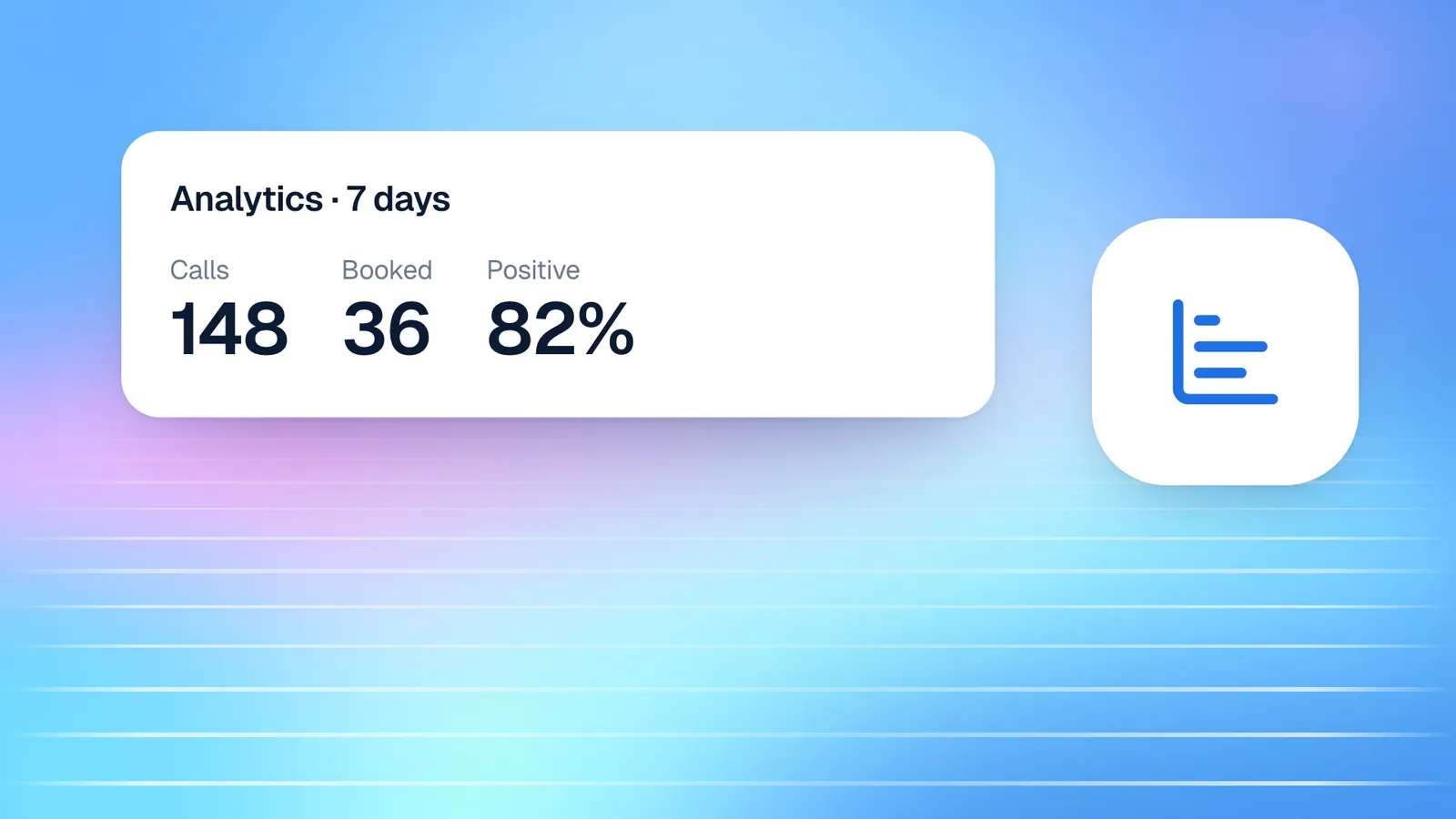
Card payments also make your reporting more reliable. Because each card payment is confirmed by Stripe, the Overview's collected figures and chart reflect money that has actually been charged, without waiting for anyone to check a bank statement. Combined with the Payments tab of your Google Sheets call log, that gives you a live, accurate record you can share with whoever does your books.
Frequently asked questions
Does Cypher LM hold my money?
No. Card payments go straight to your own Stripe account and are paid out on your normal Stripe schedule. Cypher LM uses your key only to create checkouts, confirm payments and process the refunds you ask for.
Does my voice agent hear card numbers?
No. The agent sends a payment request, and the caller pays on Stripe's secure checkout from the card on their screen or the emailed link. Card details are never spoken or stored by Cypher LM.
Can I try it without real payments?
Yes. Connect a Stripe test key, which starts with sk_test_, and Cypher LM shows a Test mode badge. Pay with Stripe's test cards, then switch to your live key when you are ready.
What fees apply?
Stripe's standard fees for your account apply to card payments, as they would for any Stripe payment. See our pricing page for Cypher LM's own plans.
Which currencies are supported?
Payments in Cypher P are made in PKR or USD. You choose a default currency in Payments › Settings and can change it per request or link.
Do I need Stripe to use Cypher P?
No. You can take payments by bank transfer, JazzCash and Easypaisa without Stripe. Connecting Stripe adds card payments.
Conclusion
Connecting Stripe to Cypher P takes a few minutes and turns every payment page, payment request and on-call payment into something customers can complete with a card in under a minute. Your money goes straight to your own account, confirmation and receipts are automatic, and refunds are a click away.
Start in test mode, run one payment end to end, and switch to live when you are happy. To get started, request a free trial, or read our guide to sending payment requests to see how card payments fit into collecting what you are owed.