Not every payment starts with an appointment or a phone call. A client wants to pay for a consultation before you have spoken, a customer wants to settle a balance from their phone on a Sunday, a supporter wants to contribute an amount of their choosing. In each case, the fastest route to being paid is a link the customer can open and pay from, at any time, without waiting for you.
Payment links in Cypher P are exactly that: reusable links to a secure payment page, created once and shared as often as you like. A link can carry a fixed amount, such as a consultation fee, or let the customer enter the amount. Customers can pay by card through your own Stripe account, or by bank transfer, JazzCash or Easypaisa.
This guide explains what payment links are for, how they differ from one-off payment requests and payments taken on calls, how to create and manage them, and where to share them so they are used. It is for owners and managers who want a dependable way to get paid for anything they sell, without a booking or a conversation every time.
What payment links are for
A payment link is a standing invitation to pay you. Unlike a payment request, which is made for one customer and one amount, a payment link is made for a purpose and shared with anyone who needs it. The same "Consultation fee" link can be sent to fifty different clients, and every payment made through it appears in your payments list with the customer's details.
That makes links ideal for anything you charge repeatedly at a standard price. A clinic can have a link for its assessment fee, a consultant for a one-hour advisory session, a training company for a course deposit, a tutor for a month of lessons. Each link is created once and then used whenever the situation comes up, by your team or by the customer directly.
Links with an open amount suit situations where the price varies or the customer decides. A contractor can use one to collect balances of different sizes, a community organisation can use one for contributions, and a business can use one to let regular customers top up an account. The customer enters the amount on the payment page, and you see exactly what they paid.
Because links do not depend on a booking, they also work for things that are not appointments at all: a deliverable, a report, a remote order, a membership, a late fee. If you can describe it in a sentence and put a price on it, you can sell it with a link.
Payment links, payment requests and payments on calls
Cypher P offers three ways to ask for money, and each has its place. Choosing the right one for each situation keeps your payments tidy and your customers clear about what they are paying for.
| Option | Made for | Amount | Best used when |
|---|---|---|---|
| Payment link | Anyone you share it with | Fixed, or entered by the customer | You charge the same thing often, or want customers to pay any time |
| Payment request | One named customer | Set by you | You need a specific customer to pay a specific amount |
| Payment on a call | The caller | Set by the agent within the conversation | A caller agrees to pay a deposit or fee while talking to your agent |
Payment requests are covered in our guide to sending payment requests. They are personal: each one has the customer's name and email, can be emailed to them, and expires if it is not paid within 30 days. Use them for balances, custom quotes and anything specific to one customer.
Payments on calls happen when a Cypher V agent with Take payments on calls switched on asks a caller to pay. The agent creates a request, the payment link appears on the caller's screen and is emailed to them, and the caller pays without the agent ever hearing card details. Use these for deposits and fees agreed in conversation.
Payment links sit alongside both. They are the right choice whenever the price is standard or the customer should be able to pay without being asked. Many businesses use all three: links for standard fees, requests for custom amounts, and on-call payments for deposits.
Creating a payment link
Payment links are created in Payments › Payment links with New payment link. The dialog is short, and every field is something the customer will see or rely on.
- Name the link. For example "Consultation fee" or "Course deposit". The name identifies the link in your list and on the payment page, so use the words your customers use.
- Choose the amount. Pick a fixed amount and enter it, or let the customer enter the amount on the payment page.
- Choose the currency. PKR or USD. New links use the default currency from Payments › Settings unless you change it.
- Describe what it is for. The description is shown to the customer on the payment page. Say what the payment covers and anything they need to know, such as "Covers one 60-minute session, valid for 3 months".
- Switch it on. A link that is on can be paid; a link that is off cannot. You can create a link off and switch it on when you are ready.
- Create the link. It appears in your list with Copy link and Open link, ready to share.
Before sharing your first link, make sure you have at least one way to get paid set up in Payments › Settings: connect Stripe for cards, add your bank, JazzCash or Easypaisa details, or both. Open the link yourself once to see the page exactly as a customer will.
What customers see and how they pay
When a customer opens a payment link, they see a clean payment page with your business name, the link's name, the amount, or a field to enter it, and your description. Below that are the ways they can pay.
If you have connected Stripe, the customer can pay by card through Stripe's secure checkout. The money goes straight to your Stripe account, and the page updates as soon as the payment succeeds. Stripe's standard fees apply, as they would for any card payment through your account.
If you have added bank or wallet details, the page shows your bank name, account title, account number and IBAN, and your JazzCash or Easypaisa numbers, whichever you have filled in, along with a reference code. The customer transfers the money, adds the reference, and taps "I've sent the payment". Cypher LM emails you, and once you have seen the money arrive, you mark the payment as paid.
When a payment is complete, the customer receives a receipt by email if they gave an address. You can turn automatic receipts off in Automations if you prefer to send your own, and you can resend a receipt from the payment's menu at any time.
Managing your links
Each link in Payments › Payment links shows its name, amount, whether it is on, and how many times it has been used. The usage count is a quick way to see which of your standard fees customers actually pay through links, and which links may no longer be needed.
From a link's menu you can edit it, turn it off or on, open it, or delete it. Editing changes the link for everyone who opens it from then on, which is useful when a price changes: update the amount once, and every place you have shared the link shows the new price. Payments already made keep their original amount.
Turning a link off is the safe way to pause it, for example while a service is unavailable or a promotion has ended. Anyone who opens it can no longer pay, but the link and its history remain, and you can switch it back on later. Deleting a link stops it working permanently for anyone who has it; payments already made through it stay in your payments list.
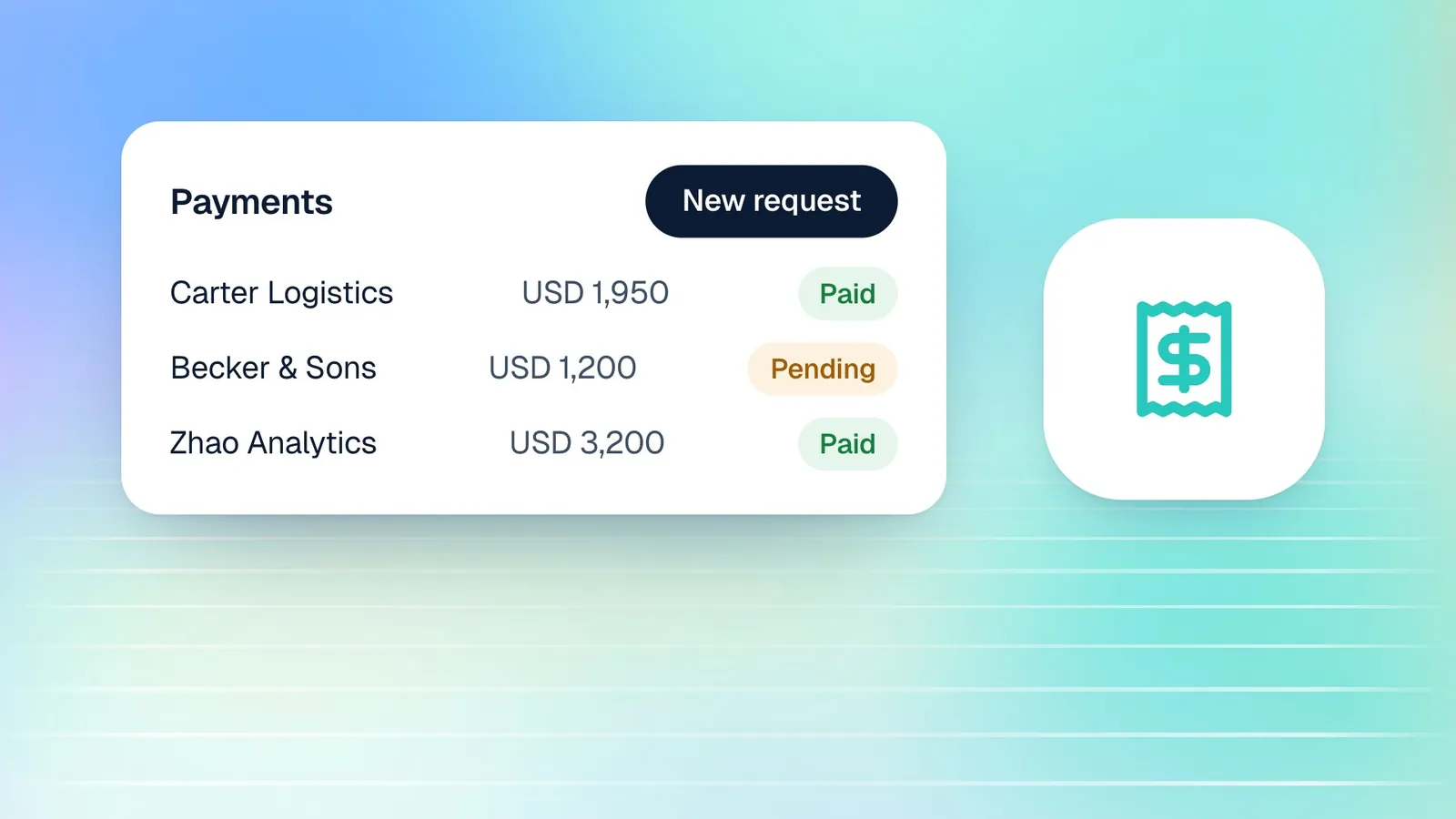
Every payment made through a link appears in Payments › Payments with "Payment link" as its source, alongside the customer's name and email if they gave them. From there you can mark manual payments as paid, email receipts and refund card payments, exactly as with any other payment.
Review your links every few months. Turn off links for services you no longer offer, update prices that have changed, and check the usage counts. A link that has never been used may need a clearer name or a better place to be shared; a link used heavily may deserve a more prominent place on your website.
Where to share payment links
A payment link is only useful where customers can find it at the moment they want to pay. The best places are the ones where payment is already being discussed.
- WhatsApp and messages: when a customer asks "how do I pay?", reply with the link. It is faster and clearer than typing out bank details.
- Email: in quotes, proposals, booking confirmations and follow-up emails. Cypher N's drafted follow-ups are a natural place to add the link before sending.
- Your website: next to each service and on a "Pay online" page, so customers can pay without contacting you.
- Printed QR codes: at your counter or reception desk, so walk-in customers can pay from their phone.
- Social profiles: for businesses that sell directly to followers, a link to a standard fee or an open-amount link.
Use separate links for separate purposes. A link per service keeps your payments list readable and makes the usage counts meaningful, which a single "Pay us" link cannot do.
A good naming habit helps everyone. Name links after the service and the price in the customer's terms, such as "Initial consultation, 60 min", and keep the description focused on what the customer receives. Customers who can tell at a glance what they are paying for pay faster and ask fewer questions, and your team can find the right link quickly when a customer asks how to pay.
How this works in Cypher LM
Payment links are part of Cypher P, and they share everything with the rest of the payments product. The same Stripe connection, bank and wallet details and default currency in Payments › Settings apply to links, requests and payments on calls alike.
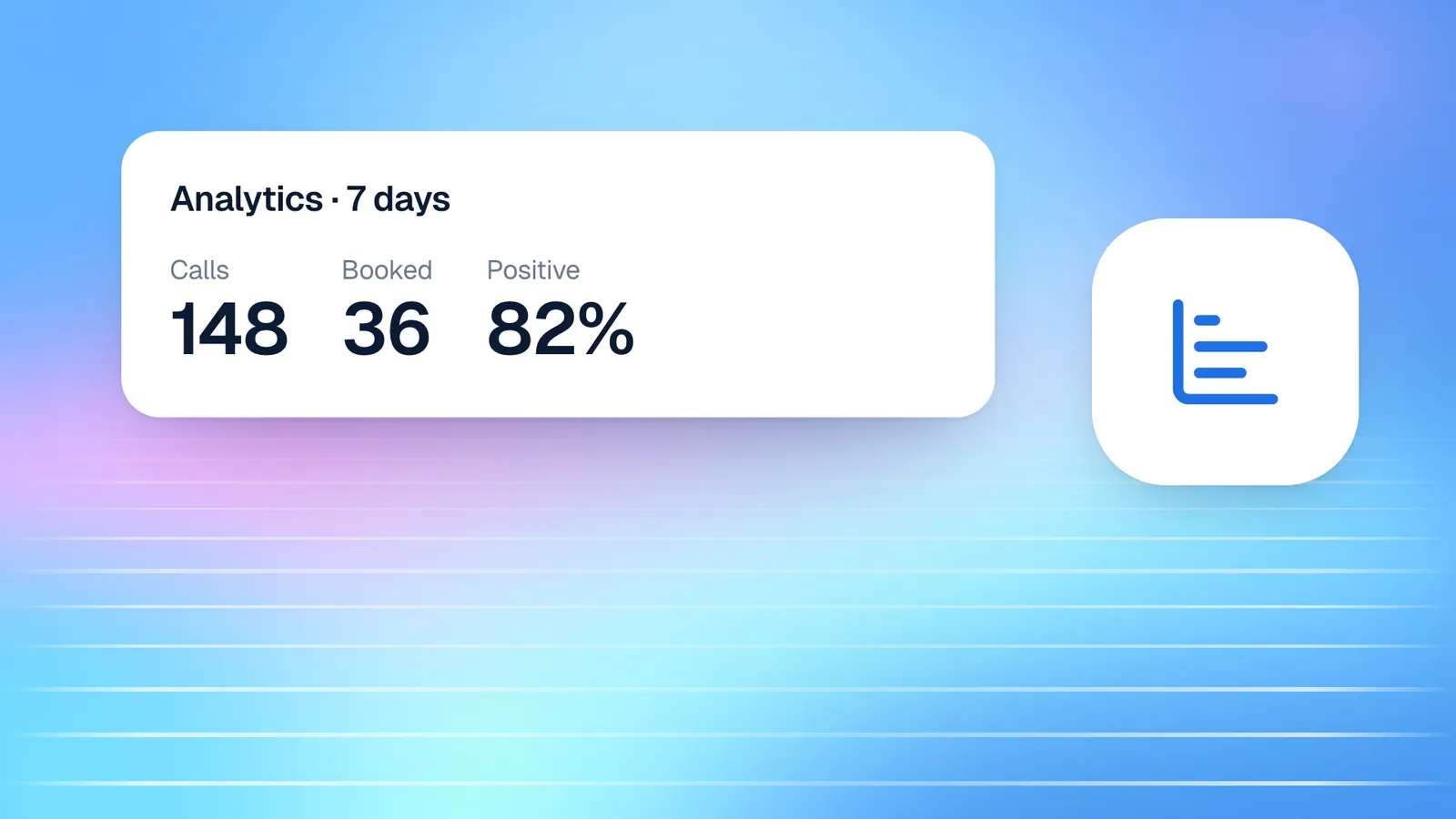
Payments made through links feed the same reports. The Overview tab shows the amount collected, the number of payments, the average payment and a collected-per-day chart for 7, 30 or 90 days, whichever way the money arrived. If you connect Google Sheets in Settings › Integrations, each payment is added to the Payments tab of your "Cypher LM — Call log" spreadsheet, and its row updates in place when the status changes.
When a customer pays through a link with an email or phone number that matches an existing contact, the payment appears on their timeline in Contacts, next to their calls, bookings and notes. That gives your team the full context next time the customer gets in touch.
Links also work well with your voice agent's bookings. If a service requires payment in advance, the agent can book the appointment on the call and then send a payment request, while customers who book through your booking link can be sent the matching payment link in their confirmation follow-up. Our guide to collecting payments for appointments walks through the options.
For teams, payment links also standardise how everyone asks for money. Instead of each person typing bank details from memory or quoting slightly different prices, everyone shares the same link for the same service, and every payment arrives with the same description. That consistency makes your payments list easier to read and your customers more confident about what they are paying for.
Frequently asked questions
Can customers choose how much to pay?
Yes. When you create a link, choose "Customer enters the amount" instead of a fixed amount. The customer types the amount on the payment page.
Do payment links expire?
No. A payment link keeps working until you turn it off or delete it. Individual payment requests are different: they expire if they are not paid within 30 days.
What happens to payments if I delete a link?
The link stops working for anyone who has it, but payments already made through it stay in your payments list with all their details.
Can I change the price on a link I have already shared?
Yes. Edit the link and change the amount. Everyone who opens it from then on sees the new price, and earlier payments keep their original amounts.
Which payment methods do links support?
Card payments through your own Stripe account, and bank transfer, JazzCash and Easypaisa using the details you add in Payments › Settings. PayPal is not supported.
Conclusion
Payment links give your customers a simple, always-available way to pay for the things you sell most often, and give you one place to see what came in. Create a link per standard fee, share it wherever payment comes up, and let the usage counts and the Overview tell you what is working.
To set up your first link, request a free trial and open Payments › Payment links, or read how Cypher P works with Stripe to add card payments.