How to invite and manage teammates
Quick answer
To invite a teammate:
- Go to Settings › Team & roles.
- Select Invite teammate.
- Enter their Email and choose a Role.
- Send the invite.
Cypher LM is built for teams. Instead of sharing one login, invite each person who helps with your agents and calls, and give them a role that matches their job: a manager who builds agents, a front desk that handles today's calls, or a sales rep who works their own leads. "Invite people to help manage your agents and calls."
Who can manage the team
The Team & roles page appears in Settings only for people whose role includes team management, such as the account owner. If you do not see a Team group in Settings, ask your account owner to invite people or change your role.
Invite a teammate
- Go to Settings › Team & roles.
- Select Invite teammate.
- Enter the person's Email. Use the address they will sign in with, Google or email.
- Choose a Role: Manager, Front desk or Sales rep.
- If you chose Sales rep, tick the agents they are responsible for. They will see only those agents' calls, follow-ups and campaigns.
- Send the invite. They receive an email with a link to join.
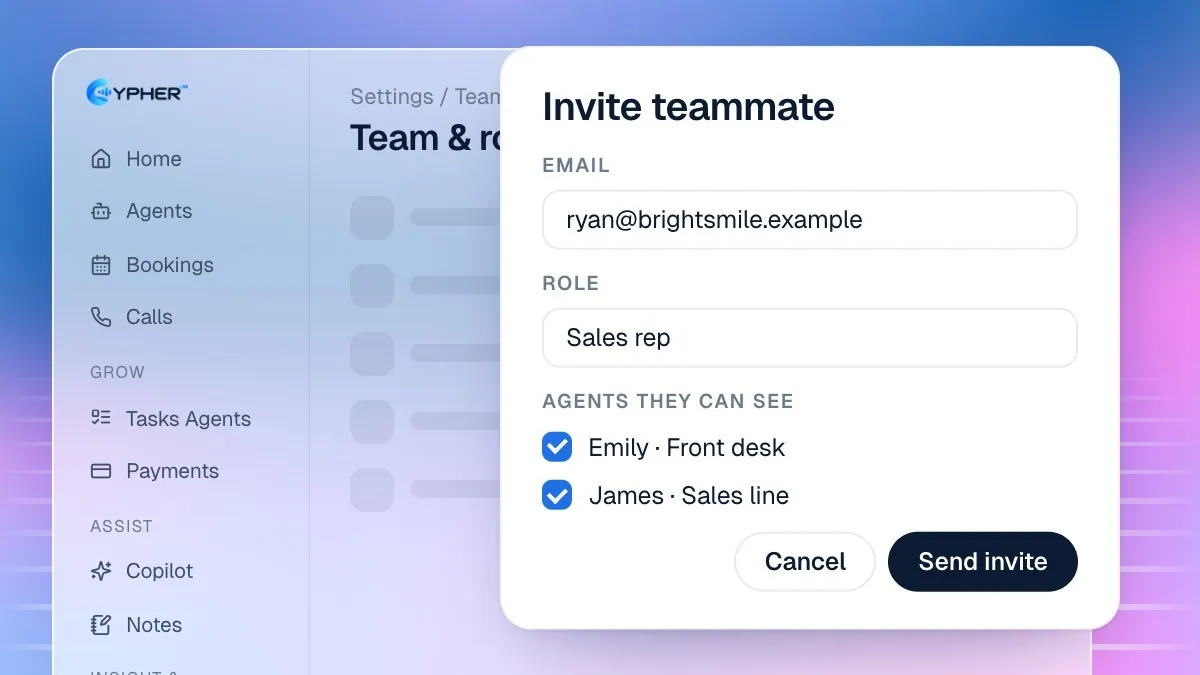
For what each role can see and do, see User roles and permissions.
Pending invites
Invites that have not been accepted show under the member list with their expiry date.
- Resend sends the invite email again, for example if it went to spam.
- Revoke cancels the invite so the link no longer works.
Change a role or remove someone
- Go to Settings › Team & roles.
- Find the person in the member list.
- Change their role, or remove them from the team.
The account owner always appears at the top with an Owner badge and cannot be removed. Ownership, plan, billing and account deletion stay with the owner.
Leave a team
If you were invited to someone else's account and no longer need access, go to Settings › Team & roles and select Leave this team. You can be invited again later.
Tips for rolling out to a team
- Start with one Manager who sets up agents and knowledge, then add Front desk and Sales rep users.
- Ask everyone to sign in once and check they see the right agents before you rely on them.
- Review the member list every few months and remove people who no longer need access.
Frequently asked
My teammate did not get the invite
Ask them to check spam, then select Resend. Make sure the email address is spelled correctly; if not, revoke the invite and send a new one.
Can a teammate use a different email than the invite?
No. They must sign in with the address the invite was sent to. Send a new invite to the address they prefer.
Can I have more than one owner?
No. Each account has one owner. Give a trusted colleague the Manager role for day-to-day agent work.
Team plans and limits
Your plan limits agents, minutes and concurrent calls, not the number of people you invite. Every call your teammates make, including test calls, counts toward the account's minutes. See Plans, free trial and billing.