How to add Cypher LM to your website
Quick answer
To add your agent to your website:
- Open Agents › Deploy › Website widget and choose your agent.
- Under Where will the widget appear?, enter your Website addresses.
- Under Look, choose a position and colour.
- Under Add it to your site, copy the code and paste it just before </body> on your site.
The website widget adds a small voice-call button to your website. Visitors tap it, allow their microphone and talk to your Cypher V agent right away, with no app or download. This article walks through the three steps in the Website widget tab and covers the most common website builders.
Before you start, make sure your agent is live. You can check its status on the Agents page: an agent that is ready shows a Test call button.
Set up the widget
- In the dashboard sidebar, hover over Agents and select Deploy, then open the Website widget tab. You can also open an agent and select Deployment › Website widget.
- Under Where will the widget appear?, enter each website address where the widget should work, for example
example.com. The widget only works on these sites. Subdomains are included, soexample.comalso coversshop.example.com. - Under Look, choose a Position: Bottom left or Bottom right.
- Choose a colour: Sky, Navy, Teal, Amber or Rose. To match your brand exactly, select Custom colour and enter a colour code such as
#84c1ff. - Check the Preview panel. It shows your widget on a sample page, and when your site allows it, on a live view of your own site.
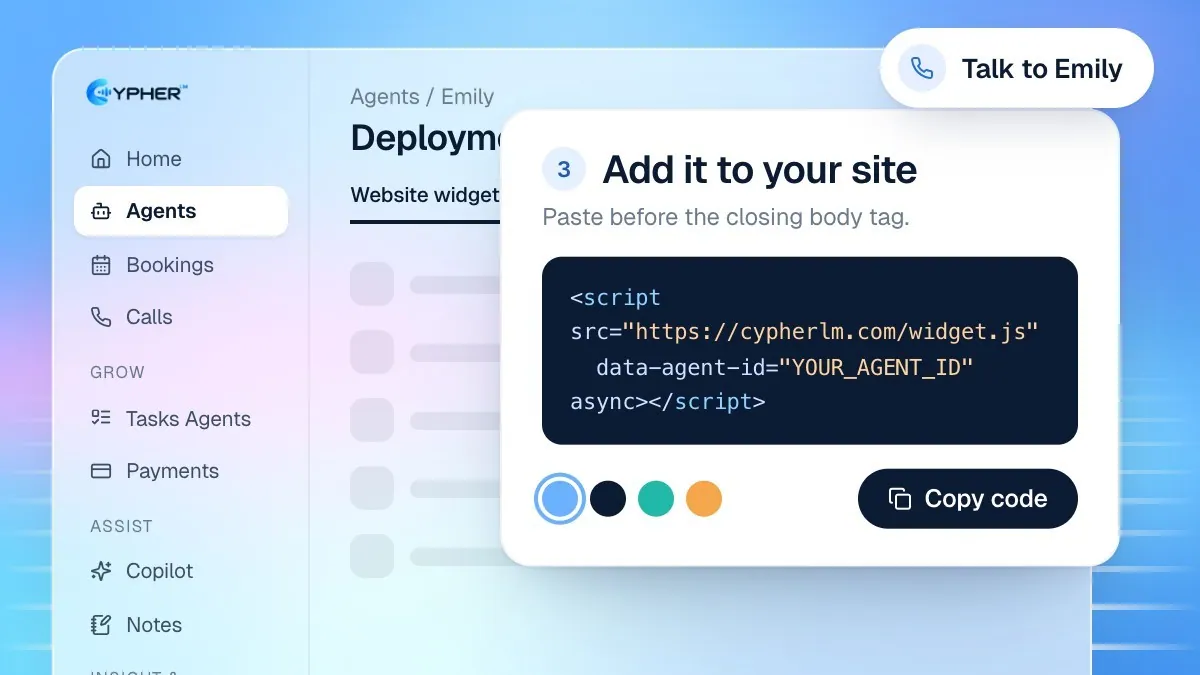
- Under Add it to your site, select the code box to copy the snippet. You will see the message Code copied. Paste it just before </body> on your site.
The snippet is a single line that looks like this, with your own agent ID filled in:
<script src="https://cypherlm.com/widget.js" data-agent-id="YOUR_AGENT_ID" async></script>
Paste the code into your site
Paste the snippet just before the closing </body> tag of every page where you want the widget, or in your site builder's custom code box. Most builders have a setting that adds code to every page at once, which is the easiest option.
- Hand-coded sites: paste the line just above
</body>in your page template or shared footer file. - Wix, Shopify and Squarespace: use the platform's custom code or code injection setting and add the snippet to the footer, or body end, of all pages. The Website widget tab links to a short guide for each of these builders.
- Google Sites: Google Sites places embedded code inside a frame, which can stop the browser from offering the microphone to the widget. If the widget does not start a call there, link visitors to a page on a site you control instead.
- WordPress: follow Add Cypher LM to a WordPress site.
Publish your site, open it in a new browser tab and look for the widget in the corner you chose. Tap it and make a short test call.
If the code is locked
The website widget is part of paid plans and the free trial. If your plan does not include it, the tab shows Website widget isn't included in your plan yet, and the code box explains that the code unlocks once the widget is included in your plan. You can select Upgrade plan, Use a share link instead to keep testing with your team, or Talk to our team. See Plans and billing for what each plan includes.
Change the widget later
You do not need to replace the code to change the widget's look. Update the position, colour or website addresses in the Website widget tab and the change applies to the code already on your site. If you switch the widget to a different agent, copy the new snippet, because the agent ID in the code changes.