How to start a Copilot session
Quick answer
To start a Copilot session:
- Go to Copilot and select Start session.
- Under Who are you calling?, pick A contact or Someone new.
- Choose the Language of the call and select Start session.
- Select Start listening or Share Google Meet tab, then use or dismiss suggestions.
- Select End session when the call is over.
A Copilot session is one conversation with one customer. Cypher M briefs you at the start, listens while you talk, suggests what to say next, and writes a summary with action items at the end. This article walks through a session from start to finish.
Start a session
- In the dashboard sidebar, select Copilot.
- Select Start session. The Start a Copilot session dialog opens.
- Under How should Cypher M listen?, choose how Copilot will hear the call. For a phone call on your computer or an in-person meeting, choose Share this tab and use your microphone. For Google Meet, see How to use Cypher M in Google Meet.
- Under Who are you calling?, choose one:
- A contact: search by name, phone or email and select the person.
- Someone new: enter a Name and, optionally, a Phone. If that number has called your agent before, Copilot links the session to them.
- Choose the Language of the call: English, Urdu or English + Urdu.
- Select Start session.
You can also start a session from a contact's profile: open the contact in Contacts and select Start session under their brief.
Read the brief
The live page opens with the Brief card at the top. It summarises what the person wants, what has happened so far, open items, concerns, promises made, a suggested opening and next steps. The Across the business card lists their bookings, follow-ups and earlier meeting notes. Take a few seconds to read both before you speak.
Listen and get suggestions
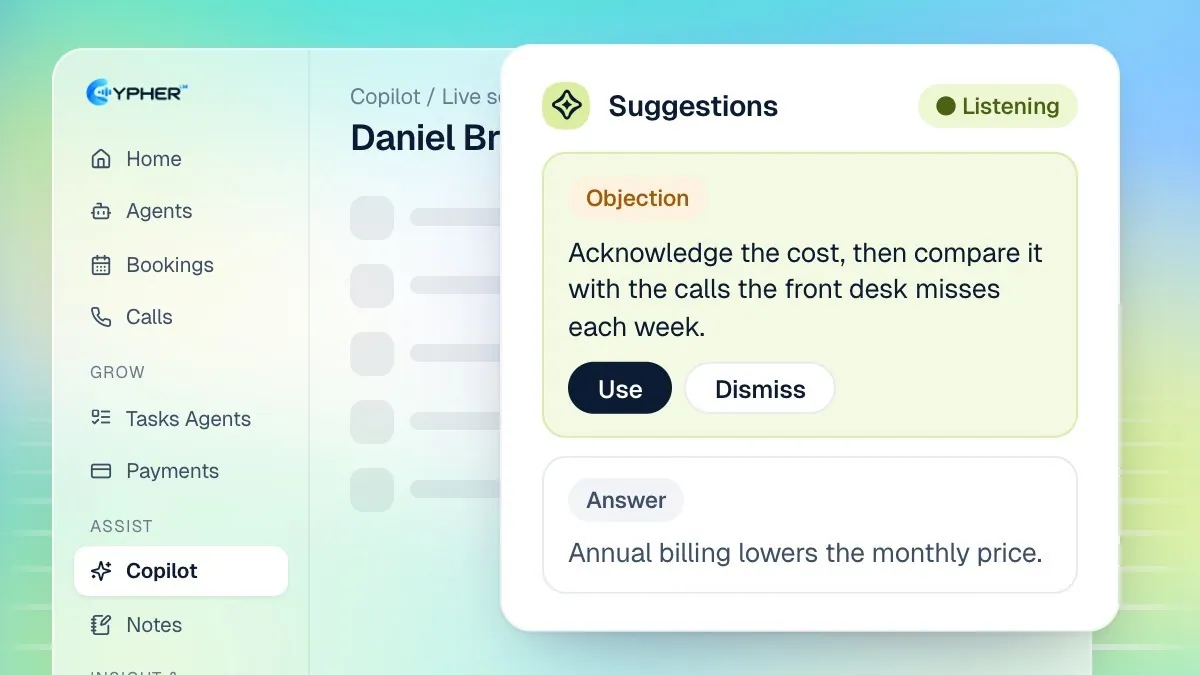
- In the Transcript card, select Start listening to use your microphone, or Share Google Meet tab to hear both sides of a Meet call.
- Talk as you normally would. The transcript fills in as you speak.
- Watch the Suggestions panel. Each card is tagged Answer, Next step, Objection or Reminder.
- Select Use on a suggestion you act on, or Dismiss to clear it. Used suggestions show Used with an Undo option.
- Select Suggest now whenever you want a fresh suggestion straight away.
If the microphone can't hear the customer, type what they said into the box under the transcript and press Enter. Copilot adds it and suggests a reply.
Keyboard shortcuts
Key | Action |
|---|---|
M | Start, pause or resume the microphone |
S | Suggest now |
U | Use the top suggestion |
X | Dismiss the top suggestion |
Pop out the suggestions
When your browser supports it, select Pop out in the Suggestions panel to open a small floating window that stays on top while you work in another tab, such as Google Meet. Select Close pop-out to bring it back.
End the session
- Select End session, then confirm. The mic stops and Copilot writes the summary.
- Review the Summary, the Action items (each marked You or Customer) and Suggestions your team used.
- Open Brief at the start of the call or the Transcript if you need detail.
- Select New session for another call, or Delete session to remove it permanently.
When Google Docs is connected, Note taker (Cypher N) also files the meeting notes in your Google Docs. See Cypher N note taker overview.
Teach Copilot with playbooks
Playbooks tell Copilot what to suggest in situations that come up often, such as a price objection. Open them from the More menu at the top of the Copilot page.
- On the Copilot page, open More and select Playbooks.
- Select New playbook.
- Enter a Name, describe When to use it (for example, "The caller says it's too expensive"), and write What to suggest in plain instructions. Include real prices or policies if you want Copilot to use them.
- Save. Only playbooks that are switched on are used; turn one off with its switch at any time.
The Suggestions library, also under More, collects the suggestions your team actually pressed Use on, grouped by playbook, with how often each was used. Search it or copy a suggestion to reuse in training.