How to read call recaps
Quick answer
To read a call recap:
- Go to Calls and open the Recaps tab.
- Select a call to open its drawer.
- Read the Summary and Key details tabs.
A recap is what Cypher N writes after one of your agents finishes a call. It saves you from listening to the recording: in a few lines you know who called, what they wanted and what needs to happen next. Recaps appear in the dashboard and, if you choose, in your inbox.
What a recap contains
- Summary: what the call was about and how it ended.
- Key details: details from the call and what the caller shared about themselves, such as name, phone, email, website, language and mood.
- Action items: anything someone agreed to do. These also appear in Automations › Follow-ups.
The full transcript and recording sit alongside the recap, so you can always check the exact words.
Find recaps in the dashboard
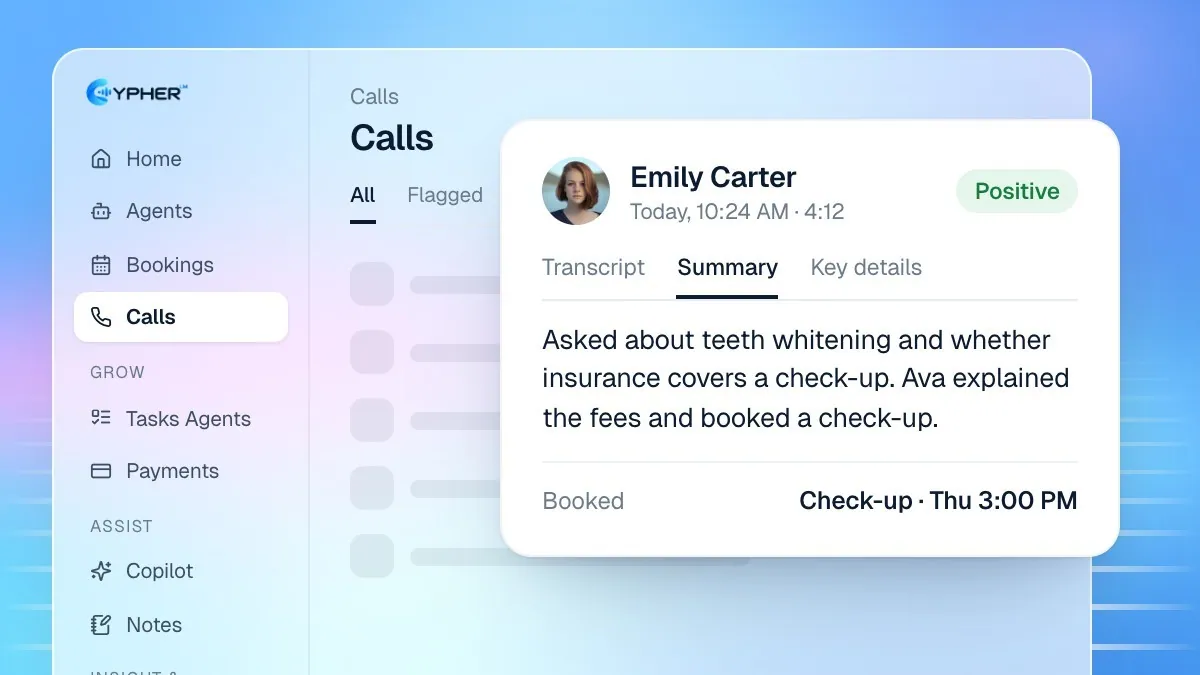
- In the sidebar, select Calls.
- Open the Recaps tab. A badge shows how many recaps are new.
- Select a call to open its drawer.
- Read the Summary tab, then the Key details tab. Use Copy all to copy the caller's details.
- Open the Transcript tab to read the full conversation, or the Caller tab to see their other calls.
You can also read recaps from Notes › Calls, or from an agent's page under Agents › your agent › Calls, filtered to Recaps.
Get recaps by email
Cypher N can email you each recap after a call. Turn this on or off in Settings › Notifications. For the switches that control recaps per agent, see Note taker settings.
When a summary is missing or unclear
- Writing the summary… or Still processing: the call just ended. Check back shortly.
- We couldn't write a summary for this call.: select Try again, or Generate summary if none was written.
- This summary may be less accurate: the audio or conversation was unclear. Check the transcript before you rely on it.
- No transcript for this call: the call may have ended before anyone spoke, so there is nothing to summarise.
To refresh a summary at any time, select Regenerate summary in the Summary tab.
Turn a recap into action
A recap is most useful when it leads somewhere. A few habits help your team act on recaps quickly:
- Work the Recaps tab daily. The badge counts new recaps, so a quick pass each morning catches every caller who needs a reply.
- Tick off action items. Items from a recap appear in Automations › Follow-ups; ticking them there keeps the list honest.
- Open the contact. From the Caller tab, select Open contact to see every call, booking and payment for that person before you call back.
- Prepare with Cypher M. If your plan includes Cypher M, start a Copilot session with the caller and the brief will draw on this recap and every earlier call.
If the same question keeps appearing in recaps and your agent is not answering it well, add the answer to your knowledge base. See Knowledge base overview.
If recaps are locked
Recaps come with Cypher N. If your plan doesn't include it, the call drawer shows "Summaries and key details come with Cypher N". The transcript stays available on every plan. Select Add Cypher N to add it, or Compare plans to see what each plan includes.