How to connect Stripe
Quick answer
To connect Stripe:
- Go to Cypher P and select Settings.
- Under Card payments (Stripe), paste your Stripe secret key.
- Select Connect Stripe.
Cypher P takes card payments through your own Stripe account. Customers pay on a secure payment page, and the money goes straight to your Stripe balance; Stripe's normal fees apply. Cypher LM does not hold your money.
Before you start
- You need a Stripe account. You can create one at stripe.com.
- You need your Stripe secret key. Live keys start with
sk_live_; test keys start withsk_test_. - You need to be the account owner or have a role that can manage payments. See User roles and permissions.
Connect your Stripe account
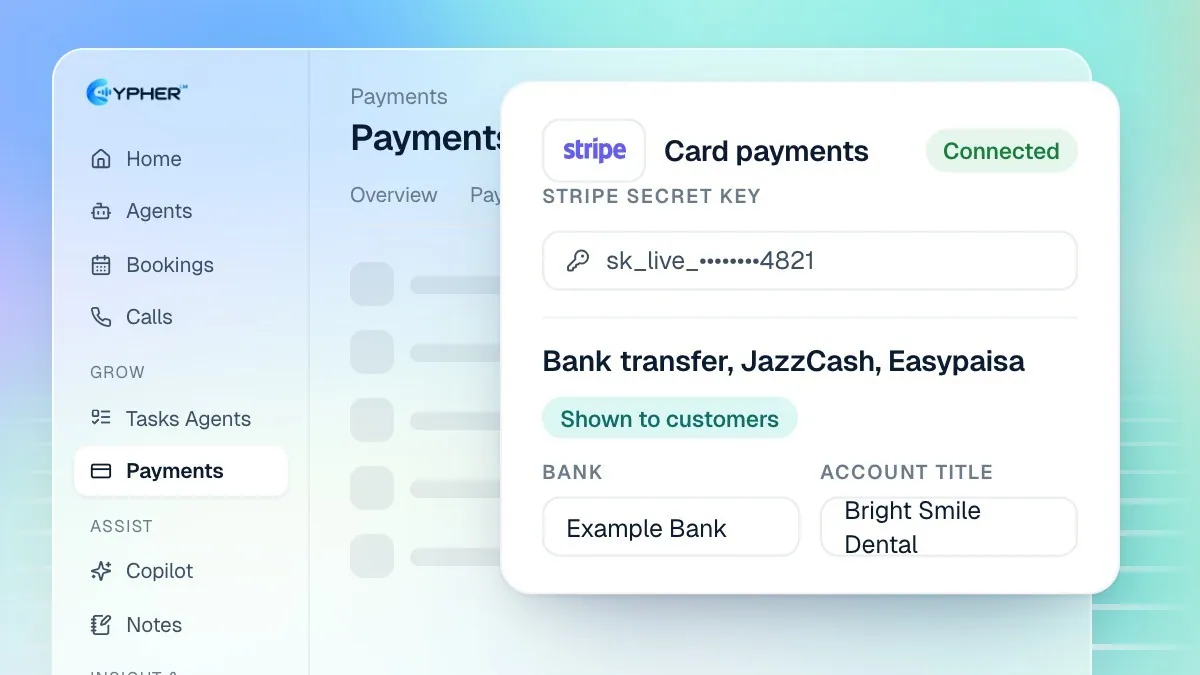
- In the sidebar, select Cypher P, then select Settings at the top of the page.
- Find the Card payments (Stripe) card.
- If you need help finding your key, select Where do I find it?. It opens the API keys page in your Stripe dashboard.
- Copy your secret key from Stripe and paste it into Stripe secret key.
- Select Connect Stripe. The button shows Checking with Stripe… while we confirm the key.
- When it is accepted, the card shows Connected as your Stripe account name and a masked key, such as
sk_live_••••1234.
From now on, payment pages offer card payment, and agents with Take payments on calls switched on can collect card payments during calls.
Try it out in test mode
Want to see the flow before you take real money? Connect a key that starts with sk_test_. The card shows a Test mode badge, and payments use Stripe's test cards, so no real money moves. When you are ready, select Disconnect and connect your live key.
- Connect your
sk_test_key as above. - Create a payment request for a small amount from New payment request.
- Open the link and pay with one of Stripe's test card numbers.
- Check that the payment shows as Paid under Cypher P.
- Disconnect and connect your live key.
Refunds
Card payments can be refunded from Cypher LM. Under Cypher P, open the payment's menu and select Refund. The amount goes back to the customer's card through Stripe. This can't be undone.
How card payments reach you
Once Stripe is connected, card payments can start in three places, and all of them end up in the same list:
Where it starts | What happens | Shown under Payments as |
|---|---|---|
On a call | An agent with payments on sends the caller a secure link while they are on the line. | Call · agent name |
A payment link | Anyone who opens your link pays on the payment page. | Payment link |
A payment request | You create a request for one customer and share or email it. | Sent by you |
The money settles in your Stripe balance on Stripe's normal schedule, and you can see the same payment in your Stripe dashboard. Payouts to your bank are handled by Stripe, not by Cypher LM.
Disconnect Stripe
- Go to Cypher P › Settings.
- On the Card payments (Stripe) card, select Disconnect.
- Confirm. Customers can't pay by card until you connect again. Existing card payments stay in your list.