How to use Cypher M in Google Meet
Quick answer
To use Cypher M on a Google Meet call:
- Join your meeting in Google Meet in one tab.
- In another tab, go to Copilot and select Start session.
- Under How should Cypher M listen?, choose Share this tab.
- On the live page, select Share Google Meet tab, pick the Meet tab and keep Also share tab audio on.
Cypher M can follow a Google Meet conversation and suggest answers while you talk. It needs to hear both you and the other people in the meeting. There are two ways to do that, and you choose between them each time you start a session, in the How should Cypher M listen? step.
Option | How it works | Who sees it |
|---|---|---|
Share this tab | You share your Meet tab with Copilot in the dashboard. It hears your microphone and the meeting audio. | Nobody else sees a guest join. |
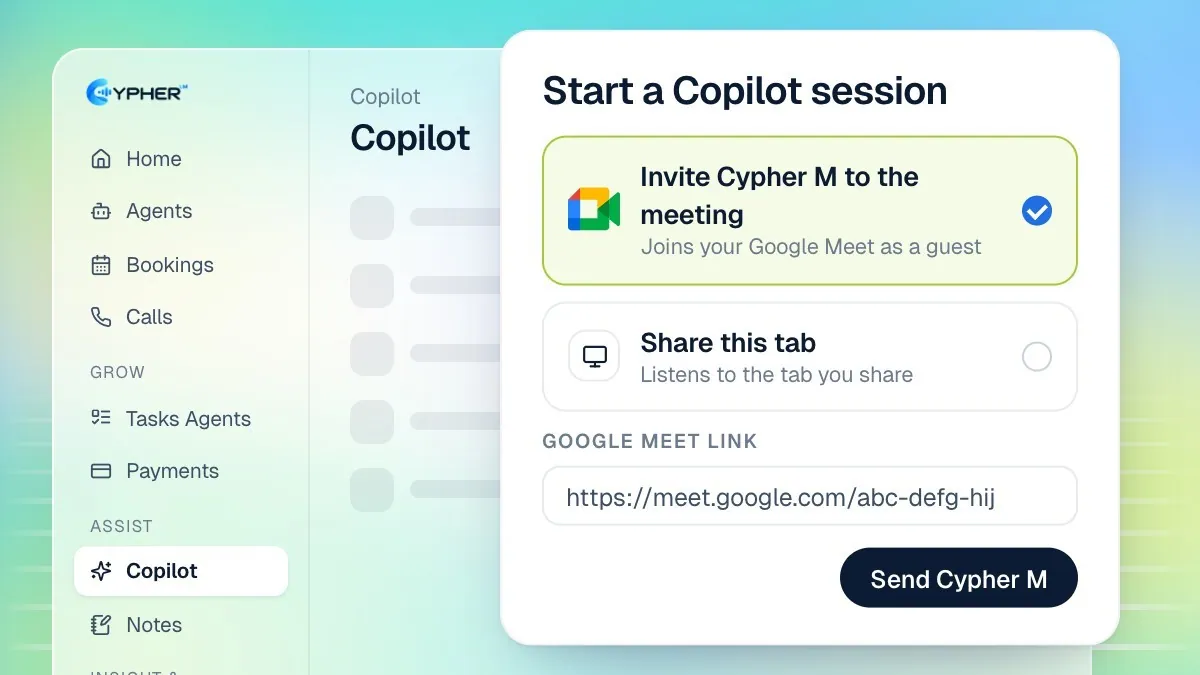
Invite Cypher M to the meeting | Cypher M joins your Google Meet as a guest, hears everyone, and shows hints inside Meet. | Other participants see Cypher M in the meeting. |
Share your Meet tab
This option works today in every workspace that has Cypher M.
- Join the meeting in Google Meet in one browser tab.
- Open the dashboard in another tab, go to Copilot and select Start session.
- Under How should Cypher M listen?, select Share this tab. Tick Remember my choice if you always work this way.
- Choose who you are meeting and the Language of the call, then select Start session.
- On the live page, select Share Google Meet tab.
- In the browser's sharing window, pick the Meet tab and keep Also share tab audio switched on. Then confirm.
- Check the two level meters labelled You and Client. When both move as people speak, Copilot shows Hearing both sides.
Headphones are fine: Copilot takes the meeting audio from the tab, not from your speakers. When you are done, select Stop sharing and then End session.
Invite Cypher M to the meeting
The meeting bot is built and is switched on per workspace. If it is not yet available for yours, the option reads "Coming soon. Use "Share this tab" for now."
- Go to Copilot and select Start session.
- Under How should Cypher M listen?, select Invite Cypher M to the meeting.
- Paste the Google Meet link, for example
https://meet.google.com/abc-defg-hij. - Choose who you are meeting, then select Send Cypher M.
- In Google Meet, admit Cypher M when it asks to join. It joins as its own Google account.
- Follow the status strip on the session page: Joining, Let in, then Listening.
To remove the bot before the meeting ends, select Remove Cypher M on the session page. When it leaves the meeting, the session closes and the notes are written.
The Cypher M Chrome extension
The extension shows Copilot's hints inside the Google Meet window and can admit Cypher M from the lobby for you. It is not listed in the Chrome Web Store; you install it from the dashboard.
- On a session that uses the meeting bot, select Get the extension to download the zip file.
- Unzip the file on your computer.
- In Chrome, open
chrome://extensionsand switch on Developer mode. - Select Load unpacked and choose the unzipped folder.
- Stay signed in to the dashboard at cypherlm.com/dashboard in the same browser so the extension can connect.
Troubleshooting
- Only the You meter moves: you shared the tab without audio. Select Stop sharing, then share again with Also share tab audio on.
- Cypher M is waiting to be let in: someone in the meeting needs to admit it from the Meet lobby.
- Cypher M couldn't join: check the Meet link, then start a new session. You can switch to Share this tab at any time.
- Nothing is transcribed: use Chrome, Edge or Safari on a computer. Firefox is not supported.