How to upload knowledge files
Quick answer
To upload files:
- Open your agent and select Knowledge.
- Choose This agent's knowledge or Shared knowledge.
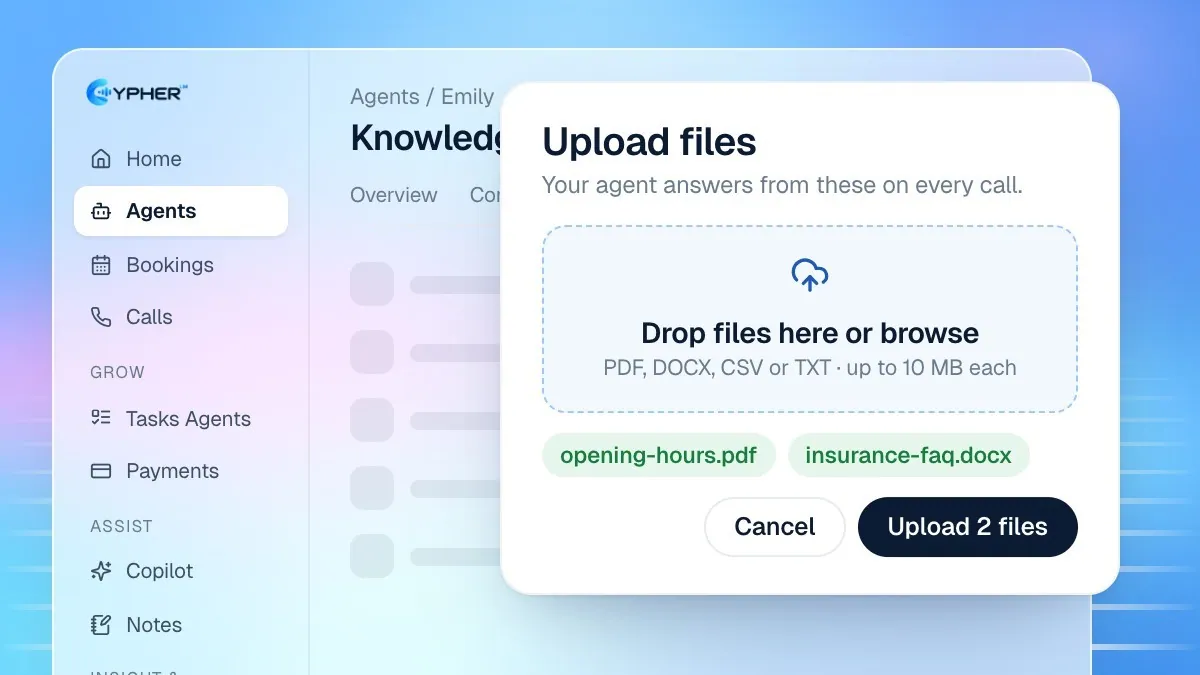
- Select upload and pick PDF, DOCX, CSV or TXT files up to 4 MB.
- Test with Test a question.
Uploading your own documents is the quickest way to make your agent accurate. Once a file is uploaded, the agent can answer questions from it on every call: prices, service details, opening hours, returns, delivery areas and more.
Before you upload
Supported | Details |
|---|---|
File types | PDF, DOCX, CSV and TXT |
Size | Up to 4 MB per file |
Per upload | Up to 10 files at a time |
Good files to start with are a product catalogue or menu as PDF, a price list as CSV, an FAQ document as DOCX, or a text file describing your return policy.
A CSV works well for anything that fits a table, such as services with prices and durations. Give each column a clear header, like Service, Price and Duration, so the agent can match a caller's question to the right row.
Upload files
- Go to Agents, open the agent and select Knowledge.
- From Knowledge pages, choose This agent's knowledge for files only this agent should use, or Shared knowledge for files every agent should use.
- Open the folder you want, or stay at the top level.
- Select upload, then drag your files in or choose them from your computer.
- Wait for each file to finish. Uploaded files appear in the list.
- Open Test a question and ask something the file answers to check it worked.
Organise with folders
- Select New folder (or New subfolder inside a folder) to group files, for example by branch or by service.
- Rename a folder from its menu, or use Move to… to move files.
- Deleting a folder doesn't delete its files. Its files and subfolders move up a level.
Keep knowledge current
- When a price or policy changes, upload the new version.
- Delete the old file so the agent can't quote it.
- Ask the changed question in Test a question to confirm the new answer.
If your documents live in Google Docs, Sheets or Drive, you can import them instead and resync them when they change. See Import from Google Docs and Drive.
Troubleshooting uploads
What you see | What to do |
|---|---|
The file is refused as too big | Keep files under 4 MB. Split long documents or remove large images. |
The file type isn't accepted | Save it as PDF, DOCX, CSV or TXT and upload again. |
You can't add more files | You've reached your plan's file limit. Remove an old file or upgrade. |
The agent still doesn't answer | Check the wording in Test a question, then add an FAQ entry for that question. |
Common questions
Should I use shared or agent knowledge?
Put anything true for your whole business, such as opening hours and policies, in Shared knowledge so every agent uses the same answer. Use This agent's knowledge for material only one agent needs, such as a single branch's prices.
Does the agent read my file word for word?
No. It searches your files for the parts that answer the caller's question and replies in its own words, in the agent's language and tone.