Cypher N note taker overview
Quick answer
To take notes for a meeting:
- Go to Notes and select New note.
- Choose Send the note taker to a Google Meet or Record on this device.
- Paste the Meet link and select Send note taker, or select Start.
- When the meeting ends, open the note to read the summary, action items and meeting notes.
Cypher N is Cypher LM's note taker. It turns conversations into written notes you can act on: a recap for every call your agents answer, and full meeting notes for the meetings you hold yourself. You find everything it writes under Notes in the dashboard.
Two kinds of notes
Call recaps | Meeting notes | |
|---|---|---|
Source | Calls your voice agents answer | Your own meetings: Google Meet, a call on your computer, or a recording |
What you get | Summary, key details about the caller, action items | Summary, action items and detailed notes covering every topic and decision |
Where to find it | Notes › Calls, and the call's drawer in Calls | Notes › Meeting notes |
Meeting notes are written from the whole meeting, start to finish, not a few lines. Every topic, decision and detail discussed is covered, along with who attended and the next steps.
The Notes page
Notes has two tabs:
- Calls: every call your agents handled, with the caller, summary, agent, time and duration. Select a row to read the recap. See How to read call recaps.
- Meeting notes: the meetings Cypher N recorded. Rows show the document, contact and when it happened. If the notes were filed in Google Docs, the row opens the doc; otherwise it shows In dashboard and opens the note in Cypher LM.
Record a meeting
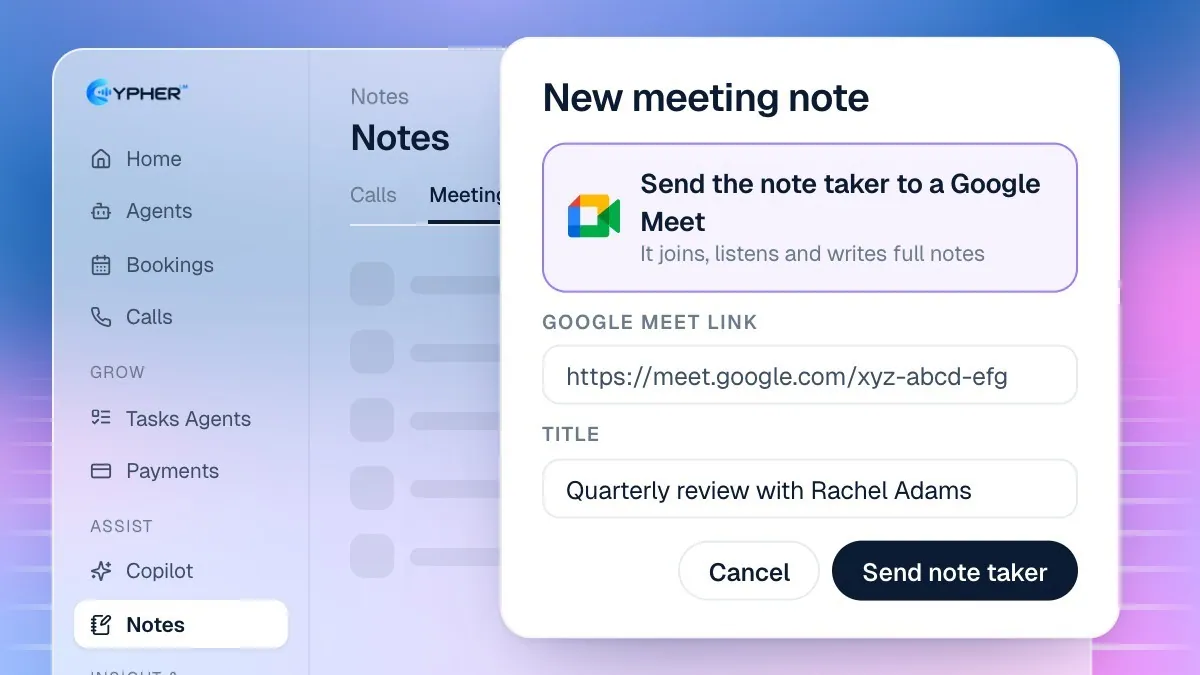
- Go to Notes and select New note.
- Optionally, give the note a Title.
- Choose how to capture the meeting:
- Send the note taker to a Google Meet: paste the Google Meet link and select Send note taker. It asks to join; let it in from the meeting. It records the meeting and writes full notes when the meeting ends.
- Record on this device: select Start, then use Start mic, Share Meet tab to capture both sides of a Meet call, or Upload a recording.
- When the meeting is over, select End & summarise (or Stop and write notes if you sent the note taker).
- Open the finished note to read the Summary, Action items, Meeting notes and Transcript.
If your plan also includes Cypher M, the dialog offers Open Cypher M so you can get live suggestions during the same meeting. See Cypher M copilot overview.
Use and share your notes
- Action items: tick them off as they are done. Ticks here and in Automations › Follow-ups stay in step.
- Export (.md): download the note as a Markdown file.
- Google Docs: when Google Docs is connected, each meeting is saved as its own Google Doc in your Drive. See Note taker settings.
- Delete: deleting a note removes its transcript, summary and follow-ups for good.
Tips for better notes
- Use a headset or a quiet room. Clear audio gives a more accurate transcript and better notes.
- Share the Meet tab rather than relying on your microphone, so both sides are captured.
- Give the note a title that names the customer, so it is easy to find later in Meeting notes.
Plans
Cypher N is included in the Premium plan and during the free trial, and can be added to other plans as the Cypher N add-on. The Cypher M add-on also includes Cypher N. Without Cypher N, call transcripts stay available but summaries and key details are not written. See the pricing page.