Manage bookings in My calendar
Quick answer
To manage your bookings:
- Open Bookings and choose Upcoming, Past or My calendar.
- In My calendar, pick Day, Week, Month, Year or Schedule.
- Select a meeting to see its details, brief and actions.
- Use Add booking to add one by hand.
Every appointment your agents book, every booking from your link, and every booking you add yourself lands in Bookings. This article covers the three views, how to add a booking by hand, and everything you can do with a booking once it exists.
The three Bookings views
- Upcoming: a list of bookings still to happen, with a count of how many there are.
- Past: bookings that have already happened, including ones that still need an outcome.
- My calendar: a full calendar of your meetings with an AI brief for each client.
Use My calendar
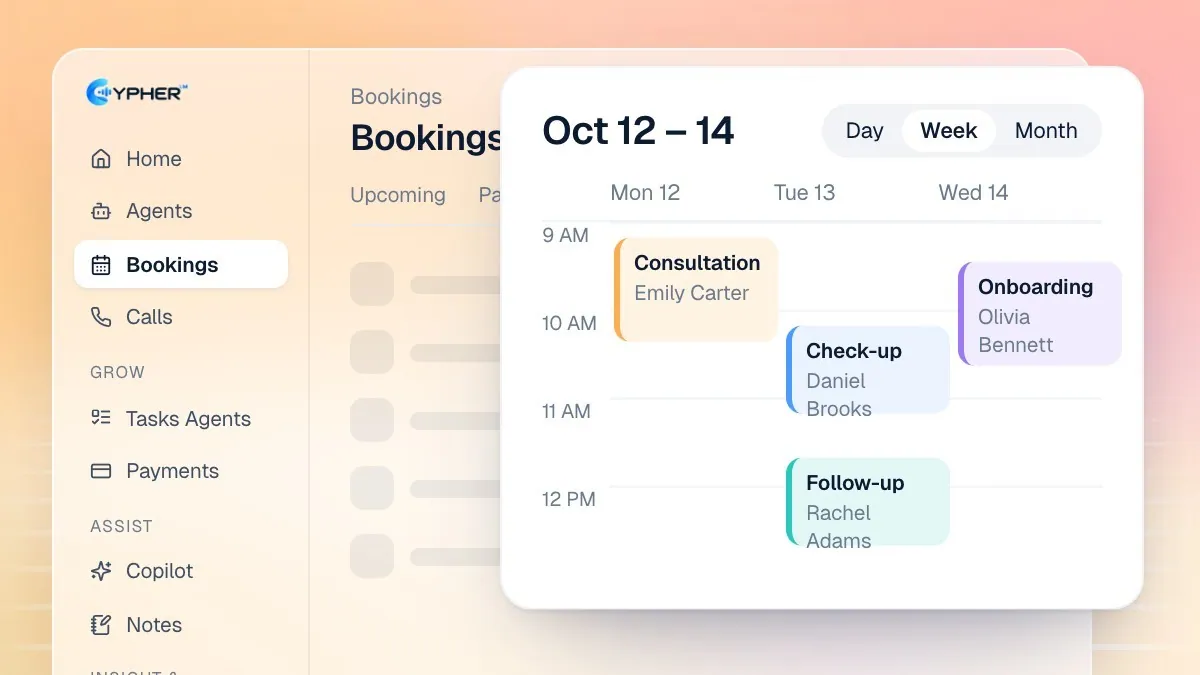
- Open Bookings and select the My calendar tab.
- Choose a view in Calendar view: Day, Week, Month, Year or Schedule. Use the arrows to move back and forward, and Today to jump back.
- Select Open full screen to give the calendar the whole window. The dashboard menu stays one hover away at the left edge. Select Leave full screen or press Escape to return.
- Use the left rail: New starts a booking, the mini month changes the date in the main view, and Upcoming Meetings lists who you are meeting next.
- Select any meeting to open its details, including a Conversation summary built from that client's past calls with your agents. Select See more details for the full booking.
The Next meeting banner shows your soonest meeting with a live countdown, and highlights it when it is less than 15 minutes away. Select Join to open the Google Meet link.
Add a booking by hand
Use this for bookings made by phone, WhatsApp or at the front desk.
- In Bookings, select Add booking, or New in the My calendar rail.
- Choose the Booking type. Its price and location are filled in for you.
- Enter the Customer name and, if you have them, Phone and Email. With an email, the customer gets a confirmation.
- Pick a Date and one of the Free times, or use Or type a time. Times outside your hours are fine; only clashes with other bookings are blocked.
- Add an Agenda or Notes if useful, then save. You see a message confirming who was booked and when.
Change, cancel or close a booking
Open a booking to see its type, time, contact details, location, How it was booked, price, attendance and the emails sent to the customer. Its actions include:
Action | What it does |
|---|---|
Reschedule | Pick a new time. If the customer has an email, they are told the new time. |
Cancel booking | Frees up the time and emails the customer if an email is on file. |
Mark as attended / Mark as no-show | Records what happened after the meeting. |
Resend confirmation | Sends the attendance check again. |
Book a new time / Book again | Starts a new booking for the same customer. |
After a meeting ends, a booking whose customer confirmed attendance is marked Attended automatically, and one whose customer said they could not come is marked No-show. Any others wait in Needs outcome until you mark them. See Confirmation calls and attendance.
Bring Cypher M and Cypher N to a meeting
- Onboard Cypher M: prepares a brief from the client's calls with your agents, and from your Gmail when it is connected with read access, then emails it to you. Onboarded meetings can have Cypher M join the Google Meet automatically.
- Invite note taker: Cypher N joins the meeting and writes full notes when it ends.