How to build your first agent
Quick answer
To create an agent:
- Go to Agents and select New agent.
- Choose Scan my website or Start from scratch.
- On Job, pick its purpose, goal, name and voice.
- On Skills, turn on what it can do, then Start a test call on Try it.
Your agent is the Cypher V voice that answers your customers. You describe your business and what the agent is for, and Cypher LM turns your answers into the agent's instructions, sets up its voice and makes it ready to take calls. There are two ways to build one: the four-step builder inside the dashboard, and a longer guided setup that asks more about your business. Both produce the same kind of agent, and you can change everything later on the agent's Controls tab.
Build an agent in the dashboard
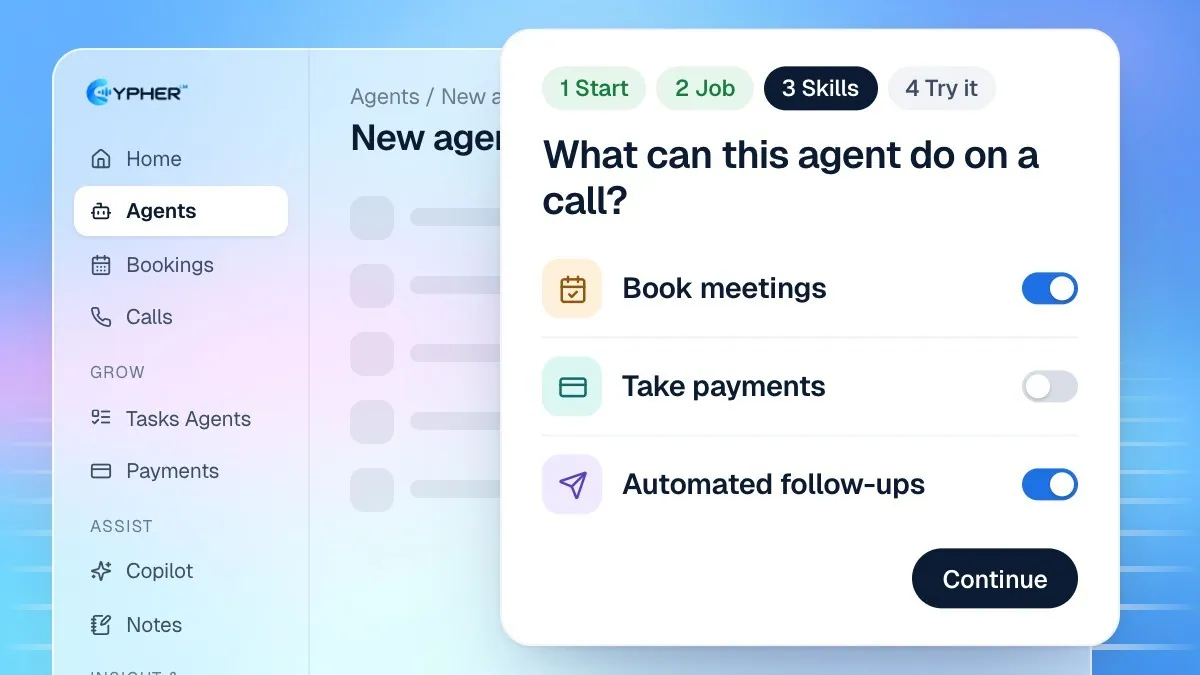
- In the sidebar, select Agents, then select New agent.
- On Start, choose how to begin:
- Scan my website: enter your website address and Cypher LM reads your site to fill in the basics. If it can't read the site, you'll see a message and can start from scratch instead.
- Start from scratch: no website, just a blank agent you fill in yourself.
- On Job, choose what the agent does (for example Receptionist or Appointment booking) and write a One-line goal, such as "Answer questions about our services and book consultations for serious callers".
- Still on Job, under Name and voice, enter the Agent name callers will hear, choose a Gender and pick a Voice. You'll see a sample greeting line for the voice you choose.
- On Skills, turn on what the agent may do during a call: Book meetings, Take payments and Automated follow-ups. You can leave them all off and add them later.
- On Try it, wait while Cypher LM sets up the agent. This usually takes under a minute.
- Select Start a test call and talk to your agent. When you're happy, use Embed code or Call link, or select Go live.
Use the guided setup
The guided setup is a full-screen, step-by-step flow. It asks for your business website (with an option to auto-fill the next steps from your website), business name, contact number, what your business does, your industry, who contacts you most, the language the agent should speak, the agent's name and gender, and any topics it must avoid, such as legal advice or competitor pricing. At the end you review a summary of the agent and start the build. A short building screen appears, then a confirmation that your agent is live.
The contact number you enter is the number your agent gives to callers who ask how to reach you. It is not the number customers call to reach the agent.
Choose a language
Agents speak English or Urdu. A Bilingual agent switches to match the caller and understands both languages in the same call, which suits customers who move between English and Urdu naturally. Bilingual agents are part of Premium and the free trial; on the Basic plan you choose one language.
After you build
- Add your price lists, FAQs and policies on the agent's Knowledge tab so it answers from your real information. See How to upload knowledge files.
- Fine-tune the name, tone, job and call length on Controls. See How to edit your agent's controls.
- Put the agent on your website from Deployment. See How to add Cypher LM to your website.