Appointment types
Quick answer
To create an appointment type and let agents book it:
- Open Bookings › More actions › New appointment type.
- Fill in Name, Duration and Where it happens, then select Create appointment type.
- Open More actions › Manage agents and switch booking on for an agent.
Appointment types are the kinds of appointments people can book with you, like "Consultation, 30 min, Free" or "Site survey, 60 min". Your agents offer them on calls, and they appear on your booking link. You need at least one before an agent can book anything.
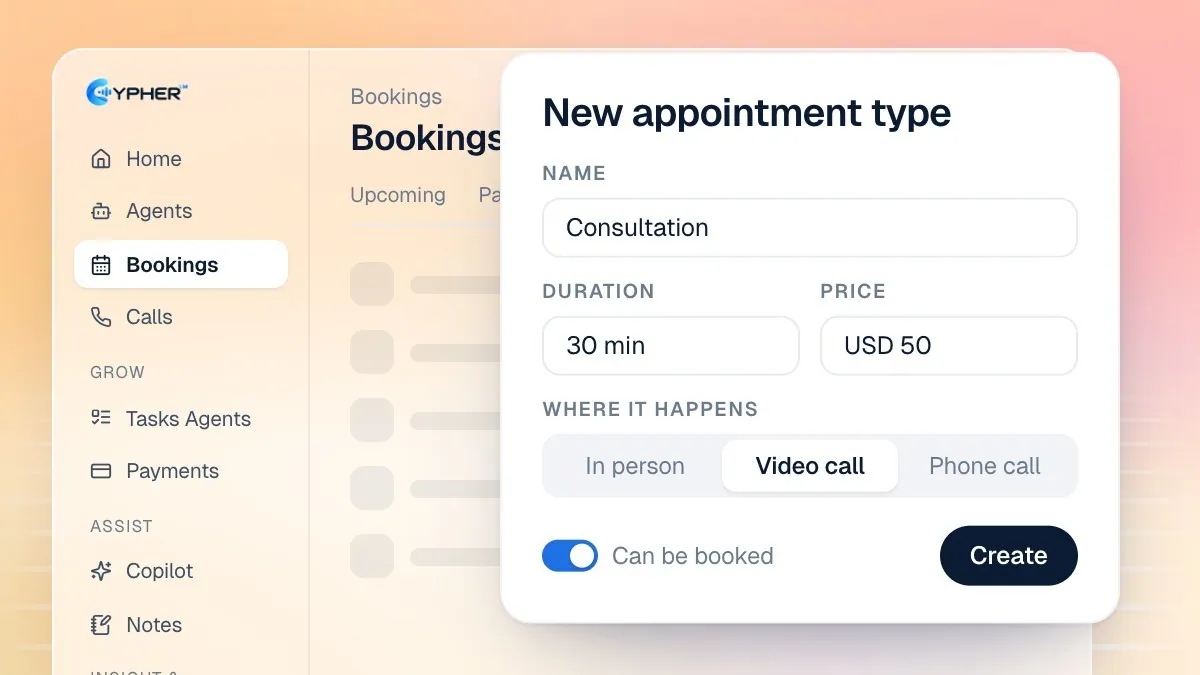
Create an appointment type
- Open Bookings. If you have no types yet, select Create an appointment type in the header. Otherwise select More actions (the three dots) › New appointment type.
- Enter a Name, for example
Check-up. - Choose a Duration.
- Add a Price and Currency if you charge for it. Leave the price empty if it is free.
- Choose Where it happens: In person, Video call or Phone call. For in person, add the Address. For a phone call, add Phone details, such as
We'll call you on the number you give. - Add a Description. It is shown on your booking page.
- Pick a Colour so the type is easy to spot in My calendar.
- Leave Can be booked on, then select Create appointment type.
When Google Calendar is connected, each Video call booking gets its own Google Meet link. See Video conferencing.
Let your agents book appointments
Creating a type does not switch booking on for your agents. You choose which agents may book.
- Open Bookings › More actions › Manage agents. The drawer is titled Let your agents book.
- Turn on the switch next to each agent that should book. The row changes to Books appointments during calls and you see a confirmation message.
- Optionally, select Change next to Meeting hours to give that agent its own hours.
If you have no appointment types yet, the drawer reminds you to add one so your agents know what they can book. You can also switch booking on from the agent: open it, select Skills and turn on Book meetings.
How an agent books on a call
During a call the agent checks your free times, offers a few options, and books the one the caller picks before the call ends. To confirm a booking it needs a working email address or phone number from the caller. The customer gets a confirmation email when an email is on file.
A caller only ever has one booking for the same appointment. If someone rings back to fix a mistyped email, name or phone number, the agent corrects the existing booking, with the same time and the same Meet link, instead of creating a second one. A caller booking for someone else, such as a family member, still gets a separate booking under that person's name.
Edit, duplicate or remove a type
Open More actions › Appointment types to see all your types. Each one has an On or Off switch and a menu with Edit, Duplicate, Turn off or Turn on, and delete. Duplicate creates a copy named with "(copy)", which is handy for a longer version of the same service.
When you delete a type, past bookings keep their details, but the booking link for that type stops working. A type that still has upcoming bookings cannot be deleted: turn it off instead, or cancel those bookings first.