How to edit your agent's controls
Quick answer
To change how your agent behaves:
- Go to Agents, open your agent and select Controls.
- Edit Identity or Job fields.
- Select Save Changes.
- Changes are live in a couple of minutes.
The Controls tab is where you decide who your agent is and what it is for. You can change its name and voice, its job and goal, the answers it collects on each call, how long calls can run and when it offers meetings. Changes reach your live agent within a couple of minutes, so you can tune it between calls.
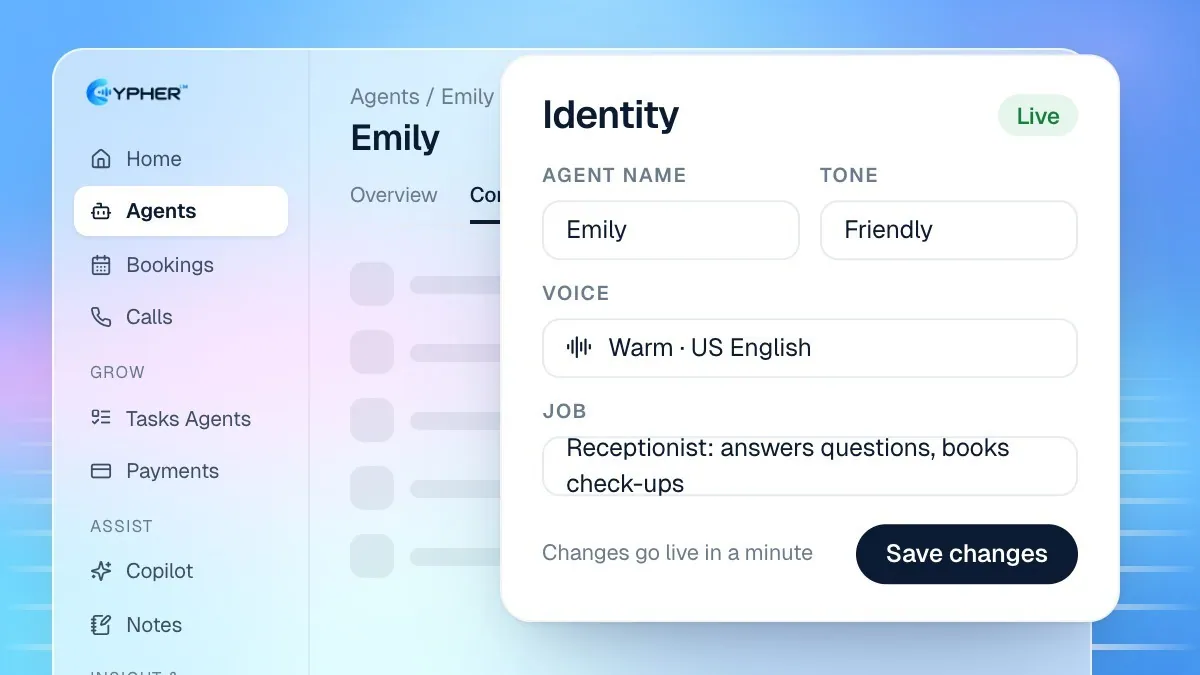
Change the agent's identity
- Go to Agents, open your agent and select Controls.
- Under Identity, edit the Agent Name callers hear when the agent introduces itself.
- Choose an Agent Tone: Professional, Friendly, Casual, Formal or Empathetic.
- Choose an Agent Gender (Male, Female or Neutral) and an Agent Voice.
- Set Max Call Duration in minutes if you want a hard limit.
- Select Save Changes. You'll see Changes saved. Live in a couple of minutes.
Under Avatar you can choose what callers see on your agent's share page: the Cypher orb (the default), a 3D avatar, or Your own avatar (a photo, your logo or a .vrm 3D model).
Language and voice
Agents speak English, Urdu or both. You choose the language when you build the agent, and the agent's Overview tab shows it under Setup. Bilingual agents switch to match the caller and are part of Premium and the free trial. If you pick a voice that can't speak your agent's language, the dashboard tells you and the default voice is used instead.
Set the agent's job
- Under Job, open What this agent does and pick a purpose: Receptionist, Appointment booking, Customer support, Lead qualification, Survey or feedback, Payment reminders, Follow-ups, or Custom.
- Write the Goal in one sentence, for example "Qualify solar installation leads and book a site survey for serious buyers".
- Add Extra instructions for rules such as "Always ask for the city".
- Under Answers to collect on each call, add the questions the agent should ask. Choose an Answer type (Text, Number, Yes/no, Date or One of a list) and tick Must ask on every call for the essential ones.
- Under Call length, pick one of the Common lengths. The agent politely wraps up when a call reaches it.
- Select Save Changes.
Describe a change in your own words
Adjust how your agent behaves lets you change behaviour without editing fields. Type the change in What should change?, for example "Always offer a callback if the caller can't decide, and mention we're open on Saturdays". Select Preview change to see a plain-language list under Here's what will change, then select Apply or Discard. Applied changes are live in about 2 minutes. If the request is unclear, you'll be asked to say it another way.
Meeting hours, skills and phone
- Meeting hours for this agent: keep Same as my account hours or choose Custom days & time slots for this agent, then use Add time slot and Copy to all days.
- What this agent can do: turn on Book appointments (Cypher S) or Take payments (Cypher P). The agent uses a stronger model when either is on.
- Phone number: shows Connected or Not connected yet. Use Request a number to ask our team to connect one.