Set your hours and booking rules
Quick answer
To set your booking hours:
- Open Bookings › More actions › Hours.
- Set your Time zone and the days and times you are open.
- Add holidays under Date overrides with Add date.
- Adjust Booking rules and save.
Your hours tell Cypher S when your agents may offer appointments. They apply to every agent and to your booking link, and they combine with your existing bookings and any connected calendar. This article covers the Hours drawer and how to give a single agent different hours.
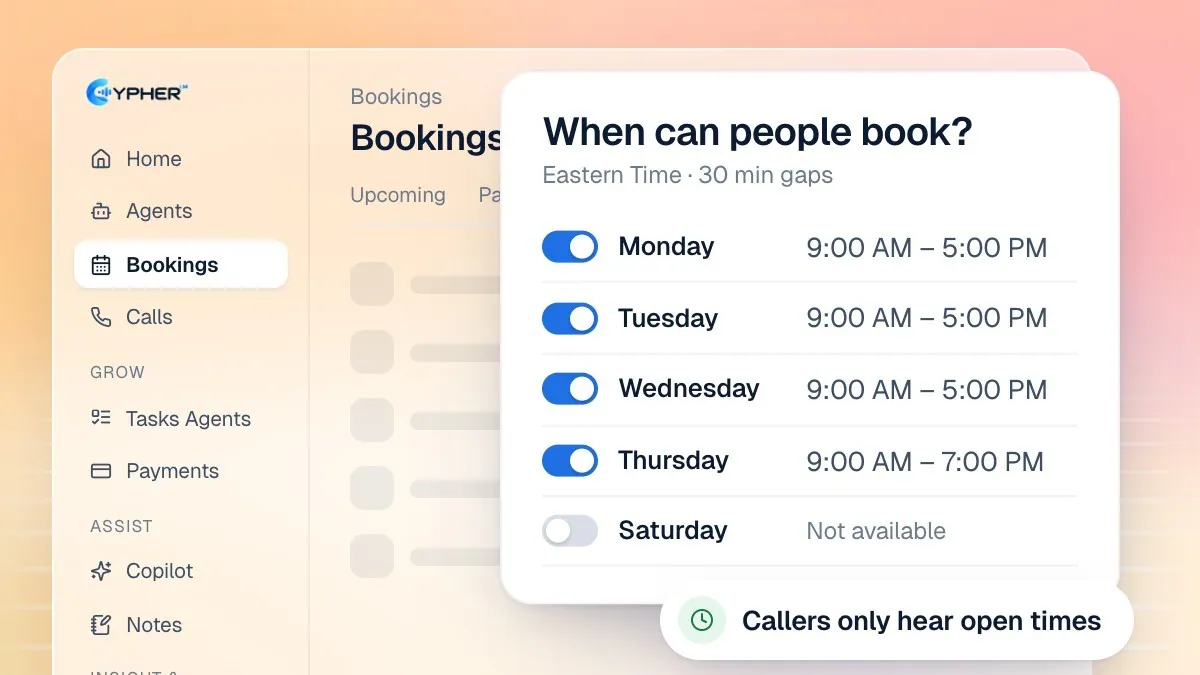
Set your weekly hours
- Open Bookings, select More actions (the three dots next to the header) and choose Hours. The drawer is titled When can people book? and summarises how many days and hours you are open each week.
- Set your Time zone. Everyone sees times in this zone: you, your agents and people booking from your link.
- For each day, set the times you take appointments, or mark the day as unavailable. You can add more than one time slot to a day, for example a morning and an afternoon session.
- Save your changes. You see the message Availability saved. If you close the drawer first, a note reminds you that you have unsaved changes.
Add holidays and special hours
Date overrides handle holidays or special hours, like Eid, without changing your weekly pattern.
- In the Hours drawer, find Date overrides and select Add date.
- Pick the date. To close for the day, turn on Closed all day. To open at different times, set Special hours instead.
- Add a Label, for example
Eid holiday, so you remember why the date is different. - Save the override. To remove it later, use the remove button on its row.
If you add an override for a date that already has one, the dialog warns that the new override replaces the existing one.
Booking rules
Booking rules control how your agent offers times within your hours.
Rule | What it does |
|---|---|
Gap around each booking | Keeps time free before and after every booking, so meetings never run back to back. Choose None to allow back-to-back bookings. |
Most bookings per day | Caps how many bookings a day can take. When the day is full, your agent offers the next day. Choose No limit to remove the cap. |
Minimum notice | Sets how far ahead someone must book, for example 2 hours or 1 day, so nobody books a slot that starts in five minutes. |
Check what callers will be offered
The What callers will be offered panel shows the next free times worked out from your saved hours, your bookings and your calendar. Choose an appointment type under Booking type to preview to see slots of that length. Under How your agent says it, you can see the kind of sentence your agent uses on a call, such as offering two times and asking which works better.
On a call, your agent only offers times it has just checked, spreads its suggestions across the day, and moves to the next open day within the next 30 days when a day is full.
Give one agent different hours
Your account hours apply to every agent. If one agent should book at different times, for example an after-hours line, give it its own meeting hours.
- Open Bookings › More actions › Manage agents.
- Find the agent and, next to Meeting hours, select Change. The badge shows Account hours or Custom.
- Set the days and time slots for this agent, then select Save hours. You see Meeting hours saved.
You can also set this from the agent itself: open the agent, select Controls and, under Meeting hours for this agent, choose Custom days & time slots for this agent instead of Same as my account hours. Use Add time slot and Copy to all days to fill in the week quickly.