How to create payment links and payment requests
Quick answer
To create a payment link:
- Go to Cypher P and open Payment links.
- Select New payment link and enter a Name.
- Choose Fixed amount or Customer enters the amount.
- Make sure Link is on is switched on, save, then select Copy link.
Cypher P gives you two ways to ask for money outside a call. A payment link is reusable: one link for a service, a deposit or a donation, which you can post on your website or send to anyone. A payment request is for one customer and one amount, and can be emailed to them directly.
Payment link | Payment request | |
|---|---|---|
Use it for | A fixed service or an open amount, shared with many people | One customer, one amount |
Reusable | Yes, until you turn it off | No, it is paid once |
Emailed by Cypher LM | No, you share it | Optional |
Create a payment link
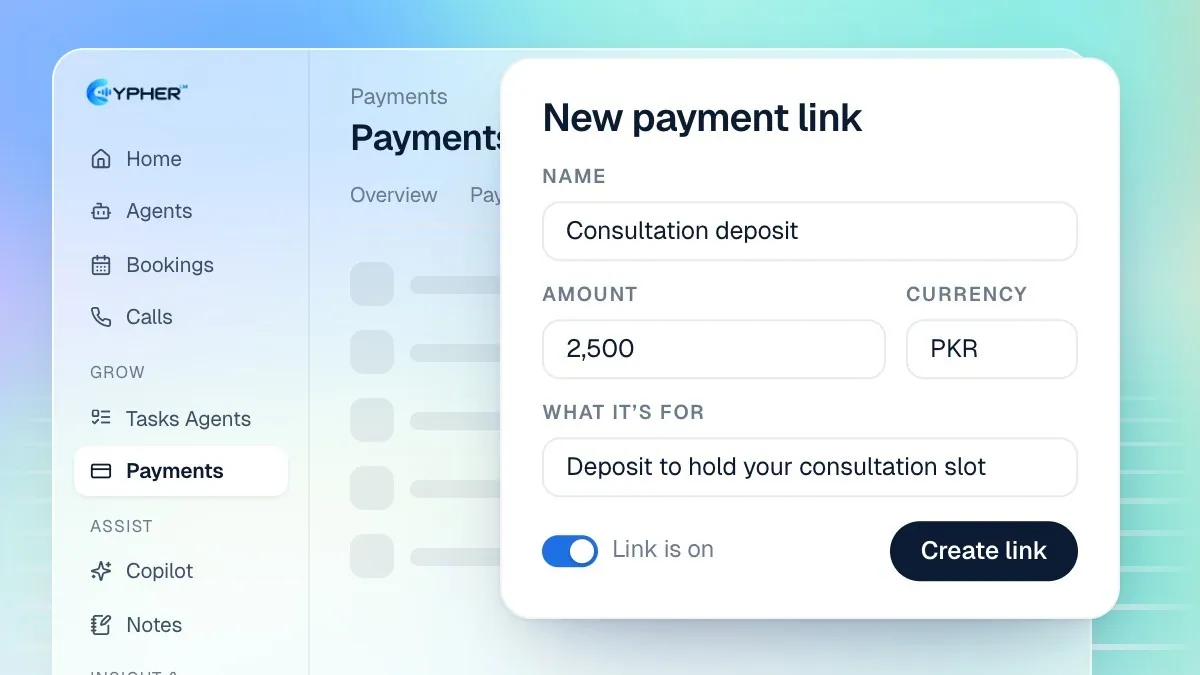
- Go to Cypher P and open the Payment links tab.
- Select New payment link.
- Enter a Name, for example "Consultation deposit".
- Choose how the amount works:
- Fixed amount: enter the Amount and choose the Currency (PKR or USD).
- Customer enters the amount: the customer types the amount on the payment page.
- Under What it's for, describe the payment. Customers see this on the payment page.
- Keep Link is on switched on so it can be paid.
- Save, then select Copy link on the link's card and share it.
Each link's card shows its name, amount, status (Active or Off), the URL and how many times it has been used.
Edit, turn off or delete a link
Open the link's menu to Edit it, Turn off or Turn on, Open link to see what customers see, or Delete it. Turning a link off stops new payments without losing its history.
Send a payment request to one customer
- On the Cypher P page, select New payment request.
- Enter the Amount and Currency.
- Describe What it's for. This is required.
- Optionally add the Customer name and Customer email.
- To send it by email, tick Email the payment link to the customer.
- Create the request. You see Payment request created with a copyable Payment link and, for bank or wallet transfers, a Reference code.
Share the link by WhatsApp or SMS if the customer prefers. Ask them to include the reference code with a bank or wallet transfer so you can match it.
Follow up on a request
Under Cypher P, pending requests have Copy link, Email the link again and Cancel request in their menu. When a bank or wallet payment arrives, select Mark as paid. Open payment page shows exactly what the customer sees.
Where to use payment links
- On your website: add a "Pay deposit" button that opens the link.
- After a booking: send the link with the booking confirmation when you take a deposit for appointments. See Share your booking link.
- In chat apps: paste the link into WhatsApp or SMS. The payment page works on any phone.
- On printed material: turn the link into a QR code with any QR tool for your counter or invoices.
Payments from links show the source Payment link under Cypher P, and the Overview tab adds them to your totals with everything else.