How to connect Google Calendar, Meet, Gmail, Docs, Sheets and Drive
Quick answer
To connect Google:
- Go to Settings › Integrations.
- In the Google card, select Connect Google.
- Sign in and allow the services you want.
- Back in Cypher LM, select Set up now under Your Google workspace.
Cypher LM works with your own Google account. One sign-in lets your agents check your free time and book into Google Calendar, give video bookings a Google Meet link, send follow-ups and payment links from your Gmail, learn from documents in Docs and Drive, and keep a call log in a Google Sheet you own.
You choose which services to grant, and you can disconnect at any time. Cypher LM only uses the permissions you grant, and never shares them.
What each Google service does
Service | What Cypher LM uses it for |
|---|---|
Google Calendar | Agents check your free time and book into your calendar (Cypher S). |
Google Meet | Every video booking gets a Meet link automatically. |
Gmail | Follow-ups, confirmations and payment links go out from your own inbox. |
Google Docs | Train your agent on documents you keep in Docs, and file meeting notes. |
Google Sheets | Log every call and lead to a sheet you own. |
Google Drive | Pull FAQs, menus and price lists from Drive. |
Connect Google
- In the dashboard, go to Settings › Integrations.
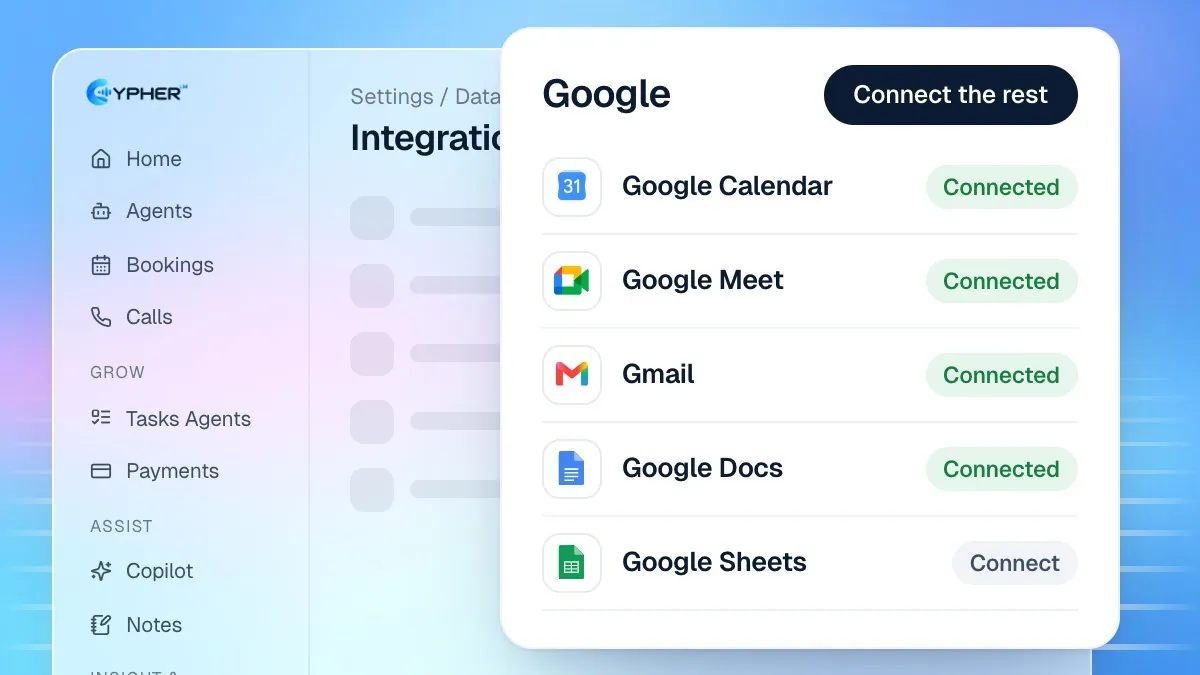
- In the Google card, select Connect Google. If some services are already connected, the button reads Connect the rest. You can also connect one service with its own Connect button.
- Sign in to Google and review the permissions. Keep the boxes ticked for the services you want.
- You return to Cypher LM, and each granted service shows as connected.
Some services are needed by specific features: bookings need Google Calendar, video bookings need Google Meet, and importing Sheets or PDFs into knowledge needs Google Drive. If a feature asks you to connect a service, it opens this same flow.
Your Google workspace: call log and notes doc
Under Your Google workspace, Cypher LM keeps two files in your own Drive up to date:
- Call log (Google Sheets): a sheet with tabs for calls, bookings and payments. Rows update in place when something changes.
- Call notes (Google Docs): a doc with Cypher N's call notes, newest first.
- Select Set up now to create the files.
- Use the switches to choose what is written: Calls, Bookings, Cypher P and Call notes.
- To fill the files with history, select Sync last 30 days. Each run copies up to 200 items; run it again if you have more.
Disconnect Google
- Go to Settings › Integrations.
- In the Google card, select Disconnect.
- Confirm in the "Disconnect Google?" dialog.
Your agents stop booking into Google Calendar, adding Meet links and sending from your Gmail. Existing bookings are kept, and the files in your Drive stay yours.
Troubleshooting
- A feature still says to connect a service. That service was not ticked when you signed in. Select Connect the rest and allow it.
- Bookings are not appearing in Google Calendar. Check the calendar chosen under Bookings › Hours › Add bookings to.
- You signed in to the wrong Google account. Select Disconnect, then connect again with the right account.
Other integrations
The More integrations card lists what else is available. Card payments with Stripe are set up in Cypher P › Settings (select Open Payments settings); see How to connect Stripe. Outlook Calendar, HubSpot and Salesforce are marked Coming soon. Microsoft calendars are not supported yet.